

Manage your languages from one place: see how much of each is translated, release every waiting translation of a language at once, change your default language, or remove a language you no longer need.
Who can do this: Owners and Admins · Plans: Growth and Catalyst
See how much is translated
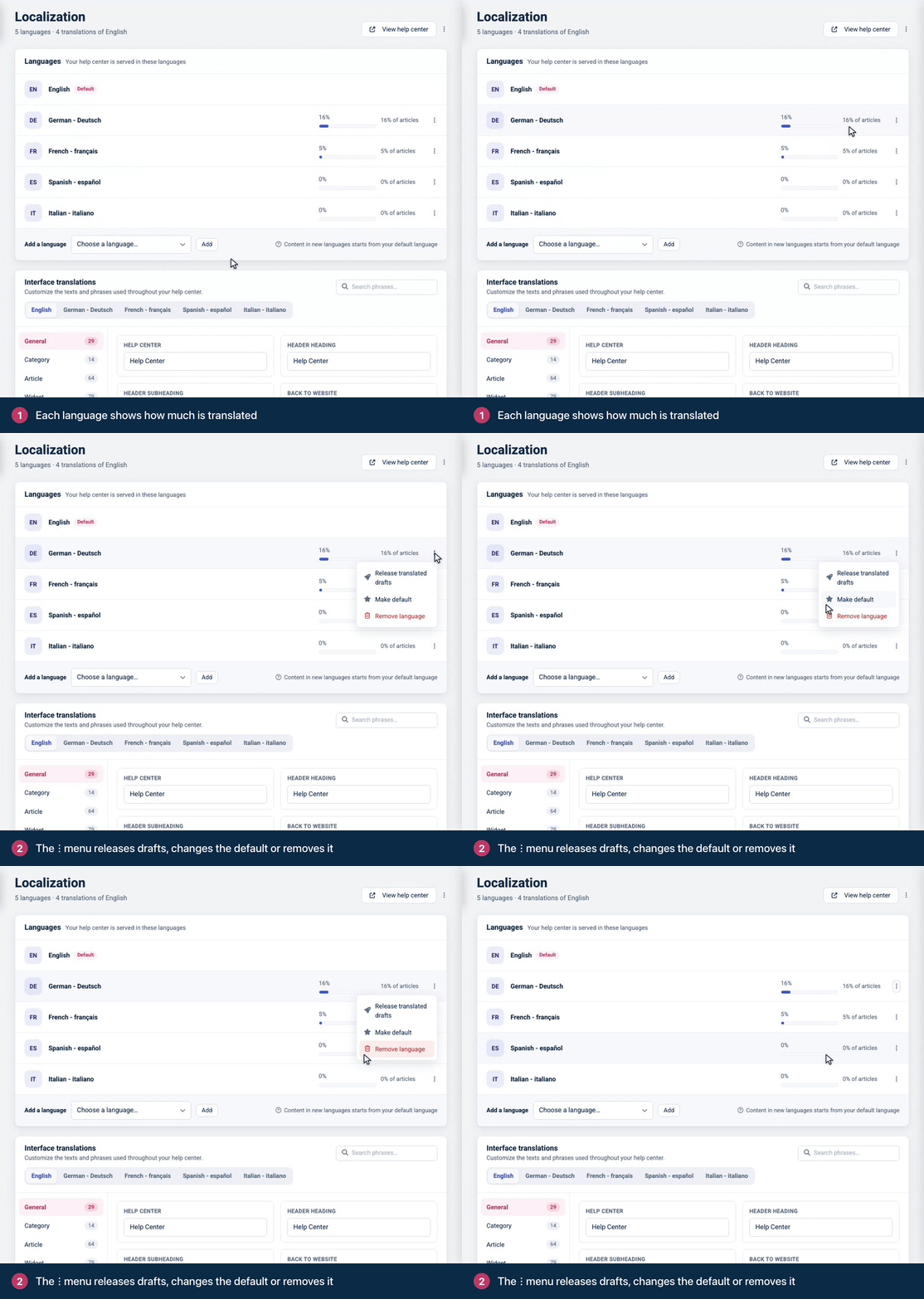
In the left menu, click the gear icon, then Localization. Under Languages, each language shows its code and name. Your default language is marked Default. Every other language shows:
A bar with the share of your articles that have a released translation, for example 16% of articles.
A waiting count, such as 3 waiting, when translations are written but not released yet.
The ⋮ menu next to a language holds the actions below.
Release all waiting translations of a language
Instead of opening each article and turning on Released, release every written translation of a language in one go.
Click ⋮ next to the language, then Release translated drafts. When some are waiting, the item names the number, for example Release 3 translated drafts. You can also click the waiting count.
Check the summary. It tells you how many of the articles are published, so their translation goes live as soon as the release finishes, and how many are drafts, whose translation stays hidden until the article itself is published.
Click Release followed by the number, for example Release 3 translations.
A progress bar shows the release as it runs. You can leave the page while it works, and a message tells you when the translations are live. Search is updated so readers find them in that language.
Only translations with a title and some text count as waiting.
Each article gets a "Translation released" entry in its history, so you can turn any single translation back off from the article editor.
One release runs at a time per help center.
If a release stops early, nothing it already released is undone. Start it again to release the rest.
Change your default language
Your default language is the one your articles are written in first, and the one readers see when they haven't picked another.
Click ⋮ next to the language that should become the default, then Make default.
Choose what happens to your existing content. For example, when you change from English to German:
Migrate content to German: articles, categories and templates move to German. Choose this when your content is already written in German, for example when the help center was set up with the wrong language.
Keep English as a translation: English stays as an additional language and keeps its content.
Click Make default.
When you migrate, HelpCenter.io moves your content in the background and takes you to your articles. Migration only runs when nothing has been written in the new language yet. If some articles or categories already have text in it, the default language changes without moving any content.
When you keep the old language as a translation, readers of the new default language see only the articles that have text in it. The old language's articles show on this page as waiting translations: release them, as described above, so readers of that language see them again.
Changing the default language affects every page of your help center. Do it at a quiet time and check your help center straight after.
Remove a language
Click ⋮ next to the language, then Remove language.
Confirm with Remove language.
Readers stop seeing that language, including its article translations and interface texts, and get your default language instead. A link to a page in the removed language opens your help center's home page.
Troubleshooting
The release item is missing from the ⋮ menu. A release is already running for this help center. Wait for it to finish, then try again.
The release window says nothing is waiting. Every translation of that language with a title and text is already released. Translations show up as waiting once they're written, by hand or with Auto-translate.
A released translation still doesn't show. Check that the article itself is published. See A translation doesn't show.
Comments
Be the first to comment.