

Staged changes let you rework a live article over hours or days while readers keep seeing the published version. Your edits are saved to your account and go live only when you click Publish changes.
Who can do this: Owners, Admins and Editors · Plans: Catalyst
Stage changes to a live article
Open a published article from Articles and edit it as usual.
A few seconds after you stop typing, your edits are saved to a staged copy. A banner tells you "You're editing a staged copy. Readers still see the live version." The status pill reads Staged changes.
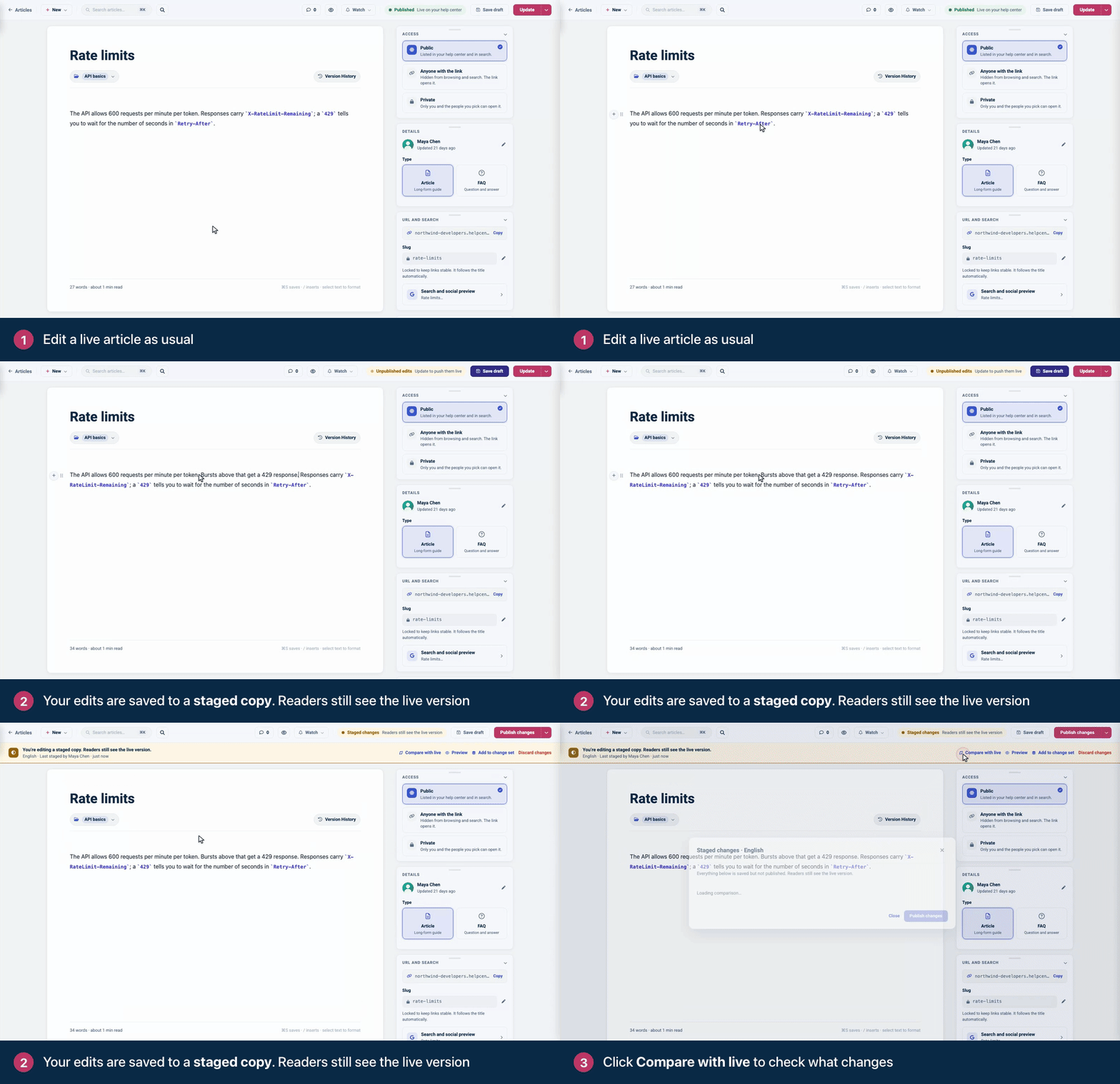
To save straight away, click Save draft. Your changes to the title, text, URL, category, access, search settings and author are all staged, and each language is staged separately. Anyone on your team who opens the article sees the staged copy and can carry on from it.
Check and publish
Click Compare with live in the banner to see exactly what will change: added and removed text, and any new title or URL.
When it's ready, click Publish changes.
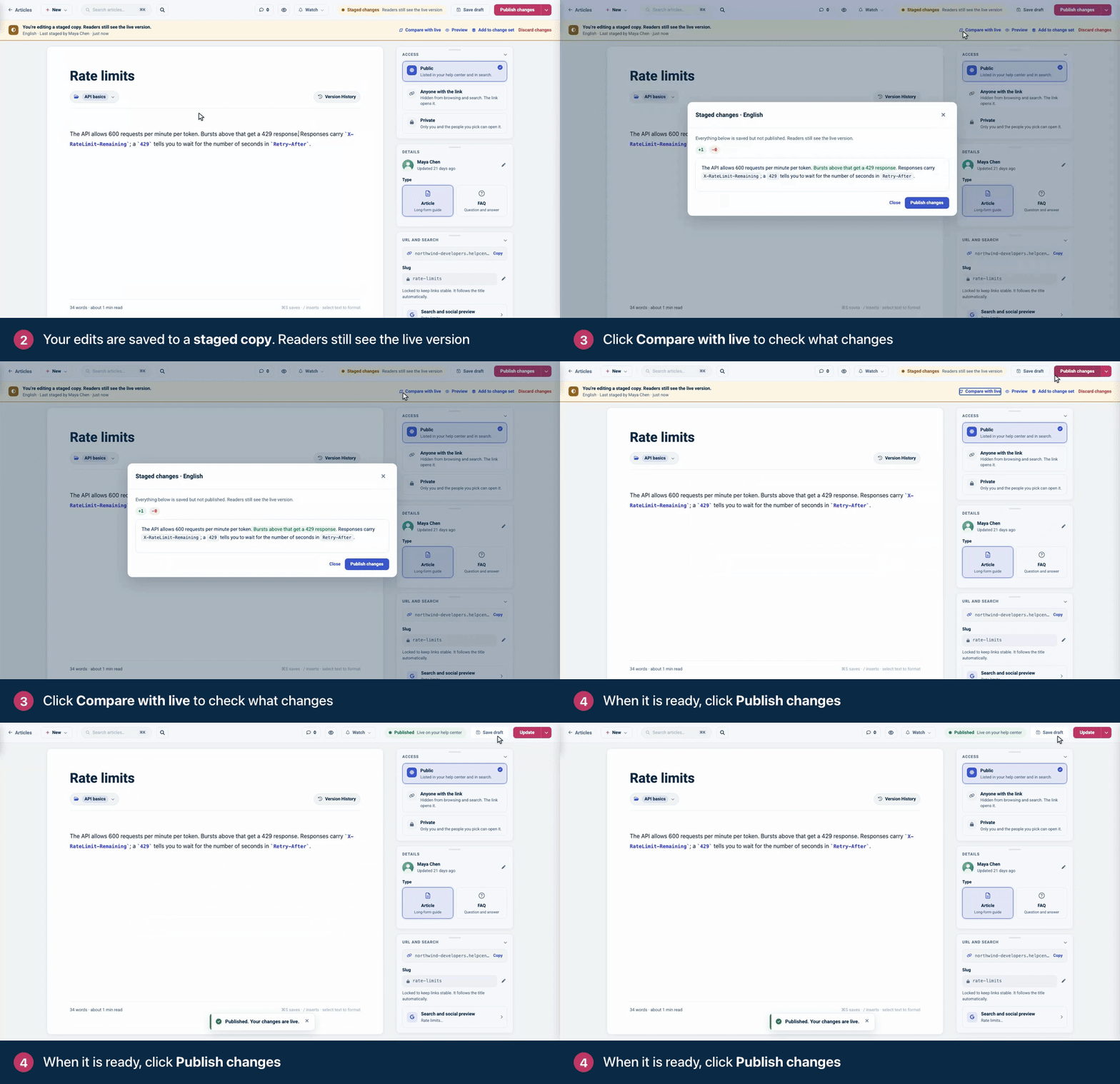
You'll see "Published. Your changes are live." To check the page itself first, click Preview in the banner: it shows the staged copy on your help center, and only your team can open it. If you changed the URL, the old address starts redirecting to the new one when you publish.
Discard staged changes
Click Discard changes in the banner. The staged copy is deleted and the live version stays as it is. When more than one language has staged changes, you can discard one language, or all of them with Discard all staged changes.
What readers see
Nothing, until you publish. Staged changes never appear on your help center, in its search, in the widget, in AI Answers or in your sitemap.
Your team can keep track of them on the Articles page: articles with staged changes carry a Staged label, the Pending changes view lists them, and search there finds staged text too.
Good to know
Staging only applies to published articles. A draft is already hidden from readers, so it saves as usual.
Quick edit on the Articles page skips staging and changes the live article. Use the editor for staged work. See See article details and make quick edits.
Version History shows the staged copy, the live version and earlier live versions you can roll back to. See See and restore earlier versions of an article.
To publish staged changes to several articles at the same moment, add them to a change set. Change sets are in early preview: if your help center doesn't have them yet, click Change sets in the left menu and then Request access. See Release many changes together with change sets.
When two people edit
The banner says someone saved changes to this staged copy. A teammate saved first. Copy any text you want to keep, then click Reload to continue from their version. Keep editing closes the message.
"The live article changed after these edits were staged." Someone updated the live article in the meantime, for example with a quick edit. Click Compare to see the difference. Then choose Publish anyway to replace their change with yours, or Discard staged and start from live.
Stage changes over the API
You can stage and publish changes with the HelpCenter.io API too, with an API key or through a connected AI agent. See Staged changes and versions on the developer portal, and Create an API key.
Comments
Be the first to comment.