

Give your Zendesk agents your help center inside every ticket. They can search your articles, see suggestions for the ticket and insert a link or the whole article into their reply, without leaving Zendesk.
Who can do this: Owners and Admins · Plans: All plans (Smart suggestions need the Catalyst plan, or the AI add-on on Bootstrap and Growth)
Step 1: Switch on Zendesk in HelpCenter.io
In the left menu, click the gear icon, then Settings.
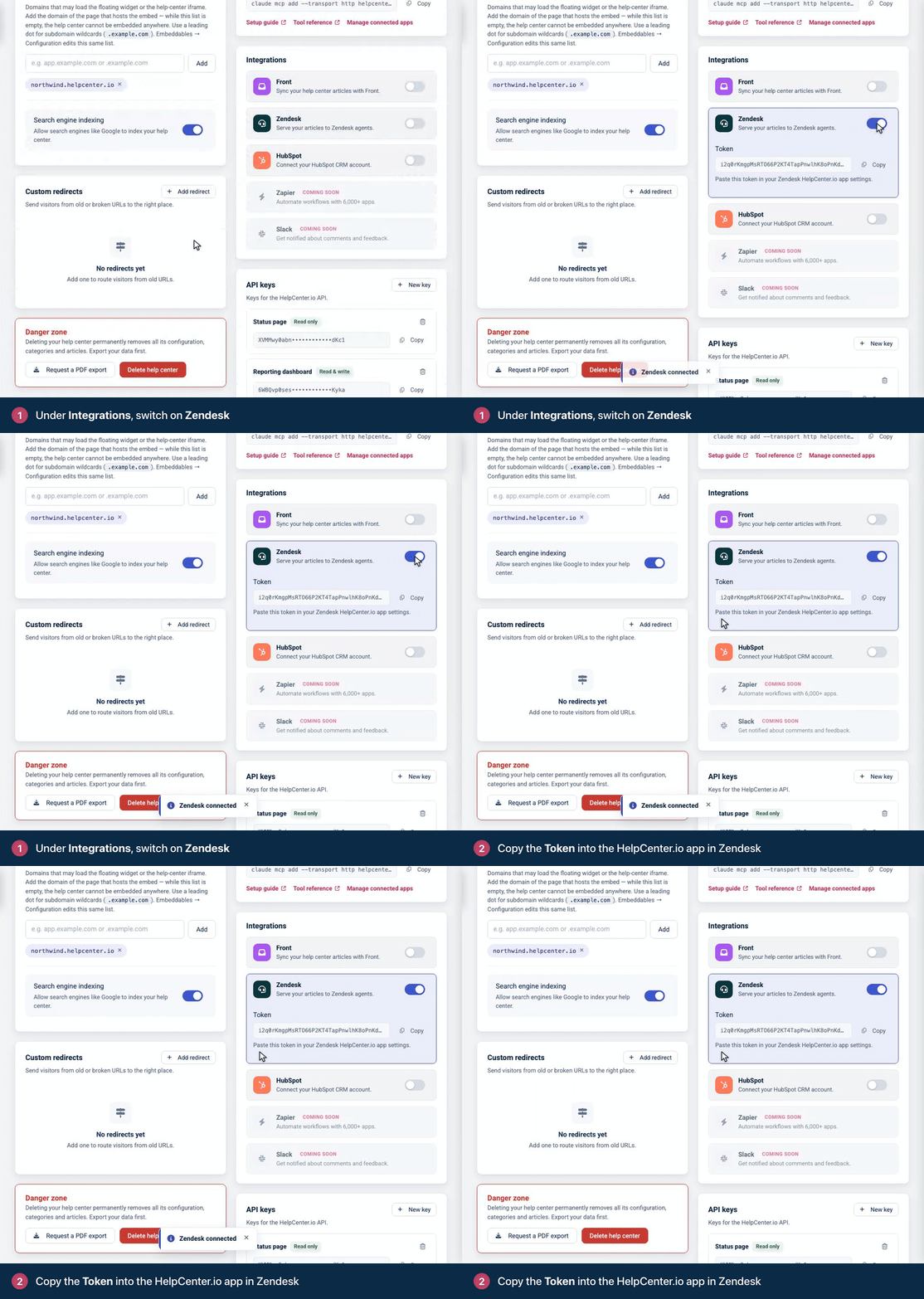
Under Integrations, switch on Zendesk. A Token appears.
Click Copy next to the token.
Step 2: Install the HelpCenter.io app in Zendesk
Open the HelpCenter.io app on the Zendesk Marketplace and install it in your Zendesk account.
In Subdomain, enter your HelpCenter.io subdomain: the part before
.helpcenter.ioin your help center's address. Foracme.helpcenter.io, enteracme. Use it even if your help center runs on your own domain.Paste the token into Integration token.
Scroll down and click Install.
What agents see in Zendesk
The HelpCenter.io app appears in the ticket sidebar. Agents can:
Search your articles from the search field.
Check Smart suggestions: articles that match the latest comment on the ticket.
Browse your Categories.
Pick the language of the articles, when your help center has more than one.
Open an article and click Insert Link or Insert Content to add it to their reply. Insert Content adds the version readers see, without your team's internal notes.
Turn it off
Switch off Zendesk under Settings → Integrations. The token stops working straight away. If you switch Zendesk on again later, you get a new token: paste it into the app's settings in Zendesk.
Troubleshooting
The app shows no categories or an error. Open the app's settings in Zendesk and check that Subdomain matches your HelpCenter.io subdomain exactly and that the token matches the one under Settings → Integrations. If you changed your help center's subdomain, update it in the app too.
No Smart suggestions. They need the Catalyst plan or the AI add-on, and they only show when the ticket has a comment that matches your articles. If you added AI recently, switch on AI Answers once under Settings → AI features, so your existing articles are prepared for suggestions.
Comments
Be the first to comment.