

When readers still see the old version, the change is usually saved but not published yet. Find what you changed below.
You edited an article
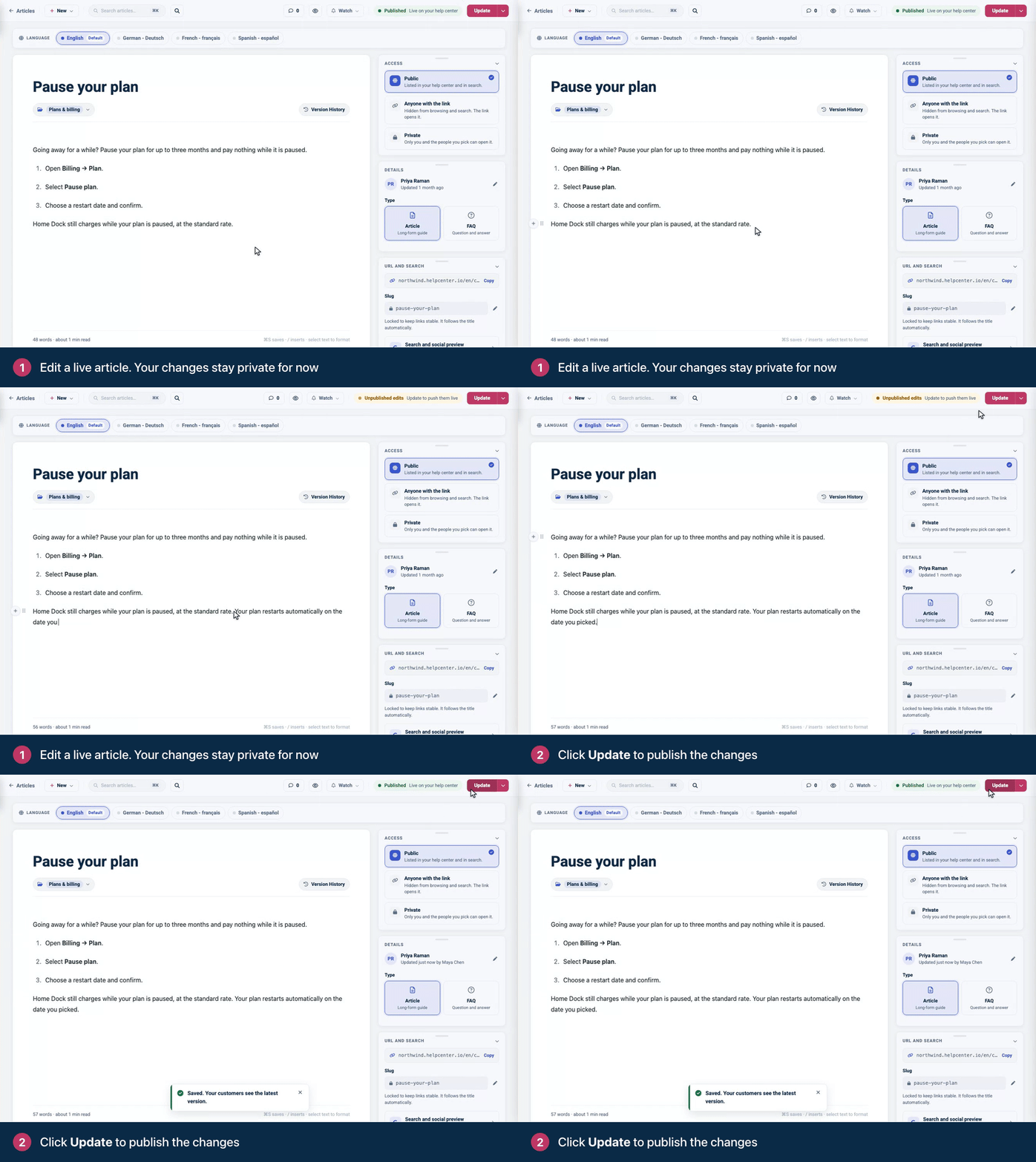
The status next to the buttons at the top of the article editor tells you where your edits are:
The editor shows | What it means | What to do |
|---|---|---|
Unpublished edits | The article is live, but your latest edits aren't. | Click Update. |
Draft saved | The article is saved, but it isn't published. | Click Publish. |
Not saved | The draft exists only in your browser. | Click Save draft, then Publish when it's ready. |
Staged changes | Your edits are in a staged copy. Readers still see the live version. | Click Publish changes. |
Staged · in "Name" | The edits belong to a change set. | They go live when the change set is published, or at its scheduled time. |
Published | Readers can see this version. | See "Your browser shows an older copy" below. |
Staged changes and change sets are part of the Catalyst plan and are in early preview. See Edit live articles safely with staged changes.
You translated an article
Readers see a translation only after it's released. In the language bar, pick the language and turn on Released. See A translation doesn't show.
You changed the design
Everything you change in the template editor saves to a draft. All changes saved means your draft is safe, not that it's live. Visitors see the new design after you click Publish, add an optional note and click Publish again. See Publish your design.
You're looking at a different help center
If you run more than one help center, check which one you changed. Hover the logo at the top of the left menu to see the help center you're in. View help center on the Articles page opens that one. See Switch between your help centers.
Your browser shows an older copy
Give it a moment after you publish, then reload the page.
Open the page in a private window where you're not signed in. That's exactly what readers see.
Signed in, you can also see things your readers can't, such as private articles and team-only categories. If readers are missing an article you can see, see Someone can't see an article or the help center.
Still stuck?
Contact our support team with the address of the page and what you changed. See Contact HelpCenter.io support.
Comments
Be the first to comment.