

Templates give your articles a head start and a consistent shape. Pick a ready-made structure, like a how-to guide or a troubleshooting flow, and fill in the sections instead of facing a blank page.
Who can do this: Owners, Admins and Editors · Plans: All plans
Insert a template into an article
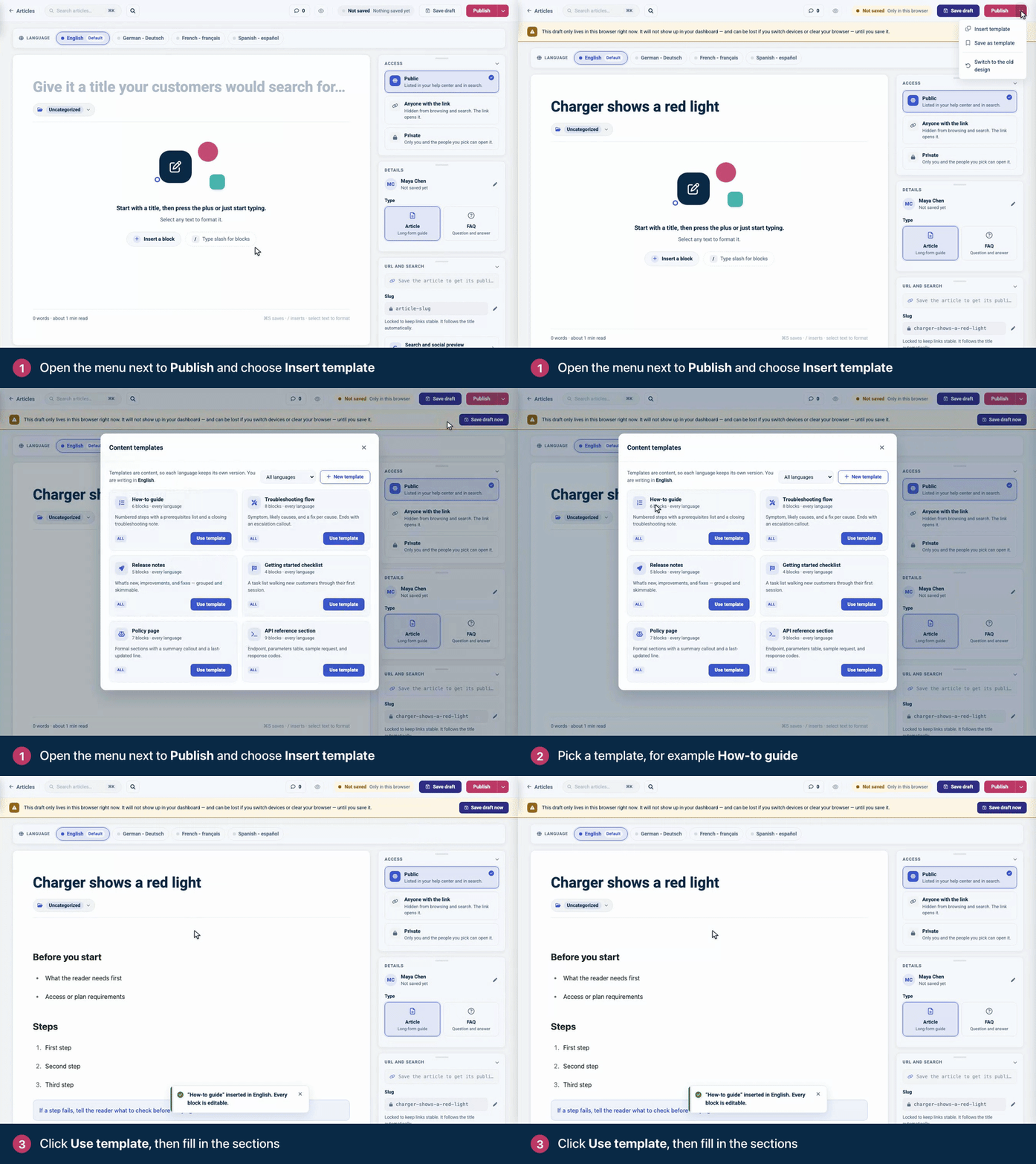
Click the arrow next to Publish (or Update) and choose Insert template.
Pick a template, for example How-to guide, and click Use template. Its blocks are added at the end of the article.
Replace the placeholder text with your own. Every block is editable.
Start a new article from a template
In an article you've saved, click New in the top bar and choose From a template.
Click Use template on the one you want. A new article opens in a new tab with the template filled in.
Give it a title, write it, and click Save draft to create the article.
Templates you get
Template | What it sets up |
|---|---|
How-to guide | A "Before you start" list, numbered steps and a closing troubleshooting note in a callout. |
Troubleshooting flow | The symptom, likely causes with a fix for each, and a callout pointing to support. |
Release notes | What's new, improvements and fixes, each as a short list. |
Getting started checklist | A task list that walks new customers through their first session. |
Policy page | A plain-language summary, the scope, the details and a last-updated line. |
API reference section | The endpoint, a parameters table and the response codes. |
These six work in every language, and nobody can change or delete them.
Save your own template
Write or open an article with the structure you want to reuse.
Click the arrow next to Publish (or Update) and choose Save as template.
Enter a Template name and, if you like, a Description (optional). Click Save.
Your template now appears for the whole team under Insert template, marked Yours for you. To build one from scratch, click New template in the template list, write it, and click Save template.
On a help center with more than one language, each template keeps a version per language. It saves the languages your article has content in, and you can only use it in those languages.
Edit, rename or delete a template
In the template list, your own templates have buttons to rename them, edit their content and delete them. Only the person who created a template can change or delete it. Articles you already made from a template don't change when you edit or delete it.
Comments
Be the first to comment.