

Decide how an article shows up in Google and other search engines: the title in the results, the short description under it, and the article's address. A clear title and description help the right people click through.
Who can do this: Owners, Admins and Editors · Plans: All plans (AI drafting: Catalyst plan, or the AI add-on on Bootstrap and Growth)
Set the search title and description
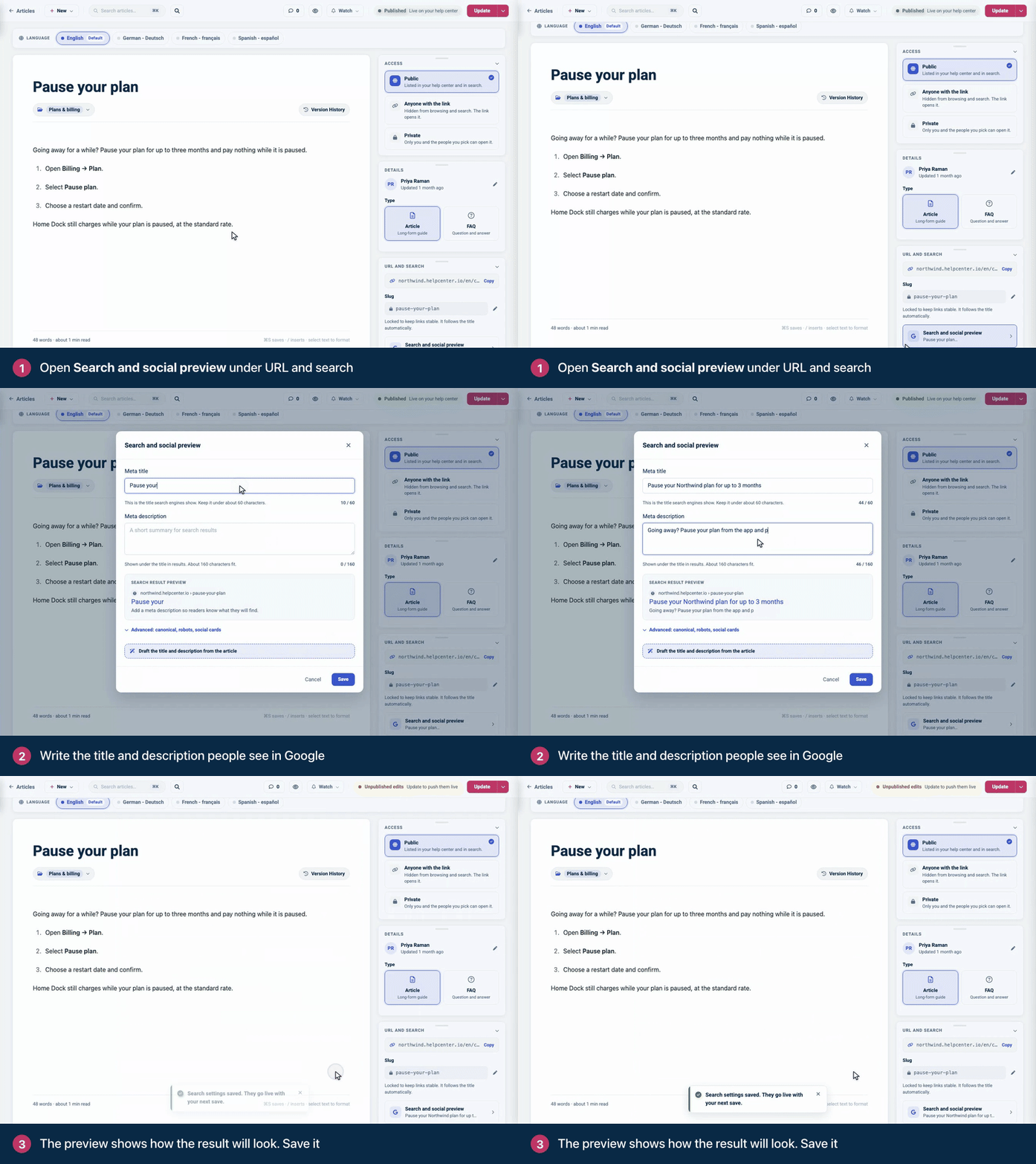
In the right-hand panel, go to URL and search and click Search and social preview.
In Meta title, write the title people see in search results. The counter helps you stay under about 60 characters.
In Meta description, write one or two sentences about what the reader will find. About 160 characters fit.
Check the Search result preview, then click Save.
Save the article with Save draft, Publish or Update. Your search settings go live with that save.
If you leave them empty
The search title is the article's title.
The description is the first 150 characters of the article.
Either way, your help center adds its Default page title after the article's title in search results and browser tabs, for example Reset your password - Acme Help Center. You set it in the Template editor under Brand.
Write a title and description that get clicks
Lead with the task, in your customers' words: "Reset your password" beats "Password management overview".
Give every article a different title, so search engines and readers can tell them apart.
In the description, say what the reader will be able to do, and name the product or feature.
Search engines may shorten a long title or description, so put the important words first.
Let AI draft them
In Search and social preview, click Draft the title and description from the article. You can also click Draft meta title and description in the AI writing help card, which opens the same window with both fields filled in. Nothing is saved until you click Save.
Change the article's address
The Slug is the last part of the article's address. It's locked so links stay stable, and it follows the title: rename the article and the slug changes with it.
In URL and search, click the pencil next to the slug.
Type the new slug. Spaces and symbols turn into hyphens as you type.
Press Enter or click the check mark.
A slug you edit by hand no longer follows title changes. When the slug of a saved article changes, the old address redirects to the new one, so existing links keep working. If another article already uses the slug, a few random characters are added to keep it unique.
The Suggest a slug action in the AI writing help card writes a short slug from the title and puts it in place. Edit it if it doesn't read well.
Advanced options
Click Advanced: canonical, robots, social cards in the same window for more settings. Use Canonical URL only when the article was published somewhere else first: it tells search engines which address is the original.
The other advanced settings (Let search engines index this page, Follow links and the social title, description and image) are saved with the article, but your published help center doesn't apply them today. Social cards use your help center's Open Graph settings from the template editor when you've set them, and the article's search title and description otherwise.
More than one language?
The slug, search title and description are separate for each language. Pick a language in the Language bar above the article, then set them for that language. The canonical URL is shared by every language.
Comments
Be the first to comment.