

Sign up to start your 14-day free trial. You create your account in one step, then a short setup wizard helps you name your help center, choose its address and bring in your content. You don't need a credit card.
Who can do this: Anyone · Plans: 14-day free trial, no credit card needed
Create your account
Go to helpcenter.io/app/signup, or click Start free trial on our pricing page.
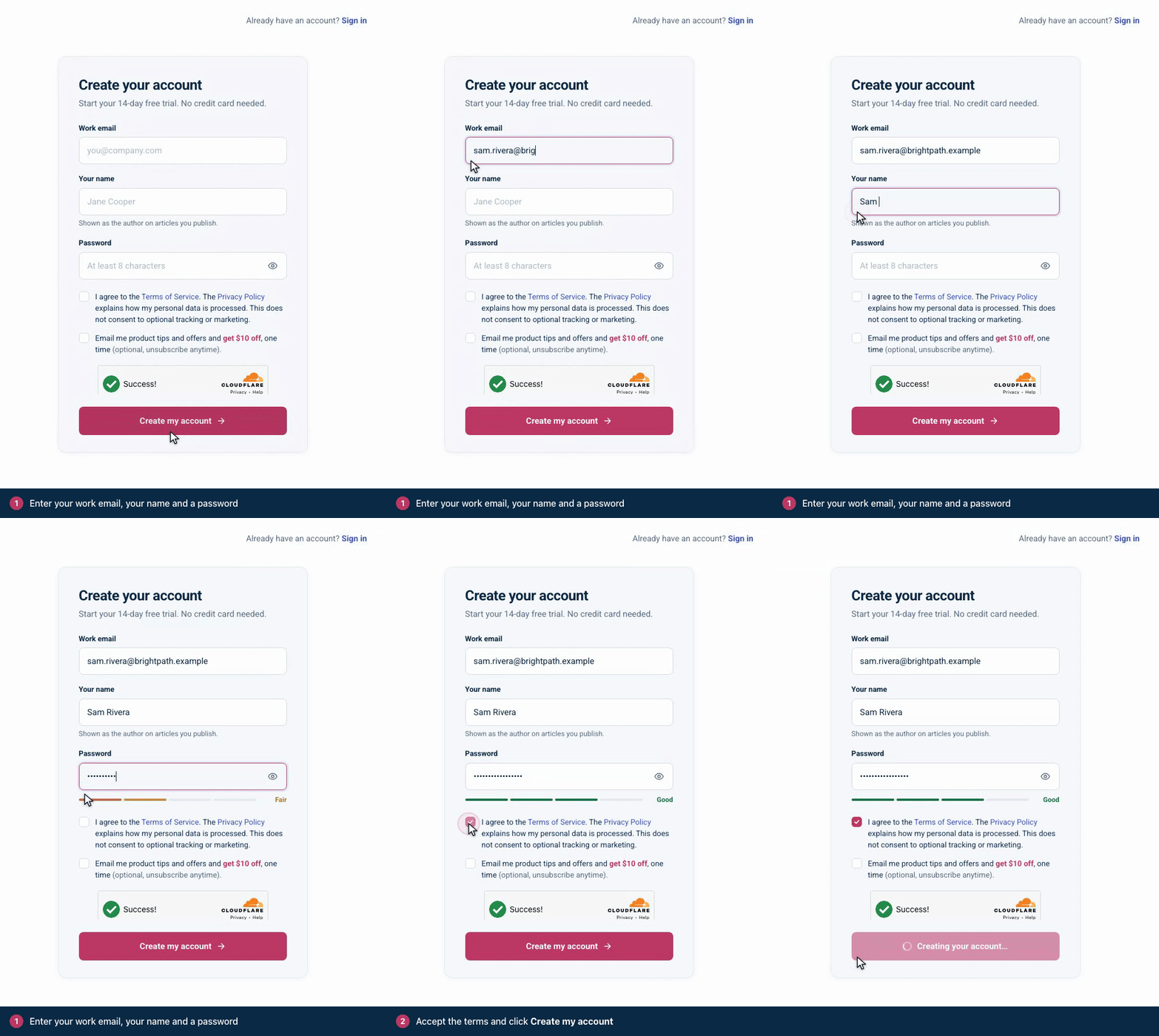
Under Work email, enter your work email address.
Under Your name, enter your full name. It's shown as the author on the articles you publish.
Under Password, enter a password of at least 8 characters. You type it once: click the eye icon to check what you typed, and watch the strength meter below the field.
Tick I agree to the Terms of Service. The box Email me product tips and offers and get $10 off, one time is optional. See Choose a plan and start your subscription.
Click Create my account. The setup wizard opens.
Or sign up with Google
Click Continue with Google at the top of the sign-up page and pick your Google account. The form comes back as Finish creating your account, with your Google address under Your email and no password field. Check your name, tick the terms box and click Create my account. The setup wizard opens.
You sign in with that Google account from then on, and your email address counts as verified, so no verification email is sent. You can add a password later in Account Settings. To go back to the email form, click Use email instead.
Set up your help center
The setup wizard takes about 3 minutes, and you can skip any step. It has six steps: Goal, Basics, Content, Look, Team and Finish.
On Basics, you name your help center and choose its Web address, its subdomain, such as acme.helpcenter.io. We pick one to get you started, often from your email's domain. Keep it or type your own: when it's free, the wizard says the address is yours. Your company or product name is a good choice.
Need a break? Click Finish later. Your answers are saved, and Resume setup on the Articles page takes you back where you left off. See Set up your help center: a first-hour checklist.
A subdomain is 3 to 63 characters long and uses letters, numbers and dashes. Capital letters are saved as lowercase. Reserved words, such as app, help, support and www, and some protected brand names aren't available.
You can change your subdomain later, but links to the old address stop working, so it pays to choose carefully. See Change your help center's address. You can also serve your help center from your own domain, such as help.yourcompany.com: see Use your own domain.
What you get
A help center with the name you gave it on the Basics step. To rename it later, change Site name under Brand in the template editor, then publish.
Your first content. Starter categories for what you're building, the articles you brought over, or a draft sample article to edit or delete.
The design you picked on the Look step, which you can change in the template editor.
Privacy while you build. New help centers are Private: only you and the people you invite can see yours. Make it public when you're ready: that needs an activated plan, and activating early keeps your trial.
A 14-day free trial of the plan you picked on our pricing page, or of Growth if you signed up without picking one. See How the free trial works.
Verify your email
If you signed up with Google, skip this step. Otherwise, we send you an email to confirm your address. Open it and click Verify Email Address. The link works for 60 minutes.
You need a verified email to activate your subscription, and an activated subscription to make your help center public. If the email doesn't arrive, check your spam folder. To get a new link, click your avatar at the bottom of the dashboard's left menu, then Account Settings, and click Resend under your email address.
Joining a teammate's help center?
If someone invited you, don't sign up here. Open the link in your invitation email. It shows which help center you're joining and your role. Under Set up your account, the invited address is already filled in, and you join with that address. Add a password, then click Join followed by the help center's name. Already have an account? Click Sign in to accept instead. See Invite your team.
Troubleshooting
"The email has already been taken." You already have an account with that address. Sign in instead, or reset your password from the sign-in page.
"Use at least 8 characters." Make your password at least 8 characters long.
"That address is taken. Try another one." or "That address is reserved. Try another one." Try another address, for example your company name with your product name added.
"Use only letters, numbers and dashes." Remove dots and other symbols.
"That address contains a protected brand name." Addresses that contain certain well-known brand names are blocked. Choose one based on your own company's name.
"The captcha verification failed. Please try again." or "The captcha has expired. Please refresh and try again." Reload the page and sign up again.
Comments
Be the first to comment.