

Put questions and answers from your help center right on your own pages, such as your pricing or signup page, in a design that matches your website. You write each answer once in HelpCenter.io, and every page that shows it stays up to date.
Who can do this: Owners and Admins · Plans: All plans
FAQ sections show your FAQ articles, the articles with the FAQ type. They're meant for public content, so show only questions you're happy for anyone to read. If you don't have any yet, see Write FAQs and add them to articles.
Create a section
In the left menu, click the gear icon, then Embeddables, and open the FAQ sections tab.
Click New section.
Pick a Section type: Full shows all your FAQs that are in a category, organized by category. Custom shows only the FAQs you pick. You can't change the type later.
Enter a Section title and, if you like, a Section description. With more than one language, use the language switcher in each field to write them in every language.
Under Display on URLs, enter the host name of each website that will show the section, separated by commas, like
www.example.com, app.example.com. Shows on under the field lists the hosts the section will be saved with.Click Create and design. The design studio opens on your new section, which starts on the Slate template.
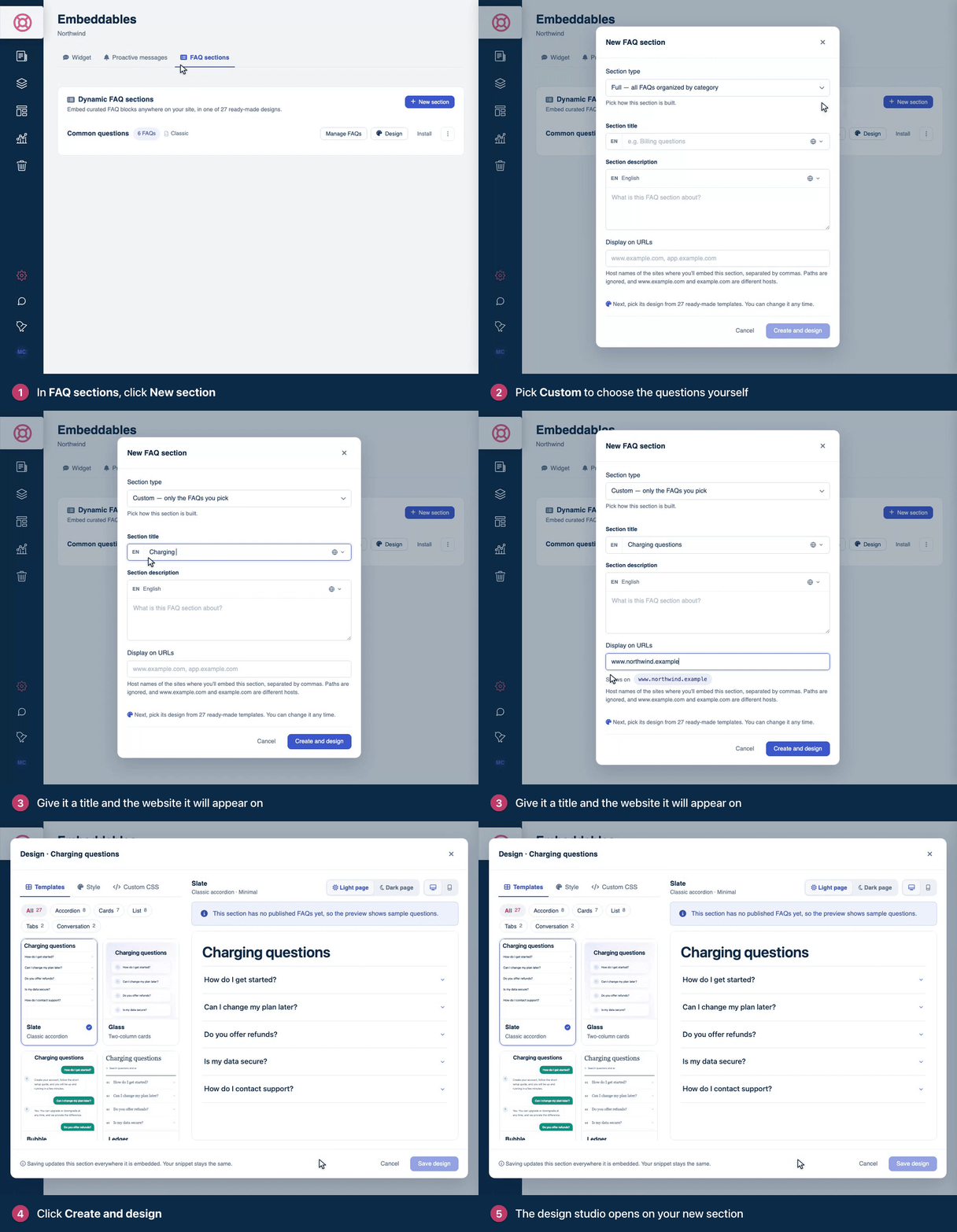
The section loads only on pages whose host matches one in Display on URLs exactly, so example.com doesn't cover www.example.com. A scheme or a path you type, such as https:// or /pricing, is dropped when you save. The section also loads on your help center's own pages.
Design the section
Pick one of 27 ready-made templates and style it to match your brand, without writing any code.
Click Design next to the section. (A section you've just created opens here by itself.)
On the Templates tab, pick a template. Each preview shows the section's own questions, or sample questions until it has published FAQs. To narrow the list, pick a layout: Accordion, Cards, List, Tabs or Conversation.
On the Style tab, set the Accent color and the other options below.
Check the preview on a Light page or a Dark page, and at desktop or phone width.
Click Save design.
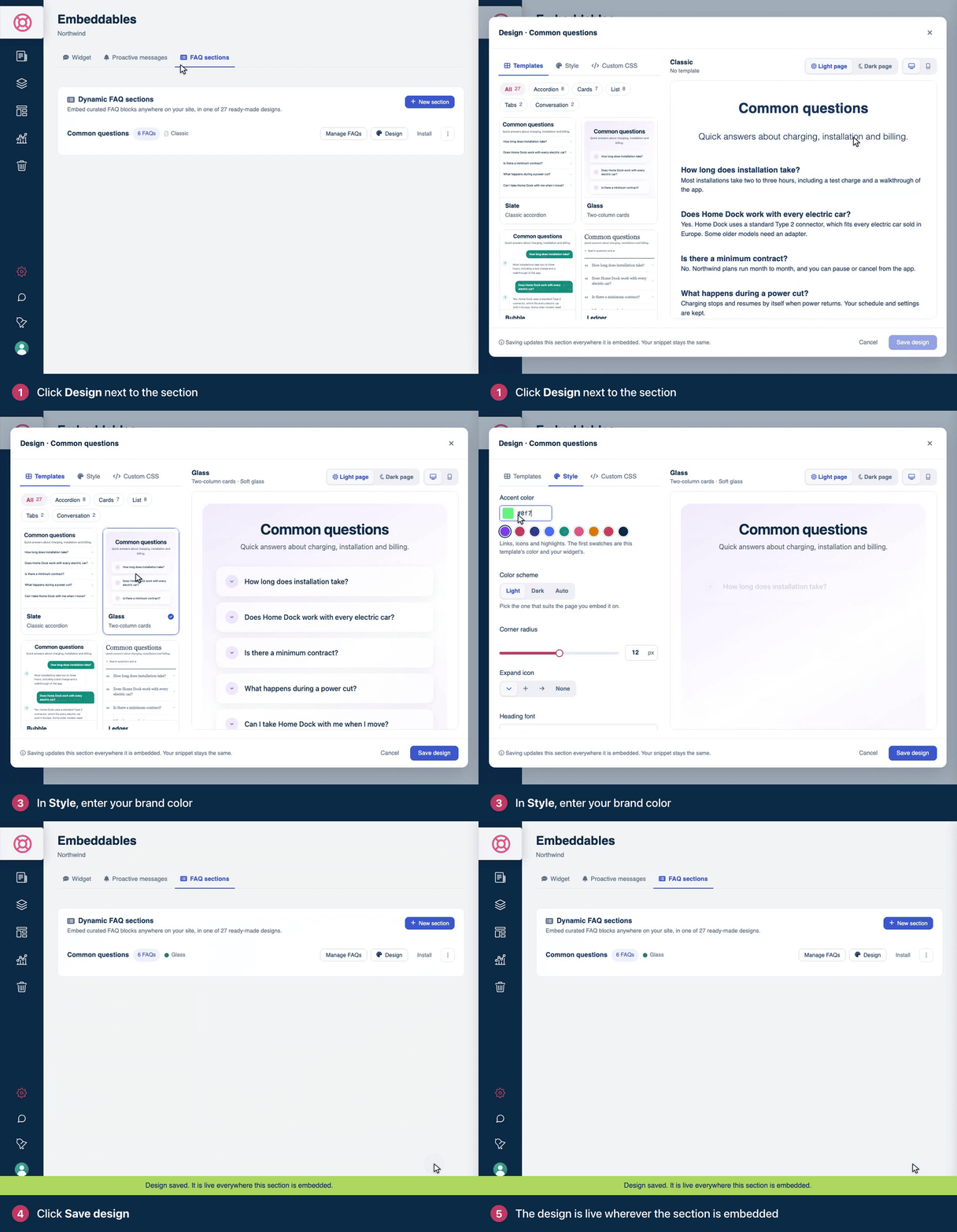
Saving updates the section everywhere it's embedded, and the code on your pages stays the same. Each page shows the new design the next time it loads.
Style options
Which options appear depends on the template you picked.
Option | What it does |
|---|---|
Accent color | The color of links, icons and highlights. Type a hex color such as |
Color scheme | Light, Dark, or Auto to follow each visitor's light or dark setting. Neon and Terminal are always dark. |
Corner radius | From 0 to 24 pixels. |
Expand icon | A chevron, a plus, an arrow or None, for templates whose questions open and close. |
Heading font | Template default, Clean sans, Friendly grotesque, Editorial serif, or Match my website, which uses the font of the page the section is on. |
Show title and description | Turn it off when your page already has a heading above the FAQs. |
Group by category | A heading for each category the FAQs are filed in, in templates where grouping is optional. It's on for Full sections until you turn it off. Atlas, Pivot and Canopy always group. In a Custom section, grouped FAQs without a category go under "General". |
Entrance animation | Questions glide in as they scroll into view. Visitors who've asked their device for less motion don't see it. |
Contact link | Beacon only: where the button on its contact card goes, a page or a |
Reset to template defaults puts every option except Show title and description back the way the template has it.
A Light section has no background of its own, so it's hard to read on a dark page. When you preview it on a Dark page, the studio says so and offers Use Dark. Pick Auto instead if your site switches between light and dark.
Style it with your own CSS
On the Custom CSS tab, add CSS for the section. Start every rule with .hc-faqs- and your section's key, the class on the section's outer element: the tab shows it with your key filled in. That way the rule applies to this section only and takes precedence over the template's own styles. Templates name their parts .fq-title (the title), .fq-qbtn (a question that opens and closes) and .fq-a (an answer):
.hc-faqs-YOUR_SECTION_KEY .fq-title { letter-spacing: -0.02em; }
.hc-faqs-YOUR_SECTION_KEY .fq-a { font-size: 15px; }
A rule without that class, such as .fq-title on its own, loses to the template's styles. The preview shows your CSS as you type. Custom CSS can be up to 10,000 characters, and it applies wherever the section shows with its template: on your own pages and on its share page.
Classic sections
Sections created before templates existed show Classic in the list, and they keep their look until you pick a template. A Classic section takes its fonts and colors from the page it's on. On its Style tab, a Full section has Layout (categories on the left with FAQs on the right, or stacked categories with expandable FAQs), and a Custom section has Show title and description. Its custom CSS applies on your own pages and in the studio's preview. To switch a templated section back, pick Classic at the end of the template list, under All.
Where the design shows
A section's template and style apply on your own pages, on its share page, and in the dashboard's Preview and design studio. FAQ sections you add inside an article, and the FAQs component on your help center's pages, always take your help center's own look.
Choose the questions
A Full section always shows all your published FAQs that are in a category. For a Custom section:
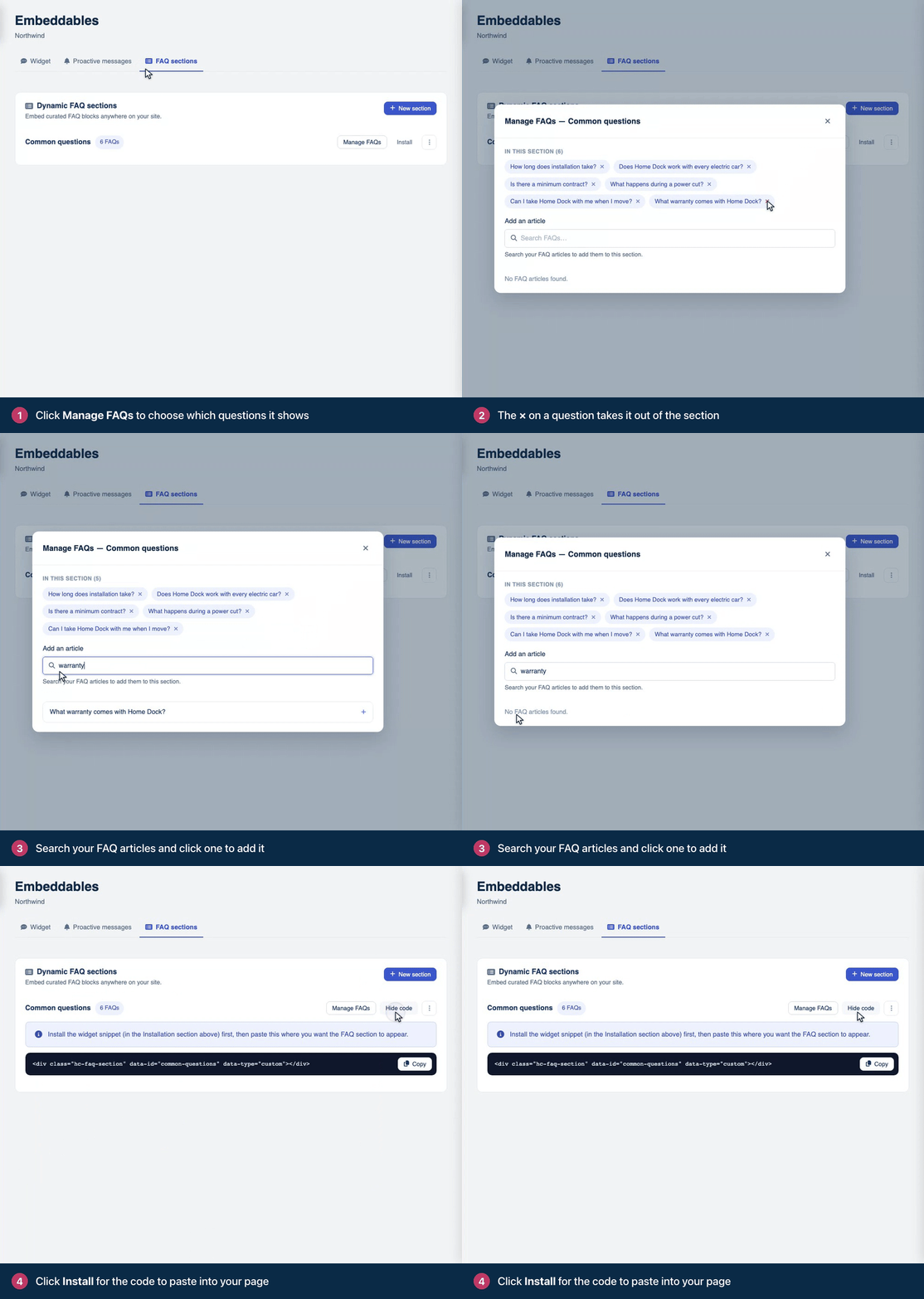
Click Manage FAQs next to the section.
Search your FAQ articles and click one to add it. Click the × on a question to take it out of the section. Each change saves right away.
Add it to your page
A section loads through the widget's snippet, so the page needs that snippet too. If it doesn't have it yet, add it first: see Add the widget to your website.
Click Install next to the section. (Hide code closes it again.)
Click Copy.
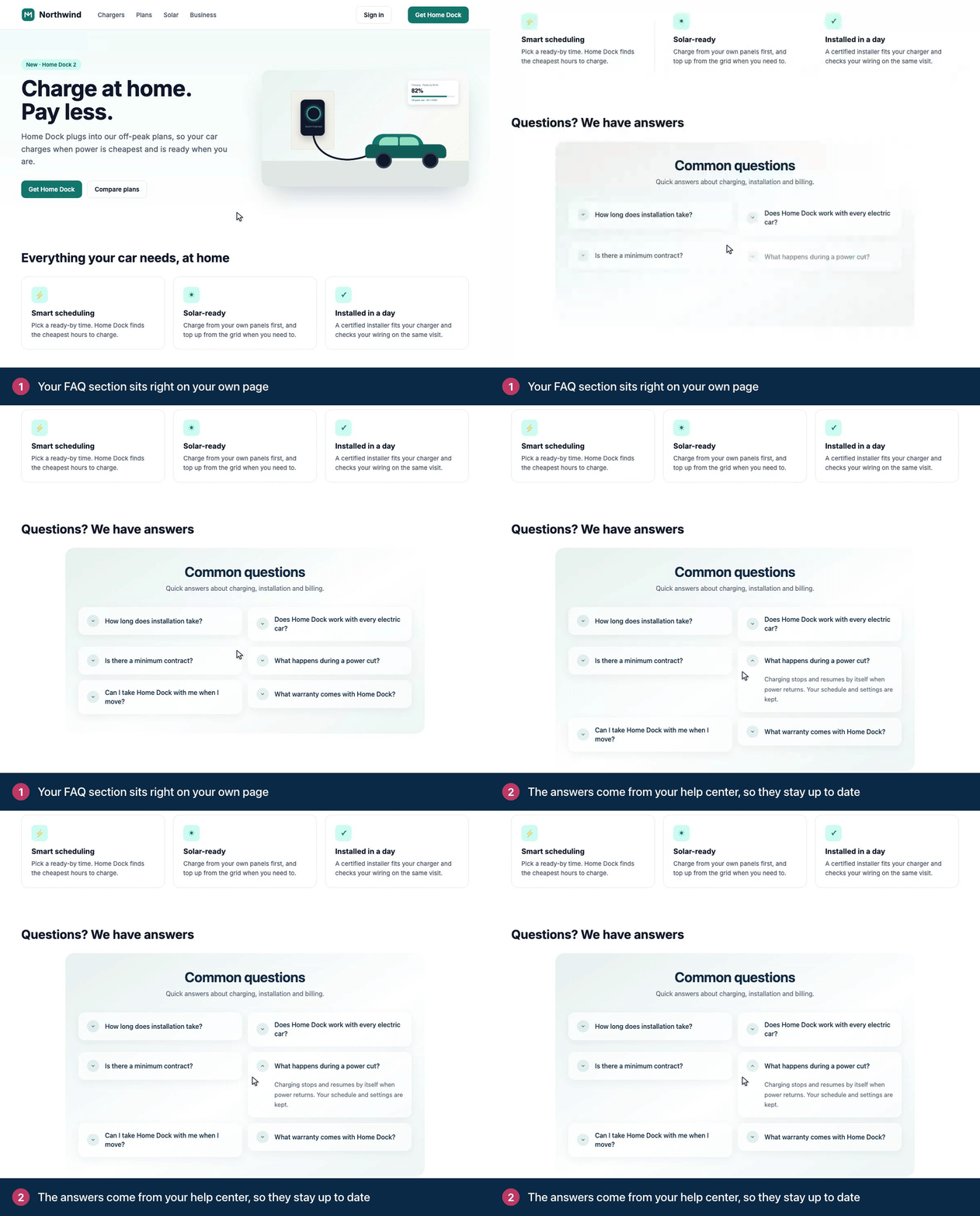
Paste the code where the section should appear on your page. It looks like this, with your section's key:
<div class="hc-faq-section" data-id="YOUR_SECTION_KEY" data-type="custom"></div>For a Full section, data-type is full. The section appears when the page loads.
Without the floating widget
To show a FAQ section on a page without the widget's launcher, keep the snippet and add widgetEnabled: false to it:
window.hcOptions = {
    app_id: 'YOUR_WIDGET_ID',
    widgetEnabled: false
};
More options
Another language. Add
langto the snippet, such aslang: 'es', to show the section in one of your other languages.The texts a template adds. Search boxes, Beacon's "Still need help?" card and the like are in English until you translate them. Change or translate their wording in the FAQ sections group of your interface translations: see Translate buttons and labels.
A page of its own. In the section's menu (⋮), Open share page opens the section on a page of your help center, which you can link to.
Preview, Edit details and Delete are in the same menu. Edit details changes the title, the description and Display on URLs.
Bring a section over from faqs.me
Built an FAQ section on faqs.me? Import it into your help center to manage the answers here and keep your embedded section in sync. Its questions, answers, categories and template come with it.
On faqs.me, open your section, choose Get the code, then Import into HelpCenter.io. A review page opens on HelpCenter.io.
Sign in, or click Start a free trial and set up your help center first, then come back and continue.
Under Choose your help center, pick a help center where you are an Owner or Admin.
Choose how to import the answers: As drafts, to review them before publishing, or Publish now.
Click Import FAQ section.
The import creates a new Custom FAQ section, plus new FAQ articles in your help center's default language. Draft answers appear in the section once you publish them. Click Review imported answers to publish them, or Open FAQ sections to set where the section is embedded. A section can have up to 100 questions.
Troubleshooting
The section stays empty. The page's host isn't in Display on URLs exactly as written. Your browser console shows a line that starts with [helpcenter] FAQ section and says it "could not be loaded." Fix the list with Edit details. If an entry there still has https:// or a path in it, click Update section: saving reduces every entry to its host name. A section with a template and no published FAQs yet shows nothing at all.
Nothing loads at all. Check that the widget snippet is on the same page. In a single-page app, the section's code must be in the page when the snippet loads.
A question is missing. Sections show published FAQ articles only, and on a page in another language, only the questions released in that language. A Full section leaves out FAQs that aren't in any category.
The section is hard to read on a dark page. Its color scheme is Light. Open Design, then Style, and pick Dark, or Auto to follow each visitor.
The plus and minus icons are missing on a Classic section. They're Font Awesome icons, so the page needs Font Awesome loaded. Templates draw their own icons.
Your site sends a Content Security Policy. Sections add their styles to the page, so allow inline styles in style-src. Many templates, and the Friendly grotesque and Editorial serif fonts, also load a web font from https://fonts.bunny.net: allow it in style-src and font-src, or the section falls back to a system font. See Content Security Policy and allowed origins on the developer portal.
Comments
Be the first to comment.