

Put your help center one click away on every page of your website or app. Visitors search your articles, read them and get answers without leaving the page they're on. You copy one snippet, paste it into your site and tell HelpCenter.io which website may show it.
Who can do this: Anyone on your team can copy the snippet, and Owners and Admins approve your website · Plans: All plans
Copy the snippet
In the left menu, click the gear icon, then Embeddables. Your widget is ready the first time you open this page; there's nothing to activate.
On the Widget tab, find Installation and click Copy.
Paste the snippet into your website's HTML, right before the closing
</body>tag, on every page where the widget should appear.
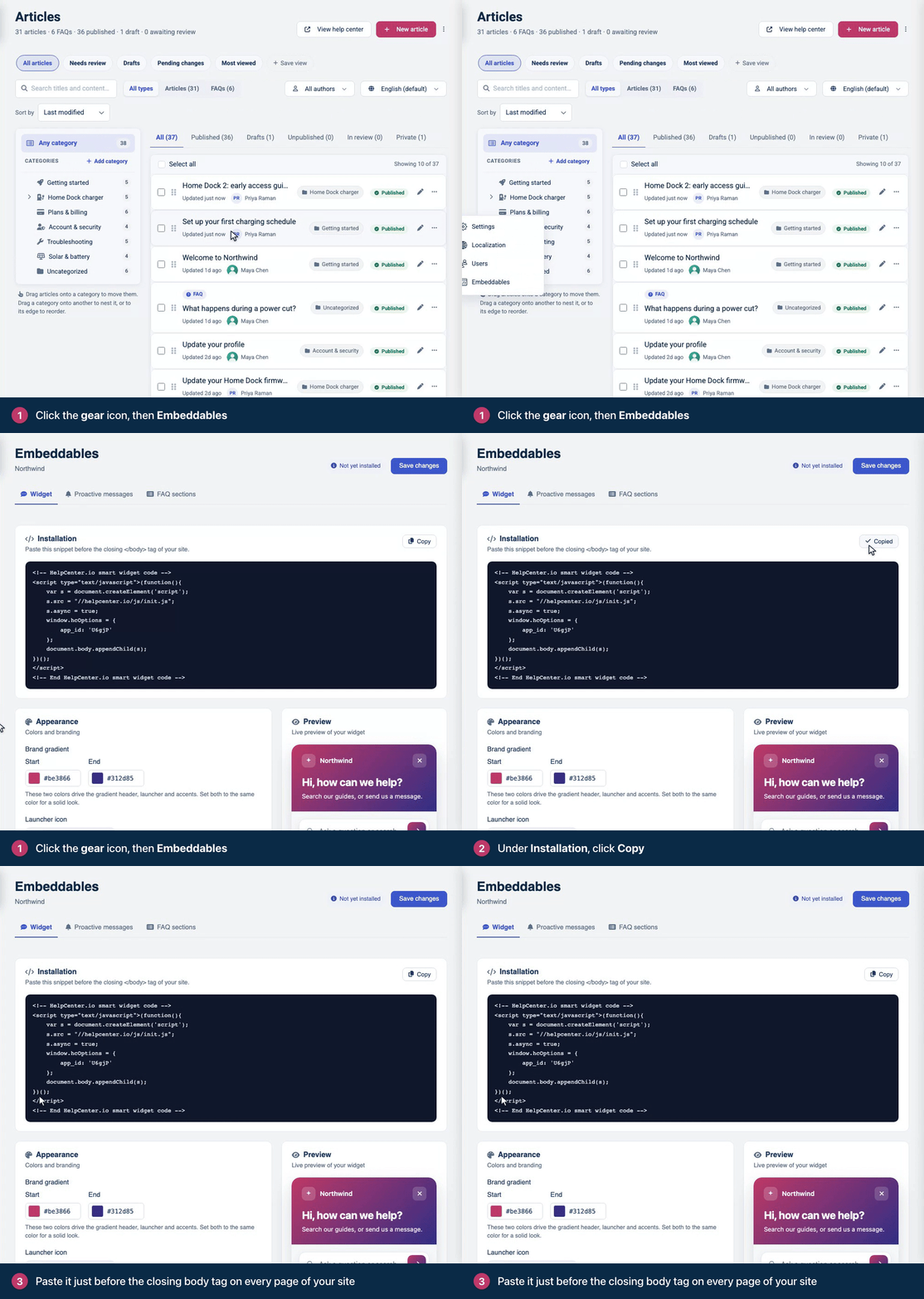
The snippet looks like this, with your own widget ID in place of YOUR_WIDGET_ID:
<!-- HelpCenter.io smart widget code -->
<script type="text/javascript">(function(){
    var s = document.createElement('script');
    s.src = "//helpcenter.io/js/init.js";
    s.async = true;
    window.hcOptions = {
        app_id: 'YOUR_WIDGET_ID'
    };
    document.body.appendChild(s);
})();
</script>
<!-- End HelpCenter.io smart widget code -->
Put it before </body>, not in the <head>: the snippet adds the widget to the page body, so the body has to exist when it runs.
Using a website builder or tag manager
You don't need a plugin. WordPress, Webflow, Shopify and any other builder or CMS that lets you add custom code to every page will work: use its setting for code in the footer or before </body>. With Google Tag Manager, add the snippet as a Custom HTML tag that fires on all pages.
Allow your website to show the widget
The widget only loads on websites you approve. Until yours is on the list, the widget stays hidden there.
In the left menu, click the gear icon, then Settings.
In the General card, find Embedding origins.
Type your website's host name, such as
www.example.com, and click Add. A leading dot, like.example.com, covers the domain and all its subdomains.Click Save changes.
This is the same list you see under Embeddables → Widget → Configuration. See Choose which websites can show the widget for what to enter.
Check that it works
Reload a page of your website. A round button appears in the bottom-right corner. Click it to open the widget and try a search.
Next, make it yours: match the widget to your brand, change its greeting and invite visitors with proactive messages. Developers can do much more from code: see Widget installation and options and Widget JavaScript API on the developer portal.
Troubleshooting
The widget doesn't appear. Check that your website's host is under Embedding origins exactly as it shows in the address bar: example.com and www.example.com are different. Save, wait a couple of minutes, then reload.
Your browser console says "Parent domain is not in the allowed list." Add the host it names to Embedding origins.
The snippet is in the <head>. Move it to the end of the page body, right before </body>.
Your site sends a Content Security Policy. Allow the widget's hosts, and let the snippet itself run. The details are in Content Security Policy and allowed origins on the developer portal.
Still stuck? See The widget doesn't show up.
Comments
Hey Gabriella, When you are installing the widget you need to make sure the top-level URL where the widget will be placed is configured in the Site URL field on the widget configuration page. The Site URL field accepts multiple values separated by comma. If you need more assistance, please do not hesitate to reach out to us either using the contact form here or by email on support [at] helpcenter.io.
Reply