

Keep information for your team right inside an article: a script for your support agents, a reminder to update a screenshot, or a question for the writer. Readers never see any of it.
Who can do this: Owners, Admins and Editors, and Translators in the languages they translate · Plans: All plans
There are two ways to do it:
Internal notes are blocks of text inside the article, for information your team should always have at hand.
Comments are attached to a few selected words, for questions and feedback you resolve and move on from.
Add an internal note
On an empty line, type
/internal noteand press Enter.Type your note. It's marked Internal note and Team only, never published.
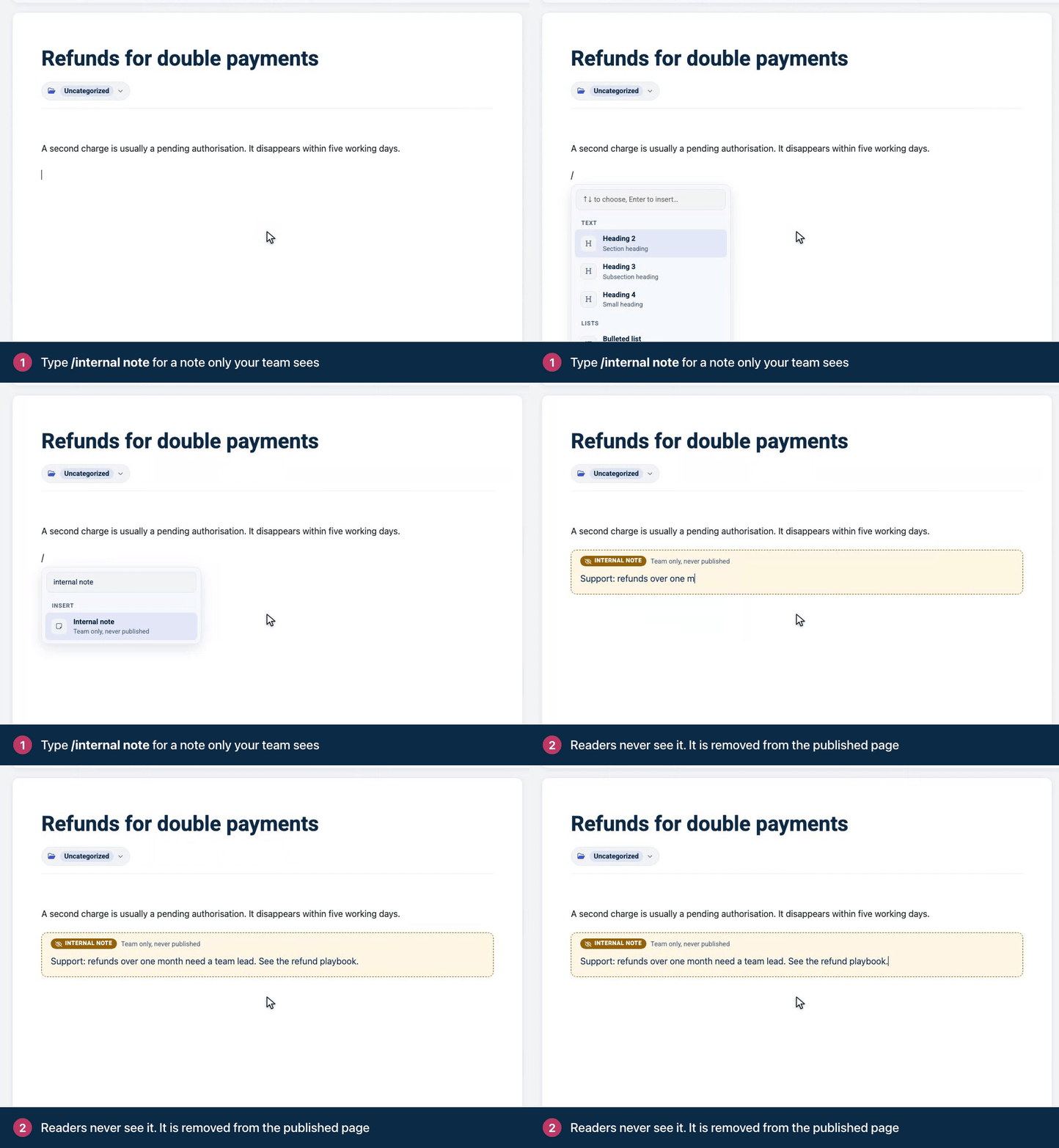
A note can hold lists, links and other blocks, like the rest of the article. To remove a note, delete its text, then press Backspace once more in the empty note.
Picking Internal note in the menu again while your cursor is inside a note doesn't delete it. It turns the note back into normal text, which readers will see once you publish.
Comment on a selection
Select the words you want to comment on.
In the toolbar, click Comment on this selection (team only) (the speech bubble).
Write your comment and click Comment, or press ⌘Enter (Ctrl+Enter on Windows).
The words stay highlighted for your team. Click the highlight to read the thread, add a Reply, or Resolve it, which removes the highlight. The comment count in the top bar opens the Comments panel, where the Team tab lists every open thread in the article.
Comments work once the article has been saved, and each comment can be up to 5,000 characters. Adding or resolving a comment never saves or publishes your other edits. If the words you highlighted exist only in text you haven't saved yet, the highlight is saved the next time you click Update.
Where notes and comments stay hidden
Internal notes and comments are removed from everything readers can reach: the published article, help center search, AI Answers and the widget. Article content you fetch through the API leaves them out too. Three things to know:
Your team's view: when you're signed in as a team member, the published article and its preview still show internal notes. On the published article, each one sits in a dashed box headed Internal note and Team only, hidden from readers. Readers never see them.
Helpdesk sidebars: in apps like Front and Zendesk, your agents can read internal notes next to the article. Notes are left out when an agent inserts the article into a reply.
PDF exports from the dashboard are made for your team and include internal notes. Check them before you share one outside your team.
Comments
Be the first to comment.