

A short description and an icon or image help readers see what's in a category before they click. You set both in the category's settings.
Who can do this: Owners, Admins and Editors · Plans: All plans
Add a description and an icon
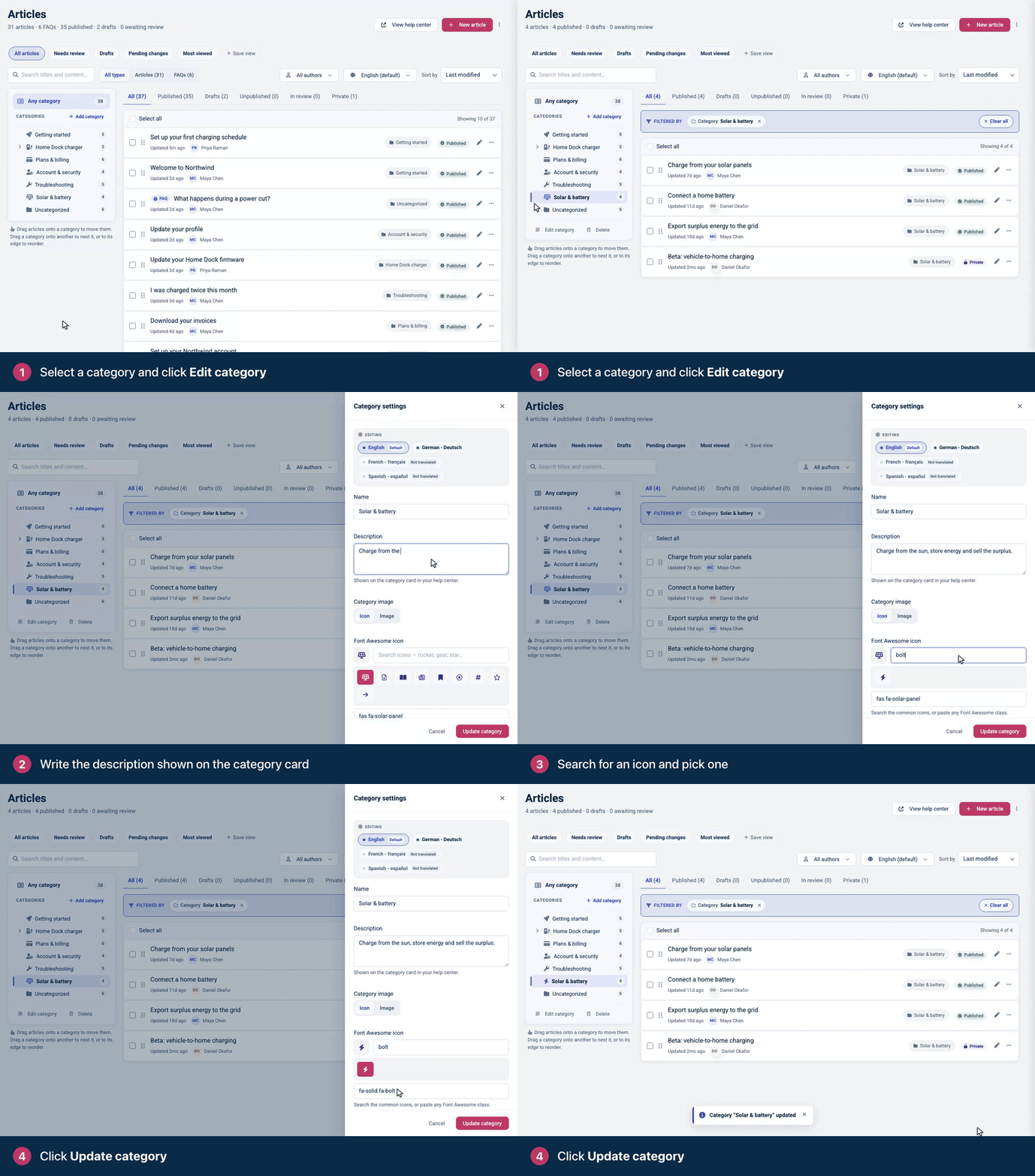
Click Articles in the left menu and select the category in the Categories panel.
Click Edit category. The Category settings panel opens.
Under Description, write a sentence about what the category covers. It's shown on the category card in your help center.
Under Category image, keep Icon selected. Search for an icon and click the one you want.
Click Update category.
Use an image instead
Under Category image, choose Image.
Click Choose image and pick a PNG or JPG file, at least 640×360 pixels.
Click Update category.
A category shows either an icon or an image, not both.
Find the right icon
The picker opens with popular Font Awesome icons. Type a word such as "rocket" or "gear" to search the rest. If the icon you want isn't in the results, paste its Font Awesome class into the field below the icons, for example fa-solid fa-map-signs.
Where they show
Category cards: wherever your help center lists categories, such as the home page. Which details a card shows depends on the category list settings in the template editor. See Customize category and article lists.
The category page: the icon or image can appear in front of the category's name. In the template editor, open Pages, choose the Category page and turn on Category image.
Control how the category looks in search engines
Open Search engine listing at the bottom of the panel to set a Meta title and a Meta description for the category page. If you leave them empty, the category's name and description are used. A meta description of around 155 characters works best.
Other languages
On a help center with more than one language, pick a language at the top of the panel to translate the name, description and search engine listing. The save button then saves that language. The icon or image, Share with and Parent category are shared by all languages.
Troubleshooting
"Category name cannot be empty." Add a name in your default language, then save again.
The image won't upload. Use a PNG or JPG file. See An image or file won't upload.
Comments
Be the first to comment.