

Your widget and your embedded help center only load on websites you approve. Add each website that shows them to your embedding origins, so nobody else can put your help center on their pages.
Who can do this: Owners and Admins · Plans: All plans
Add a website
In the left menu, click the gear icon, then Settings.
In the General card, find Embedding origins.
Type the host name of a website that shows your widget, such as
app.example.com, and click Add (or press Enter).Add your other websites the same way: production, staging, a second brand or a partner's site.
Click Save changes.
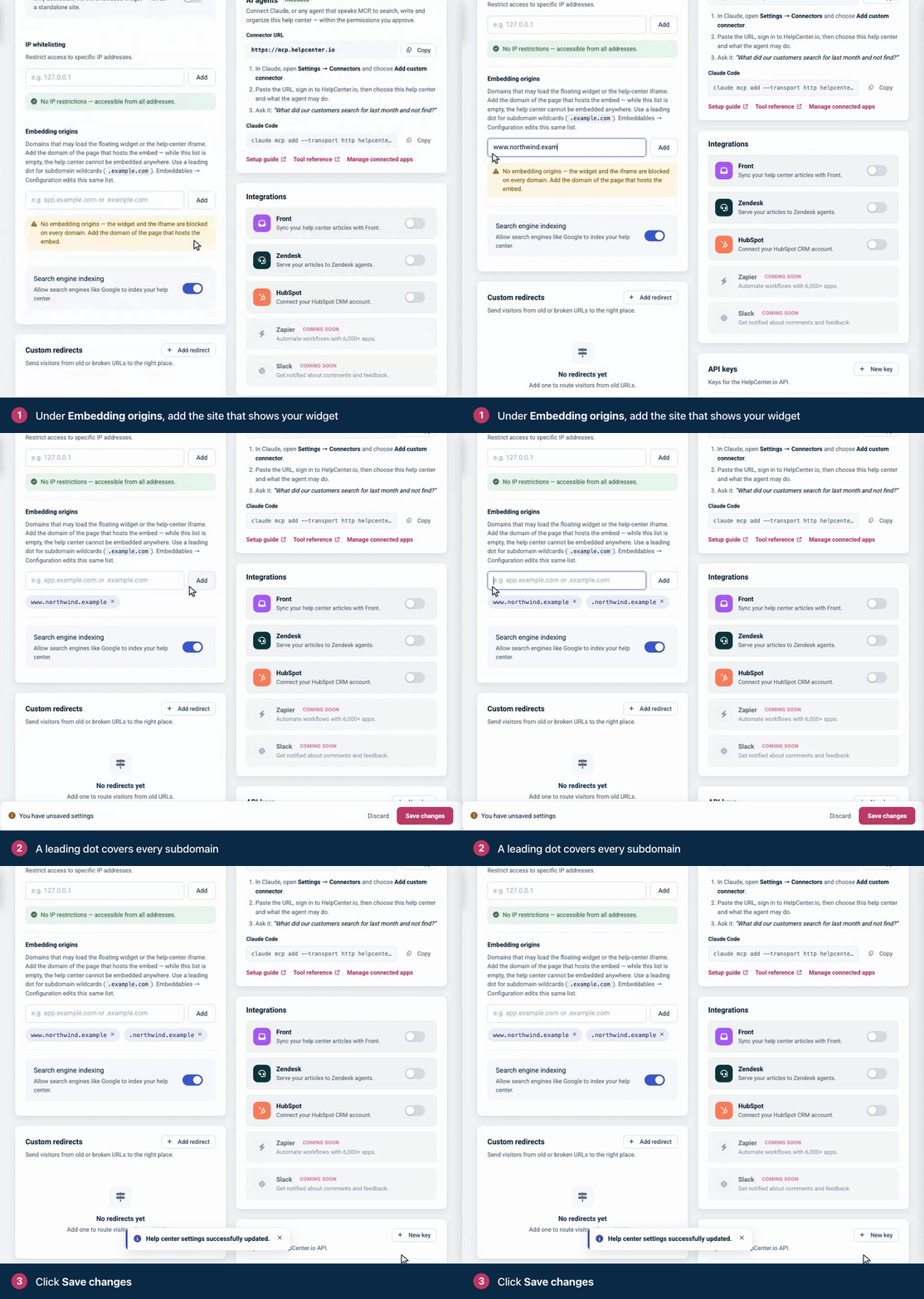
You can edit the same list from Embeddables → Widget → Configuration. A change in one place shows in the other.
What to enter
A host name, like
www.example.com. If you paste a full address, such ashttps://www.example.com/support, only the host is kept.Every version of your domain.
example.comandwww.example.comare different hosts. Add both, or use a leading dot.A leading dot to cover subdomains.
.example.comcoversexample.comand every subdomain, such asapp.example.comandwww.example.com.localhost for testing the widget locally. For the widget, ports don't matter, so
localhostalso coverslocalhost:3000.
What the list controls
Embedding origins decides where these can load:
The widget, and its proactive messages.
Your help center embedded in your website or app. See Embed your help center in your app on the developer portal.
Your help center when JS-only access is on.
FAQ sections have their own list of websites, Display on URLs. See Embed FAQ sections on your website.
The list decides where your help center can be shown, not who can read it. To keep content private, see Control who can see your help center.
An empty list doesn't mean "allow everyone". With no embedding origins, the widget and embeds are blocked on every website, and Settings shows a No embedding origins warning.
Troubleshooting
The widget or embed doesn't show. Compare the address of your page with the list: its host must be on the list exactly, or be covered by an entry with a leading dot. After you save, wait a couple of minutes and reload.
Your browser console says "Parent domain is not in the allowed list." Add the host it names.
Your page sits inside another tool, such as a dashboard or a site builder's custom code block. Every page in that chain must be on the list. See Embed your help center in your app on the developer portal.
You can't change the list. Only Owners and Admins can. Ask one of them to add the website.
Comments
Be the first to comment.