

Give visitors answers first and a person second. The widget answers from your help center, and when a visitor still needs help, its contact buttons open your HelpCenter.chat messenger, so the conversation lands in the inbox your team already answers from. It's how help works in the HelpCenter.io dashboard.
Who can do this: Owners and Admins in HelpCenter.io and in HelpCenter.chat, with access to your website's code · Plans: All HelpCenter.io plans, and every HelpCenter.chat plan, including the free one
What visitors get
One place to start. The widget, with search, your articles and, on plans with AI, AI Answers.
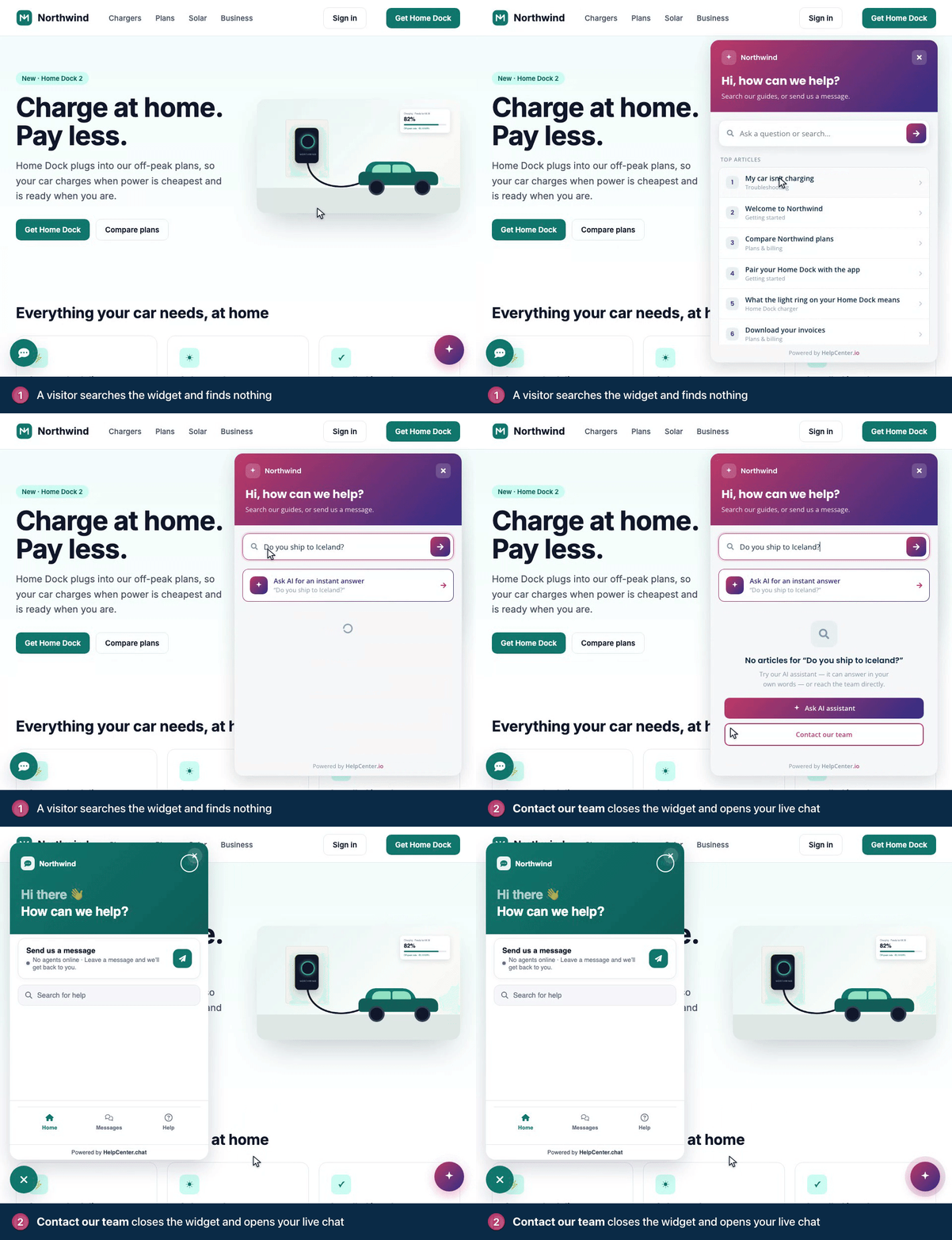
A person when they need one. I can't find what I'm looking for, Contact our team and Still stuck? Message our team → open the messenger instead of the widget's email form, and the widget closes so the two never sit on top of each other.
A conversation that follows them. Replies arrive live in the messenger, and its button shows a badge for unread replies on every page of your site. Visitors who leave their email address also get your replies by email.
Step 1: Add HelpCenter.chat to your website
If the messenger already runs on your website, check its allowed domains (steps 4 and 5) and go to the next step.
Sign in at my.helpcenter.chat, or create a free workspace at my.helpcenter.chat/register.
Click Settings, then Channels & install.
On the Website card, click Copy and paste the snippet on every page where you want the messenger, before the widget's code.
Under Allowed domains, type your website's domain, such as
example.com, and press Enter.Click Save changes.
The snippet you copied looks like this, with your own embed ID in place of YOUR_EMBED_ID:
<script>
  (function(h,c){var s=h.createElement('script');s.async=1;
  s.src='https://my.helpcenter.chat/widget/w.js';s.setAttribute('data-embed-id','YOUR_EMBED_ID');
  h.head.appendChild(s);})(document);
</script>
An allowed domain also covers its subdomains, so example.com covers app.example.com. While the list is empty, the messenger loads on any website; once it has a domain, it loads only on the domains listed.
Step 2: Give each button its own corner
The widget and the messenger both put their button in the bottom-right corner, so move the messenger's to the left:
In HelpCenter.chat, click Messenger in the left menu, then Open Customizer.
Under Appearance, set Launcher position to Bottom left.
Click Publish changes.
Visitors now see the widget on the right for answers and the messenger on the left for conversations. If you'd rather move the widget, add position: 'bottom-left' to its options instead.
In a web app, you can go one step further, as the HelpCenter.io dashboard does: hide the widget's button with showButton: false and open the widget from a Help link in your own menu with window.hcWidget.show(). The messenger's button is then the only one floating over your app. See Open the widget from your own UI on the developer portal.
Step 3: Open the messenger from the widget
In your HelpCenter.io dashboard, click the gear icon in the left menu, then Embeddables.
On the Widget tab, click Copy on the Installation card.
Add an
onContactsRequestfunction to the code, as below, and replacesupport@example.comwith your support address.Paste the code right before the closing
</body>tag of your website or web app, after the HelpCenter.chat snippet.
The finished code looks like this, with your own widget ID in place of ab12c3:
<!-- HelpCenter.io smart widget code -->
<script type="text/javascript">(function(){
    var s = document.createElement('script');
    s.src = "//helpcenter.io/js/init.js";
    s.async = true;
    window.hcOptions = {
        app_id: 'ab12c3',
        onContactsRequest: function () {
            if (window.HelpCenterWidget) {
                window.dispatchEvent(new Event('helpcenter:open'));
                window.hcWidget.hide();
            } else {
                window.location.href = 'mailto:support@example.com';
            }
        }
    };
    document.body.appendChild(s);
})();
</script>
<!-- End HelpCenter.io smart widget code -->
When a visitor asks to contact you, the widget calls onContactsRequest instead of showing its own contact form. The helpcenter:open event opens the messenger, where the visitor starts a conversation with Send us a message, and hcWidget.hide() closes the widget. If the messenger couldn't load, for example because a browser extension blocked it, the visitor's email app opens instead, so nobody reaches a dead end.
New to the widget? It only loads on websites you approve, so also add your website under Embedding origins. See Add the widget to your website.
Step 4: Answer from the same articles
Connect your help center to HelpCenter.chat, and the messenger's Search for help finds your public articles, in your help center's default language. With Orelvi turned on, HelpCenter.chat's AI agent answers from them too, and hands the conversation to your team when it isn't sure. See Connect HelpCenter.chat.
Test it
Open your website in a private browser window.
Open the widget and search for something your articles don't cover.
Click Contact our team. The widget closes and the messenger opens.
Send a message, then answer it from the Inbox in HelpCenter.chat.
Good to know
Leave "Hide when no agents are available" off. It's in the Customizer under Content. When it's on and nobody on your team is available, the messenger can't open, and the widget's contact buttons lead nowhere. When it's off, the messenger tells visitors your team is away and, unless you've changed its settings, asks for their email address so your reply reaches them.
Your help center's contact form isn't needed. Because your page handles contact requests, the widget shows its contact buttons even when your contact form has no Recipient email, and the default text on its "I can't find what I'm looking for" card no longer promises a reply by email.
Greet visitors once. The widget's proactive messages and HelpCenter.chat's automations can both invite visitors in. Use one of them on a given page, so nobody is greeted twice.
Signing out of your app? Call
window.HelpCenterWidget.shutdown()when someone signs out, so the next person on that browser doesn't see their conversations, and then load a new page, such as your sign-in page. The messenger starts again on the next page load; until then, the widget's contact buttons have no chat to open.Not comfortable editing your website's code? Ask a developer, or contact us.
Troubleshooting
The messenger doesn't appear on your website. Check that your website's domain is under Allowed domains in HelpCenter.chat and that you saved it. On any domain not listed, the messenger doesn't load at all.
Clicking Contact our team opens an email instead of the chat. The HelpCenter.chat snippet isn't on that page, or the browser blocked it. Add the snippet to the page and check the browser console for errors.
The widget closes, but the messenger doesn't open. Check the two settings above: your domain under Allowed domains, and Hide when no agents are available turned off.
Related articles
Handle contact requests yourself on the developer portal
Widget JavaScript API on the developer portal
Comments
Be the first to comment.