

Serve your help center from a path of your own website, like www.yoursite.com/docs, instead of its own subdomain. Your articles then build up your main domain, and customers stay on the address they already know, from your homepage to your answers.
Who can do this: Owners and Admins · Plans: Growth and Catalyst, and their 14-day trials
How it works
Your website's web server or CDN acts as a proxy. It forwards every request under your path to your help center at yourname.helpcenter.io, with the path, cookies and headers intact. Your help center recognizes those requests and answers with pages whose links, canonical tags and sitemap use your address. Your website stays where it runs today.
You set it up in Settings → Subfolder hosting, in four steps: choose the address, add a proxy rule to your website, check the setup, then go live. Nothing changes for your visitors until the last step.
Before you start
Your help center is public. Private and password-protected help centers sign their readers in on HelpCenter.io, which a page on your own website cannot do. A help center with JS-only access only opens inside the widget, so turn that off first.
You can change your website's web server or CDN configuration. Settings gives you a ready-made rule for nginx, Apache, Cloudflare, Vercel / Next.js, Netlify, Amazon CloudFront and IIS. Any other reverse proxy works too, as long as it forwards the full path, the request method, cookies and headers, and sends your help center's own address (yourname.helpcenter.io) as the Host header.
If your website runs on Webflow, Framer, Wix, Squarespace or a WordPress host that cannot proxy a path on its own, put it behind Cloudflare and use the Cloudflare rule.
Choose the address
Go to Settings and find Subfolder hosting.
In Help center address, enter your website's address followed by the path, like
https://www.yoursite.com/docs.Select Set up. The card now shows Testing and the next steps.
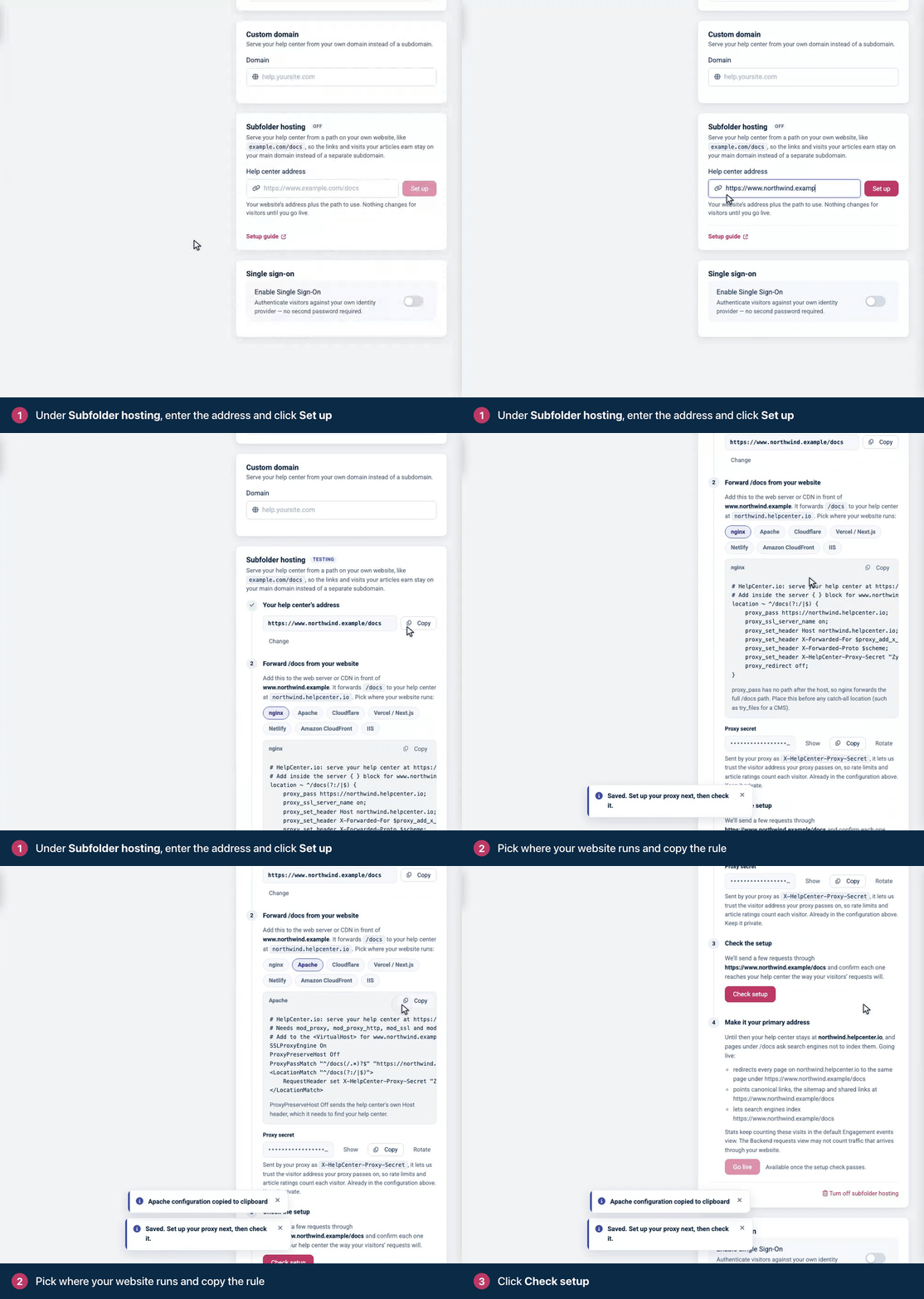
The address must start with https://. The path is lowercase and one to three levels deep, like /docs or /support/help. It cannot be a path your help center already uses, such as /content or /search, or a language code, such as /de. This guide uses /docs as the example; the dashboard shows the path you chose.
Forward the path from your website
Under Forward /docs from your website, pick where your website runs.
Copy the configuration. It already holds your address, your help center and your proxy secret.
Add it to your web server or CDN, before any catch-all rule, then reload or deploy.
For example, this is the nginx rule for a help center at yourname.helpcenter.io served at www.yoursite.com/docs:
location ~ ^/docs(?:/|$) {
    proxy_pass https://yourname.helpcenter.io;
    proxy_ssl_server_name on;
    proxy_set_header Host yourname.helpcenter.io;
    proxy_set_header X-Forwarded-For $proxy_add_x_forwarded_for;
    proxy_set_header X-Forwarded-Proto $scheme;
    proxy_set_header X-HelpCenter-Proxy-Secret "YOUR-PROXY-SECRET";
    proxy_redirect off;
}
The rule must forward each request, not redirect it: visitors keep seeing your address. Forward the full path too. For nginx, that means proxy_pass with nothing after the host.
Where your website runs | Good to know |
|---|---|
nginx | Add the rule inside the |
Apache | Needs mod_proxy, mod_proxy_http, mod_ssl and mod_headers. Add the rule to your website's |
Cloudflare | Create a Worker with the code from Settings and add the route for your path, like |
Vercel / Next.js | Add the two rewrites to |
Netlify | Add the two rules to |
Amazon CloudFront | Add your help center as an origin with the proxy secret as a custom header, and two behaviors for your path that allow every method and use the |
IIS | Needs URL Rewrite and Application Request Routing with the proxy turned on. Add the proxy secret header to the allowed server variables. |
The proxy secret
Your proxy sends the secret in the X-HelpCenter-Proxy-Secret header. It lets your help center trust the visitor address your proxy passes on, so rate limits and article ratings count each visitor rather than your proxy. It is already in the configuration you copied. Keep it private.
The secret is optional behind Cloudflare and Amazon CloudFront. To replace it, select Rotate, then Rotate secret. The old secret stops working at once, so update your proxy with the new one straight away.
Check the setup
Select Check setup. HelpCenter.io sends a few requests through your address, the way your visitors' requests will arrive.
Fix anything the check reports, then select Check setup again.
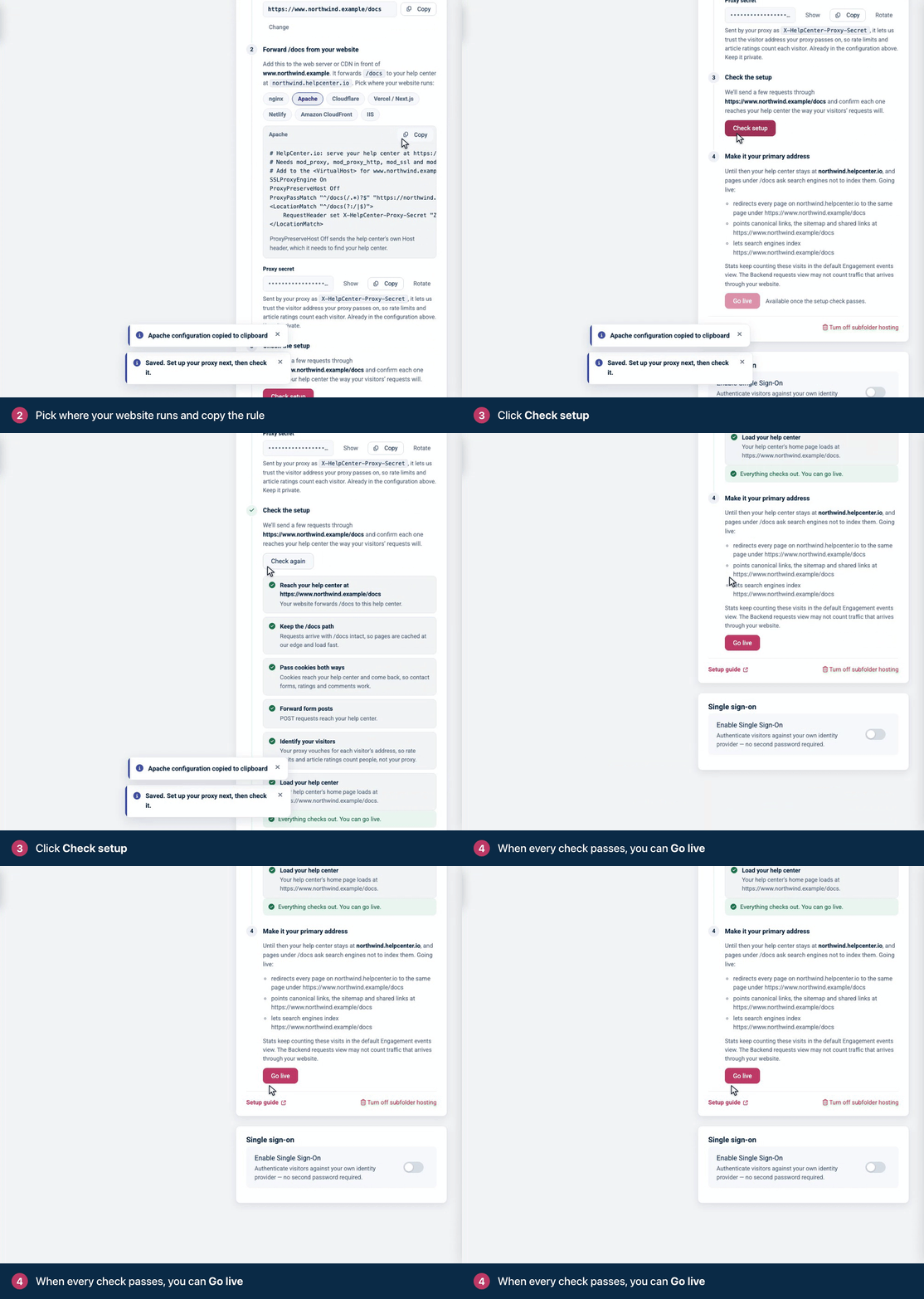
Check | What it confirms |
|---|---|
Reach your help center at your address | Your website forwards the path to this help center. |
Keep the /docs path | Requests arrive with the path intact, so every page resolves and is cached at our edge. |
Pass cookies both ways | Cookies reach your help center and come back, so contact forms, ratings and comments work. |
Forward form posts | POST requests reach your help center. |
Identify your visitors | Your proxy sends the proxy secret and each visitor's address. The secret is optional, but a wrong one fails the check. |
Load your help center | Your help center's home page loads at your address. |
Go live
Once the check passes, select Go live, then Go live again to confirm.
Copy the
Sitemap:line the card shows and add it to the robots.txt at the root of your website. Search engines only read robots.txt there, so this is how they find your help center's sitemap.
Going live:
redirects every page on your helpcenter.io address, and on your custom domain if you have one, permanently to the same page under your subfolder;
points canonical links, the sitemap and shared links at your subfolder;
lets search engines index your subfolder. Before you go live, pages under it ask search engines not to index them, so nothing is listed twice.
Keep your proxy rule in place. If your website stops forwarding the path, your help center goes offline for your visitors until you undo this in Settings.
Change the address or turn it off
Change puts a new address back into testing until it passes the setup check and you go live. Update your proxy rule for the new path; your proxy secret stays the same.
Stop redirecting to /docs moves a live subfolder back into testing: your help center answers at its own address again, and pages under the subfolder stop being indexed.
Turn off subfolder hosting removes the address and the proxy secret. Remove the proxy rule from your website too, or visitors there will see an error.
Good to know
If your help center is hidden from search engines, it stays hidden under your subfolder too.
Our servers limit how many requests one address can send each second. Behind Cloudflare or Amazon CloudFront every visitor keeps their own address, but a proxy that is a single server sends all your visitors from its address, even with the proxy secret. If your help center gets a lot of traffic and your proxy is one server, contact support before you go live.
Statistics keep counting these visits in the default Engagement events view. The Backend requests view may not count them.
If you move to a plan without subfolder hosting, a live subfolder keeps working, and you can still check it, stop redirecting or turn it off. Changing the address or going live again needs a plan that includes it. See plans and pricing.
Troubleshooting
The check says your website answered with a redirect. Your rule redirects visitors instead of forwarding the request. Use a proxy rule (in nginx, proxy_pass; in Netlify, status 200), not a redirect.
The check says your website answered 404, or that something other than HelpCenter.io answered. The rule is not active, or your website's own pages answer first. Check that the rule is saved and reloaded, and place it before any catch-all rule.
The check says an old, cached answer came back. Your proxy or CDN caches the setup check. Do not cache anything under your path's /_hc/.
The check says your proxy removes /docs before forwarding. Forward the full path. In nginx, write proxy_pass with no path after the host.
The check reports a problem with form posts or cookies. Allow every request method, forward the Cookie header, and pass Set-Cookie back unchanged. Contact forms, ratings and comments need all three.
The check says the proxy secret does not match. Copy the secret again from Settings. It changes whenever you rotate it.
The check says the request arrived without the right Host header. Make your proxy send your help center's own address as the Host header, like Host: yourname.helpcenter.io.
Comments
Be the first to comment.