

Connect your help center to HelpCenter.chat, the live chat and shared inbox from the HelpCenter.io team, and the articles you publish here work inside the chat too. Visitors search them in the messenger, Orelvi, HelpCenter.chat's AI agent, answers from them, and your team turns solved conversations into new drafts.
Who can do this: Owners and Admins of the HelpCenter.chat workspace, signed in to a HelpCenter.io account on the help center · Plans: Any HelpCenter.io plan; article search works on HelpCenter.chat's free plan, and Orelvi needs one of its AI plans or its trial
Connect your help center
In HelpCenter.chat, click Settings, then Knowledge base & AI. Orelvi AI in the left menu opens the same page.
Click Connect HelpCenter.io.
Sign in to HelpCenter.io if you're asked to.
On the Authorize access screen, click Allow. If your account has more than one help center, first tick the ones to share under Help centers to share.
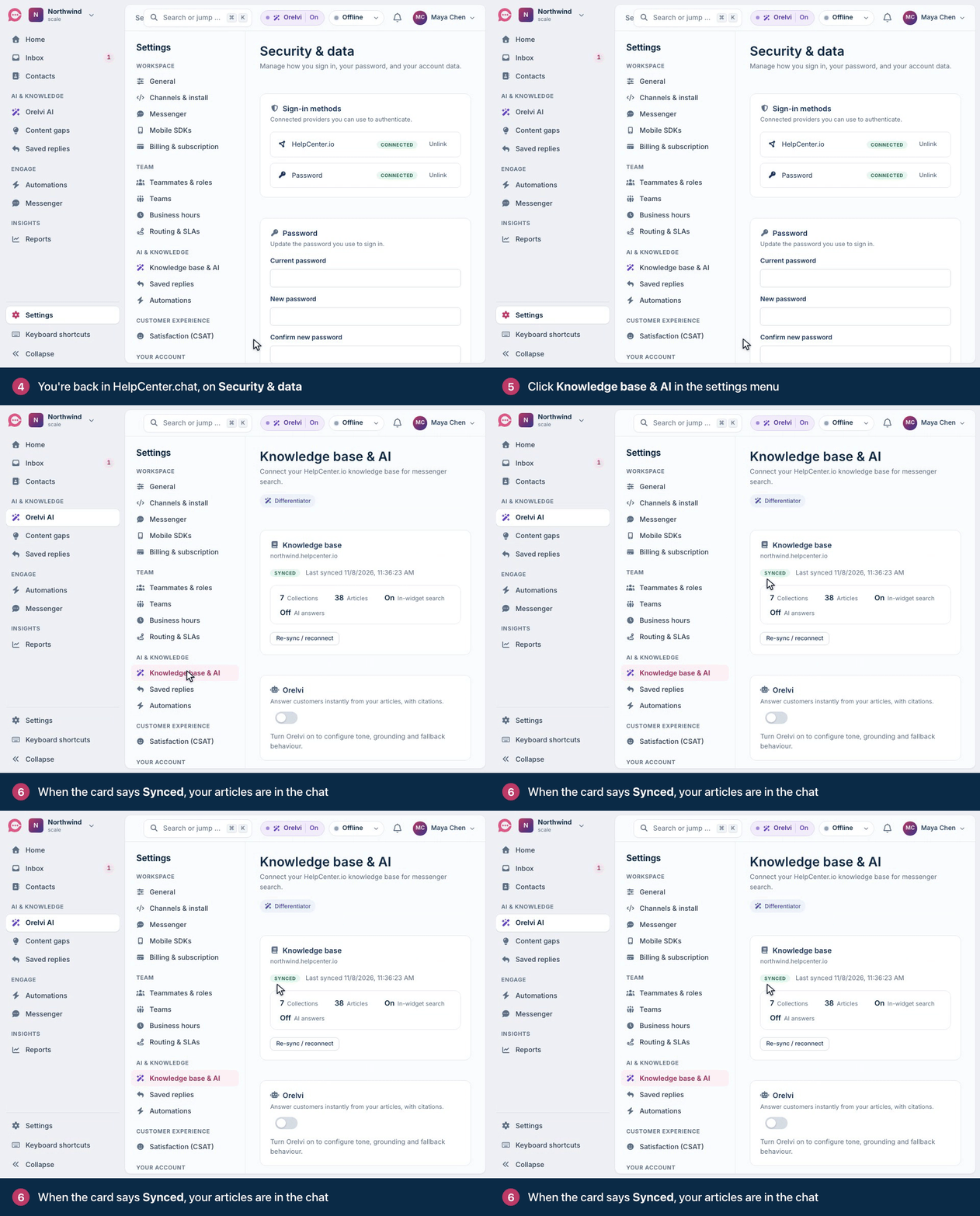
Back in HelpCenter.chat, you land on Security & data. Click Knowledge base & AI in the settings menu.
If you shared more than one help center, the card says Choose a help center: pick one under Select a help center… and click Sync this help center.
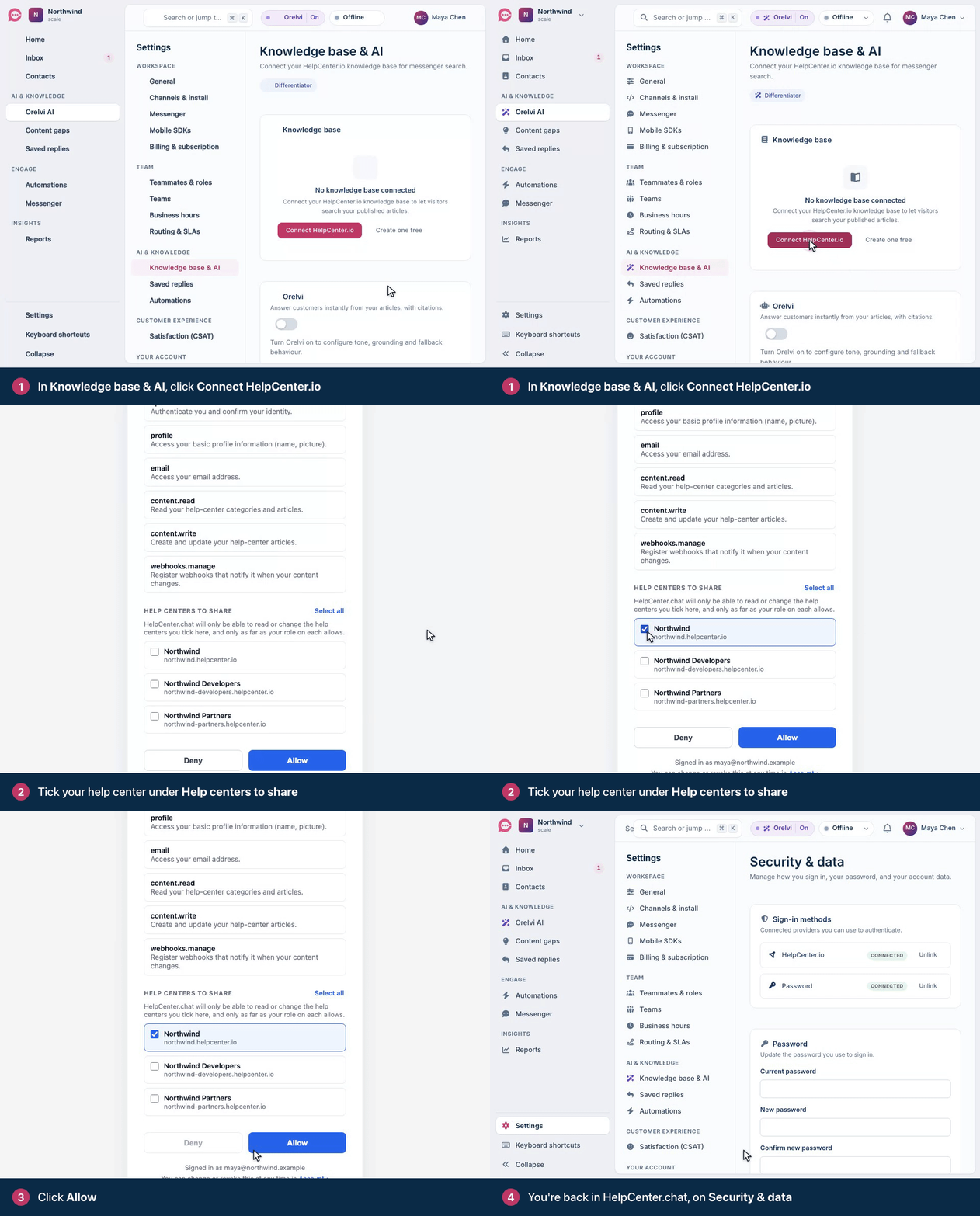
HelpCenter.chat copies your articles right away. When it's done, the Knowledge base card says Synced, with the time it last synced and how many Collections (your categories) and Articles it holds.
No help center yet? See Create your HelpCenter.io account.
What you approve
HelpCenter.chat asks to confirm who you are and see your name and email address, and for three permissions on the help centers you share:
"Read your help-center categories and articles." It copies your articles, and uses the published, public ones for search and answers.
"Create and update your help-center articles." It uses this to save the draft articles your team creates from conversations.
"Register webhooks that notify it when your content changes." HelpCenter.io tells it when an article or category changes.
Which articles the chat uses
Only what anyone can read on your live help center. The messenger and Orelvi use an article only when:
your help center is public (see Control who can see your help center);
the article is published and public, and so is every category above it;
it has a title and content in your help center's default language. HelpCenter.chat uses that language only, not translations.
Drafts, private articles and articles in private categories are never shown in the messenger or used in Orelvi's answers.
HelpCenter.chat checks your help center for changes every 10 minutes, so an edit you publish reaches the chat within about 10 minutes. If a sync fails, or none has succeeded for 15 minutes, the messenger stops showing your articles until a sync succeeds.
Let Orelvi answer from your articles
Connecting your help center switches on article search in the messenger. AI answers are a separate choice:
On the same page, turn on Enable Orelvi.
Set the Confidence threshold and what happens When unsure: Hand off to a human (the default), Ask to rephrase or Show closest articles.
Click Save changes.
Try a question in the Test sandbox before visitors see it.
Orelvi answers only from your synced articles and lists them under Sources. Visitors can rate the answer or click Talk to a human to reach your team.
Orelvi uses credits from HelpCenter.chat's AI plans. A one-time trial is available once the workspace owner's email is verified, your help center is connected and Orelvi is turned on. See the HelpCenter.chat pricing page.
Turn a conversation into an article
When a customer asks something your articles don't cover, your answer is the start of a new one.
In HelpCenter.chat's Inbox, open a resolved conversation.
On the AI Copilot tab, click Create KB article draft · 4 credits.
In HelpCenter.io, find the new draft in Articles, edit it and publish it when it's ready.
The draft goes to the connected help center and is never published automatically.
Pay for both together
HelpCenter.chat sells monthly bundles of an AI plan and a HelpCenter.io plan that save 20% on both. Connect your help center first, then, as the workspace owner, choose a bundle in HelpCenter.chat under Settings → Billing & subscription. Your HelpCenter.io Billing & Invoices page then shows Your HelpCenter.chat bundle, and Manage bundle takes you to HelpCenter.chat, where its invoices and payment details live.
Connecting alone changes nothing about your HelpCenter.io plan or billing, and a HelpCenter.io subscription you already pay for stays on its current billing.
Change or remove the connection
Switch help centers: pick another under Select a help center… and click Sync this help center. To share a help center you didn't tick before, in HelpCenter.io, open the account menu with your name and click Connected Apps. In HelpCenter.chat's entry, tick it under Help centers it can reach and click Save help centers. Then, in HelpCenter.chat, click Re-sync / reconnect, go back to Knowledge base & AI and pick it under Select a help center….
Disconnect: in HelpCenter.io, open the account menu with your name and click Connected Apps. Find HelpCenter.chat and click Disconnect. It loses access to your help centers at once, and the messenger stops showing your articles within 15 minutes.
Troubleshooting
The card says "Choose a help center". You shared more than one help center. Pick the one this workspace should use and click Sync this help center.
An article is missing from the chat. Check that it's published, that it and every category above it are public, and that your help center is public. Then give it a few minutes.
The card says "Sync error" or "Disconnected". Click Re-sync / reconnect, and click Allow if HelpCenter.io asks. If you disconnected HelpCenter.chat in HelpCenter.io, this connects it again.
Comments
Be the first to comment.