

Your help center answers the questions your articles cover. For everything else, customers need a way to reach your team, and you have two ready-made ones: the contact form that comes with every help center, and HelpCenter.chat, the live chat and shared inbox made by the HelpCenter.io team. Both put your articles first, so your team mostly hears the questions your articles don't answer yet.
Which one fits
Contact form | HelpCenter.chat | |
|---|---|---|
Where customers find it | Your help center's contact page, "Ask us" buttons, and the widget's contact buttons | A messenger on your website, which the widget's contact buttons can open too |
Where messages arrive | The email address you choose: your own inbox, a team address, or a shared inbox or help desk you already use | HelpCenter.chat's shared inbox, where your team assigns and answers conversations |
How you reply | By email | Live, in the messenger. Visitors who leave their email address also get your replies by email. |
Your articles | The contact page suggests matching articles while visitors type | Visitors search your public articles in the messenger, and Orelvi, its AI agent, can answer from them |
Price | Included in every HelpCenter.io plan | A separate product with a free plan for human chat. Orelvi is on its paid plans. |
You can use both: the contact form for people who prefer email, and live chat on the pages where a quick answer matters most.
Send contact form messages to your inbox
The contact form stays hidden until you tell HelpCenter.io where to deliver messages. One address switches on your contact page, the "Ask us" buttons that point to it, and the contact form in the widget.
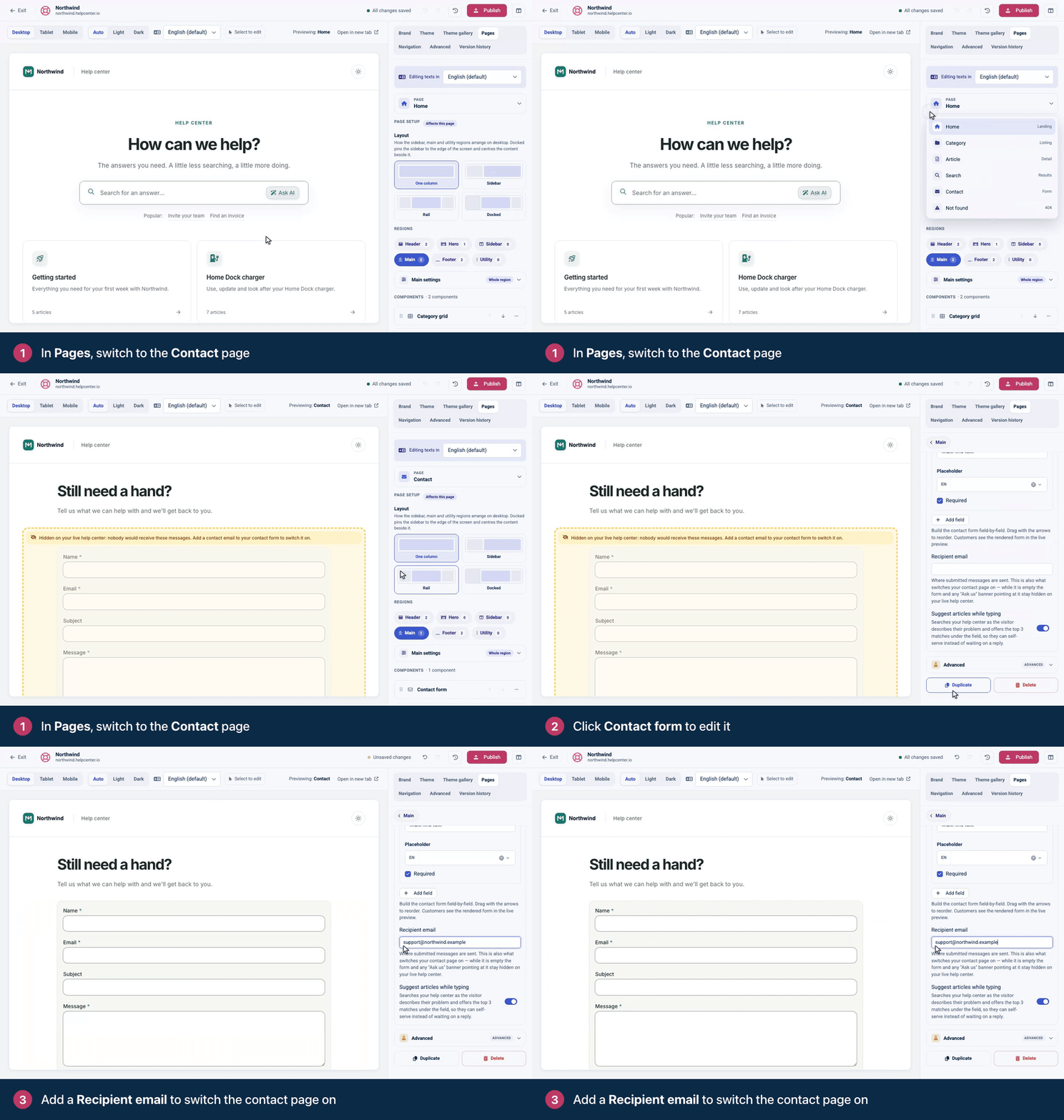
In the left menu, click Template editor. Open Pages and pick Contact.
Click Contact form to edit it.
In Recipient email, enter the address that should receive messages.
Click Publish.
Still on the classic template editor? The address goes in Contacts Email under General. See Set up the contact form in the classic editor.
A team address
Recipient email takes one address. To reach several people, use an address your whole team reads, such as support@example.com, set up as a group or shared mailbox with your email provider.
A help desk or shared inbox
Most help desks and shared inboxes, such as Help Scout, Front, Zendesk, Freshdesk and Gorgias, give each inbox an email address of its own that accepts forwarded mail. Paste that address into Recipient email, and every message becomes a conversation in the tool your team already works in.
If your support address already forwards into your help desk, you can enter your support address instead. Contact form messages then take the same path as the rest of your support email.
How messages are sent
Messages from your contact page come from
no-reply@helpcenter.io, with the subject "You've got a new support request". Messages from the widget's contact form come fromapp@helpcenter.io, with the subject "New support request".Each message carries the visitor's email address as its reply-to address, so when you reply, your answer goes to the visitor.
Help desks differ in which address they treat as the customer. If a test conversation shows no-reply@helpcenter.io or app@helpcenter.io as the customer, look in your help desk's email settings for an option to use the reply-to address.
To test it, publish, open /contacts on your help center in a private browser window, and send a message with an address you can check. Then reply to it from your inbox or help desk and make sure the reply arrives. For the form's fields, confirmation emails and "Ask us" buttons, see Set up your contact page and form.
Live chat with HelpCenter.chat
HelpCenter.chat puts a messenger on your website and gives your team a shared inbox to answer from. It's a separate product, with its own account, from the team that makes HelpCenter.io, and its free plan covers human chat for two teammates and 100 new conversations a month. You don't need a HelpCenter.io subscription to use it, and it works best with your help center connected.
Your articles in the messenger. Connect your help center, and visitors can search your public articles without leaving the chat.
AI answers, then your team. Turn on Orelvi, HelpCenter.chat's AI agent, and it answers from your articles, shows its sources and hands the conversation to your team when it isn't sure.
The widget first. Keep the widget as the place visitors start, and let its contact buttons open the messenger. This is how we set up help in the HelpCenter.io dashboard.
New articles from real questions. With Orelvi, turn a solved conversation into a draft article in your help center, ready for you to review.
Create a free workspace at my.helpcenter.chat. Plans and the bundles with HelpCenter.io are on the HelpCenter.chat pricing page. Then follow these two guides:
Already using another tool?
The widget's contact buttons can open the live chat you already have. There are step-by-step guides for the Intercom Messenger, Chatra, tawk.to and Gorgias Chat. To bring your articles into your help desk instead, see Integrations overview.
Comments
Be the first to comment.