

Custom roles give each teammate exactly the access their job needs. The most common one is a Reviewer: someone who writes, edits and translates articles but can never change what readers see, so an editor checks and publishes their work.
Who can do this: Owners and Admins · Plans: Catalyst
Create a Reviewer role
The Reviewer is ready to use, so this takes a few clicks.
In the left menu, click the gear icon, then Users.
In the Roles panel, click New Reviewer role.
Check the Name, and add a Description if you like, for example "Writes and translates articles. An editor publishes them." The description shows next to the role wherever you assign it.
Click Create role.
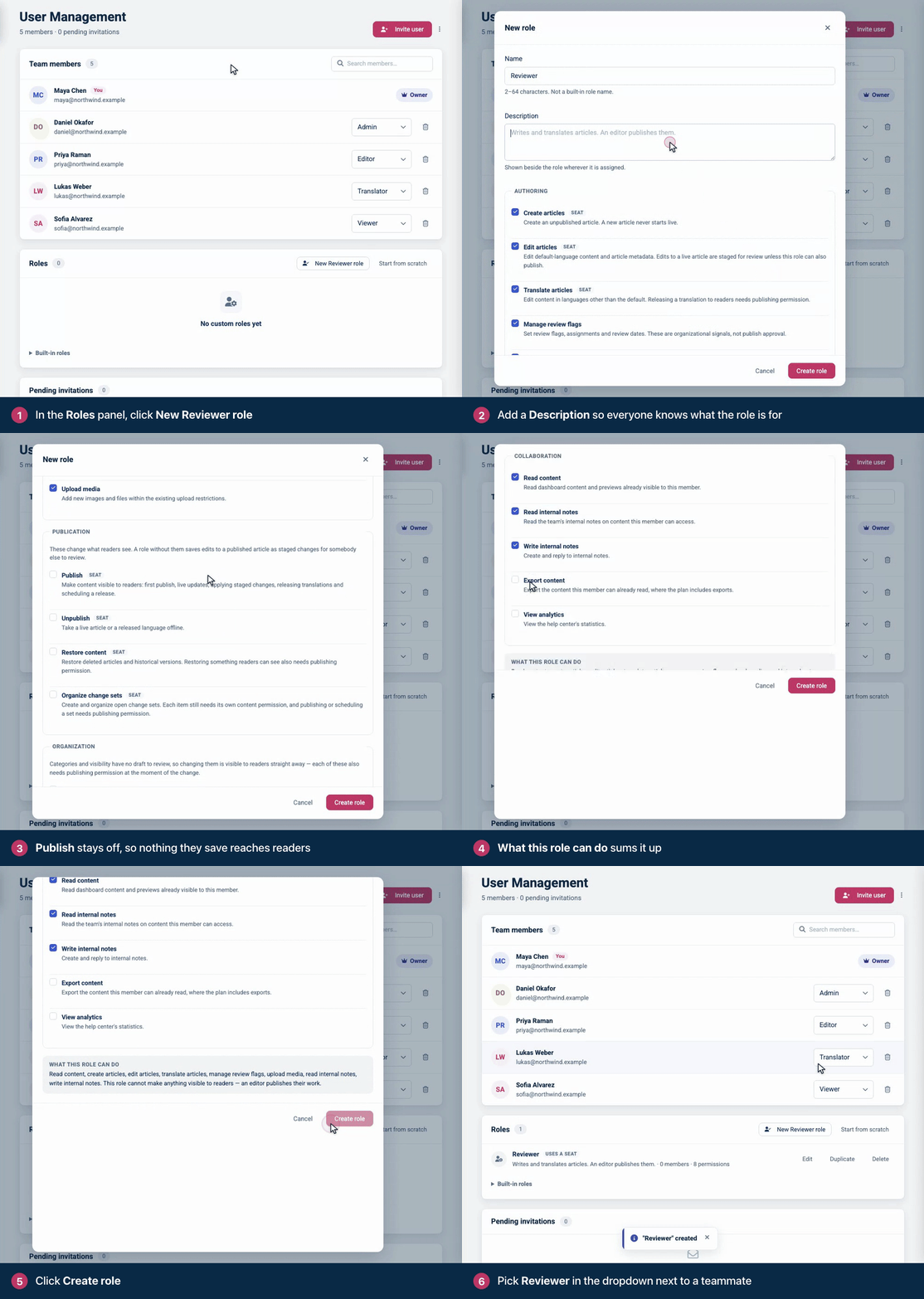
A Reviewer can read content, create, edit and translate articles, manage review flags, upload images and files, and read and write internal notes. Nothing in it can make a change visible to readers.
Create a role from scratch
In the Roles panel, click Start from scratch.
Enter a Name (2 to 64 characters). It can't be the name of a built-in role, such as Editor.
Tick the permissions the role needs. They are grouped under Authoring, Publication, Organization and Collaboration.
Read What this role can do at the bottom. It lists the permissions you picked and says whether the role can make changes visible to readers.
Click Create role.
To start from a role you already have, click Duplicate next to it. The copy is a new role, so people using the original aren't affected. A help center can have up to 25 custom roles.
The permissions
Permission | What it allows |
|---|---|
Read content | Open the dashboard's content and previews. Every other permission needs it. |
Create articles | Create new articles. A new article always starts unpublished. |
Edit articles | Edit articles in your default language. Without Publish, edits to a live article are saved as staged changes for review. |
Translate articles | Edit articles in your other languages. Releasing a translation to readers needs Publish. |
Manage review flags | Flag articles for review and set review dates. A flag is a reminder, not an approval to publish. |
Upload media | Add new images and files. |
Publish | Make content visible to readers: publish articles, update live ones, publish staged changes, release translations and schedule releases. |
Unpublish | Take a live article or a released language offline. |
Restore content | Restore deleted articles and older versions. Restoring something readers can see also needs Publish. |
Organize change sets | Create and organize open change sets. Publishing or scheduling a set needs Publish. |
Delete articles | Move articles to the Trash. Deleting a live article also needs Unpublish. |
Change visibility and sharing | Change who can see an article or category. |
Manage categories | Create categories and change where they sit. |
Manage shared media | Replace or delete images and files. Needs Upload media. |
Read internal notes | Read your team's internal notes. |
Write internal notes | Add and reply to internal notes. Needs Read internal notes. |
Export content | Export the content this person can already read. |
View analytics | See your help center's statistics. |
Categories and visibility have no draft to review, so the permissions under Organization change what readers see straight away. Each of them also needs Publish whenever the change would reach readers.
When one permission needs another, the role editor says which one is missing, for example "Read content is needed by Edit articles". It never adds a permission for you, so Edit articles never quietly brings Publish with it.
What only built-in roles can do
Some work stays with the built-in roles, whatever a custom role includes: managing users, roles, settings, API keys and billing, designing the help center in the template editor, moderating reader comments, and emptying the Trash.
Give someone a custom role
A teammate already on the team: pick the role in the dropdown next to their name under Team members.
Someone new: click Invite user and choose the role under Role. See Invite your team.
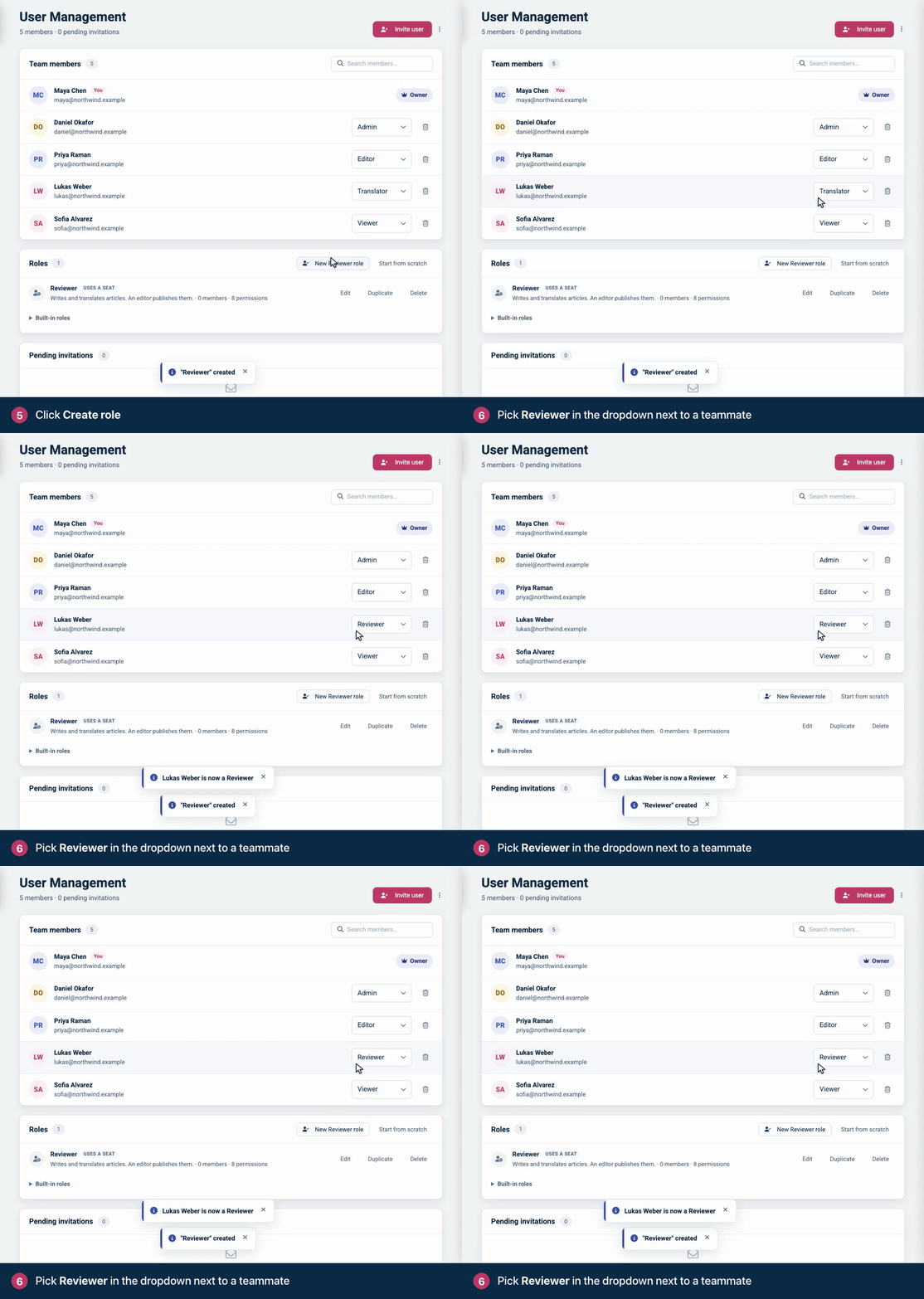
Each person has one role per help center. Custom roles belong to the help center you create them in, so on another help center you create them again.
How a Reviewer's work gets published
A Reviewer never sees a Publish button. In the article editor:
A new article stays a Draft until someone who can publish publishes it.
On a live article, Save draft saves the edits as staged changes, and the editor shows Saved for review. Readers keep seeing the published version.
An Editor, Admin or Owner then opens the article, checks the staged changes and clicks Publish changes. See Edit live articles safely with staged changes.
The same limits apply everywhere the person works. An AI assistant they connect by signing in can do only what their role allows, so a Reviewer's assistant can't publish either. See Connect Claude, ChatGPT and other AI agents.
Edit or delete a role
Edit: click Edit next to the role, change it and click Save changes. The editor tells you how many people the change affects. It applies to all of them straight away.
Delete: click Delete, then Delete role. You can only delete a role nobody uses, so first move its members and pending invitations to another role.
The built-in roles (Owner, Admin, Editor, Translator and Viewer) are listed under Built-in roles for comparison. They can't be changed or deleted. See Roles and permissions.
If your help center leaves the Catalyst plan, your custom roles and who has them are kept, but everyone with a custom role can only read content, internal notes and statistics, and export content. Nobody is moved to a built-in role. Their full access comes back when you return to Catalyst.
Troubleshooting
"Somebody else changed this role while you were editing it." Another Owner or Admin saved the role first. Close the editor, open the role again and make your change.
Delete is greyed out. Someone still has the role, or a pending invitation uses it. Give them another role first.
New Reviewer role is greyed out. Your help center isn't on the Catalyst plan, or it already has 25 custom roles.
A Reviewer can't find their staged changes on the help center. That's expected: staged changes are hidden from readers until someone publishes them.
Comments
Be the first to comment.