

Every article keeps a history of its changes: what changed, who changed it and when. Use it to see how an article evolved, or to undo a change that shouldn't have happened.
Who can do this: Owners, Admins and Editors · Plans: All plans (how far back the history goes depends on your plan)
See an article's history
Open the article from Articles.
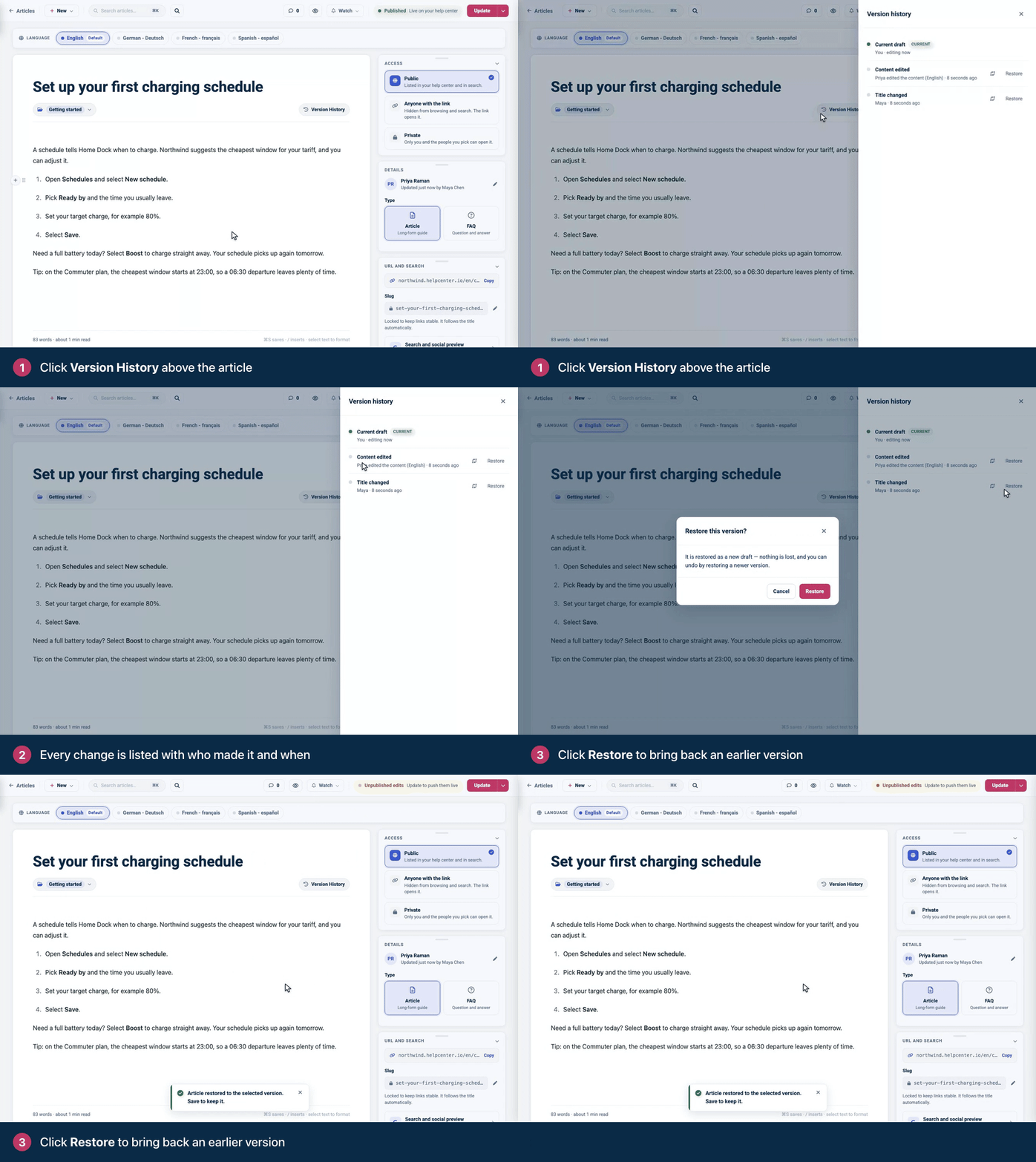
Click Version History above the article, next to its category.
Each entry says what changed, who made the change and how long ago. To see the change itself, click the compare icon next to it: you get the added and removed text for content edits, and the old and new value for everything else.
What the history tracks
Entry | What changed |
|---|---|
Content edited | The article's text, in the languages named in the entry. |
Title changed | The title. |
Slug changed | The article's URL. |
Category changed | The category the article is filed in. |
Status changed | The article was published or unpublished. |
Translation released | A language was released to readers, or hidden again. |
Changes to other settings, such as the author or the article's access, aren't listed. The history shows 10 changes at a time: click Load more for older ones.
Restore an earlier version
In Version history, find the change you want to undo and click Restore next to it.
Click Restore again to confirm.
Restore puts that part of the article back the way it was right before the change. For example, restoring a Title changed entry brings back the previous title, and the rest of the article stays as it is. The restore is recorded as a new entry, so you can undo it the same way.
On a published article, Restore changes the live article right away. The confirmation talks about a draft and the status pill then shows Unpublished edits, but readers see the restored version as soon as you confirm. Compare the change before you restore it.
Restoring a Status changed entry also switches the article back to its earlier status, so it can publish or unpublish the article. Restoring a Translation released entry releases or hides that language again.
How far back the history goes
How much history you can see depends on your plan. When older changes fall outside it, a note at the bottom of the list tells you how many are hidden. See Plans and pricing.
On help centers with staged changes
If your help center uses staged changes (Catalyst), Version history also shows:
Staged changes at the top, marked Not live, with Compare, Publish and Discard.
Live version: what readers see right now.
Previous live version entries. Click Restore, then Roll back, to put that version live straight away. The version it replaces is archived first, so you can roll forward again.
See Edit live articles safely with staged changes.
Comments
Be the first to comment.