

Connect Intercom to put your help center to work there. Visitors search your articles in the Messenger, your team finds and shares articles from the Inbox, and Fin, Intercom's AI agent, learns from your published articles automatically.
Who can do this: Owners and Admins · Plans: All plans (Suggested articles in the Inbox need the Catalyst plan, or the AI add-on on Bootstrap and Growth)
Connect Intercom
In the left menu, click the gear icon, then Settings.
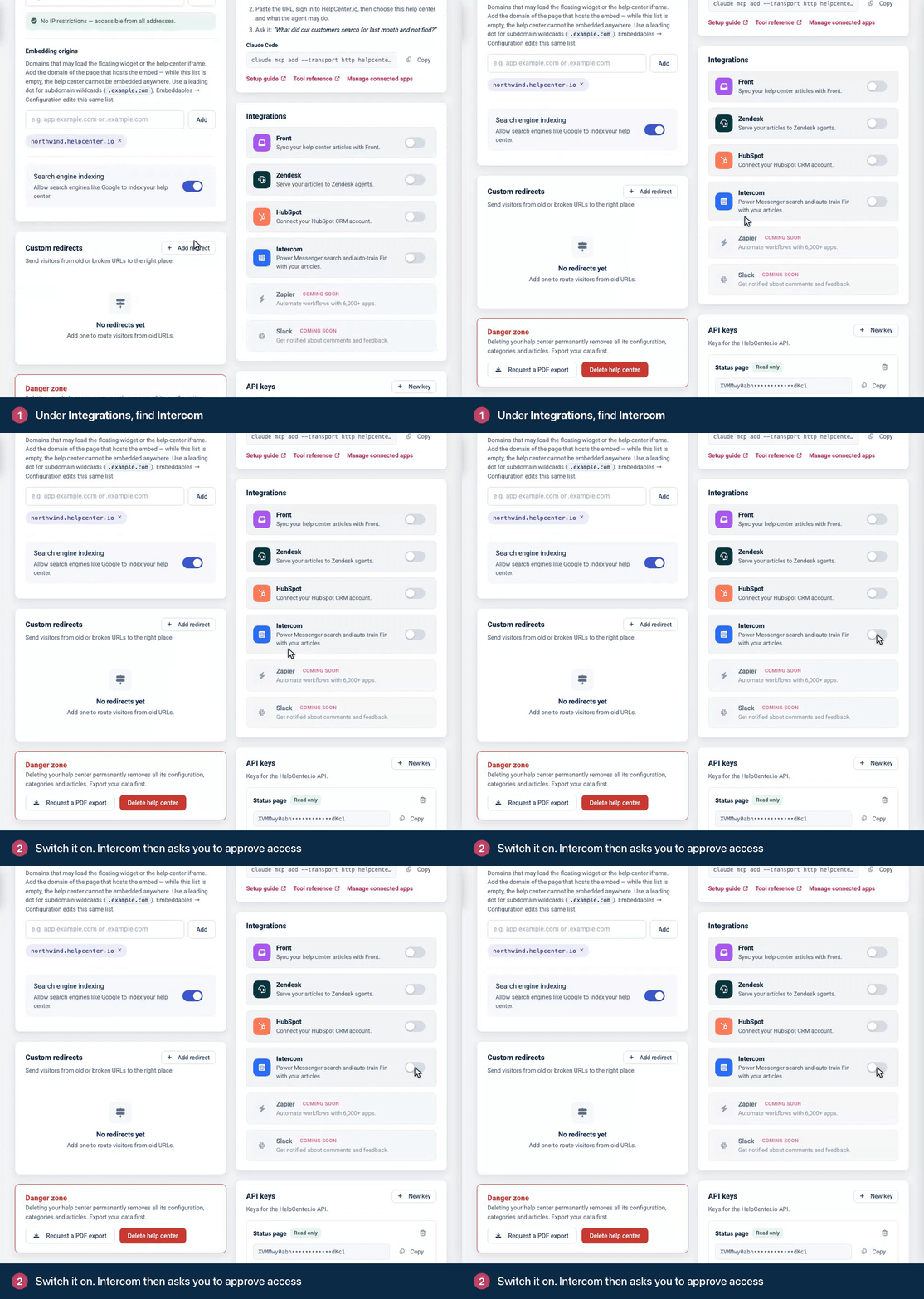
Under Integrations, find Intercom and switch it on. Intercom opens.
Approve access for your Intercom workspace.
Back in HelpCenter.io, under Choose the Help Center to connect, pick the help center that should power Intercom.
Click Connect to Intercom.
You return to Settings, where the Intercom card now shows your Workspace. Your published articles start syncing to Fin straight away, and the card shows how many have synced.
An Intercom workspace connects to one help center at a time.
Install from the Intercom App Store
You can also start from Intercom:
In Intercom's App Store, find the HelpCenter.io app and click Install.
Sign in to HelpCenter.io if you aren't already, and approve access for your Intercom workspace.
Under Choose the Help Center to connect, pick your help center and click Connect to Intercom.
You return to Intercom, where the app is installed. You need to be an Owner or Admin of the help center you pick. If you don't have a help center yet, click Create your first Help Center, then connect Intercom from Settings.
If the workspace is already connected to another of your help centers, you see a message naming it. Disconnect it there first, then try again.
What you get in Intercom
Messenger: a search app where visitors search your articles, browse your categories, pick a language and open an article. When nothing matches, they're invited to send your team a message.
Inbox: the HelpCenter.io app shows Suggested articles for the conversation (Catalyst plan or the AI add-on). Your team can Find an article by title, ID or content, browse by category, and click Insert link into reply.
Fin: your articles sync to Fin as a content source, so Fin can answer your customers from them.
To show the Messenger and Inbox apps, add the HelpCenter.io app where you want it in your Intercom workspace.
What syncs to Fin
Published articles set to Public or Anyone with the link, in categories shared with Everybody or in no category.
Your default language and every released translation, each as its own page.
The version readers see: your team's internal notes are left out.
Changes sync on their own when you save an article. When you unpublish an article or make it private, Fin stops using it, and deleting an article removes it from Fin.
To send every article to Fin again, click Re-sync Fin on the Intercom card. It can take a few minutes.
Disconnect Intercom
Switch off Intercom, or click Disconnect on its card, and confirm. This removes the connection on both sides and removes all synced articles from Fin.
If HelpCenter.io can't confirm the disconnect with Intercom, nothing is removed, so you can try again. If it keeps failing, uninstall the app from your Intercom workspace settings.
Troubleshooting
"This Intercom workspace is already connected to" another help center. Disconnect Intercom in that help center first, then connect it here.
The Intercom card shows "Last error". Something stopped the last sync. Click Re-sync Fin to try again.
Intercom doesn't show as connected after you approved access. The connection wasn't completed. Start again from Settings → Integrations and finish every step, including Connect to Intercom.
An article isn't in Fin. Check that it's published, set to Public or Anyone with the link, and in a category shared with Everybody. Translations sync once they're released.
No Suggested articles in the Inbox. They need the Catalyst plan or the AI add-on. If you added AI recently, switch on AI Answers once under Settings → AI features, so your existing articles are prepared for suggestions.
Comments
Be the first to comment.