

See how your design looks on a phone, on a tablet and in dark mode before readers do. The preview shows your draft, updates as you edit, and changes nothing on your live help center.
Who can do this: Owners and Admins (Editors through Customize on your help center) · Plans: All plans
Switch the device and the appearance
In the left menu, click Template editor.
In the bar above the preview, click Mobile for a phone-sized screen (390 × 844), or Tablet (820 × 1180). Desktop takes you back to full width.
Click Dark to see dark mode, or Light for light mode. Auto follows your own device's setting.
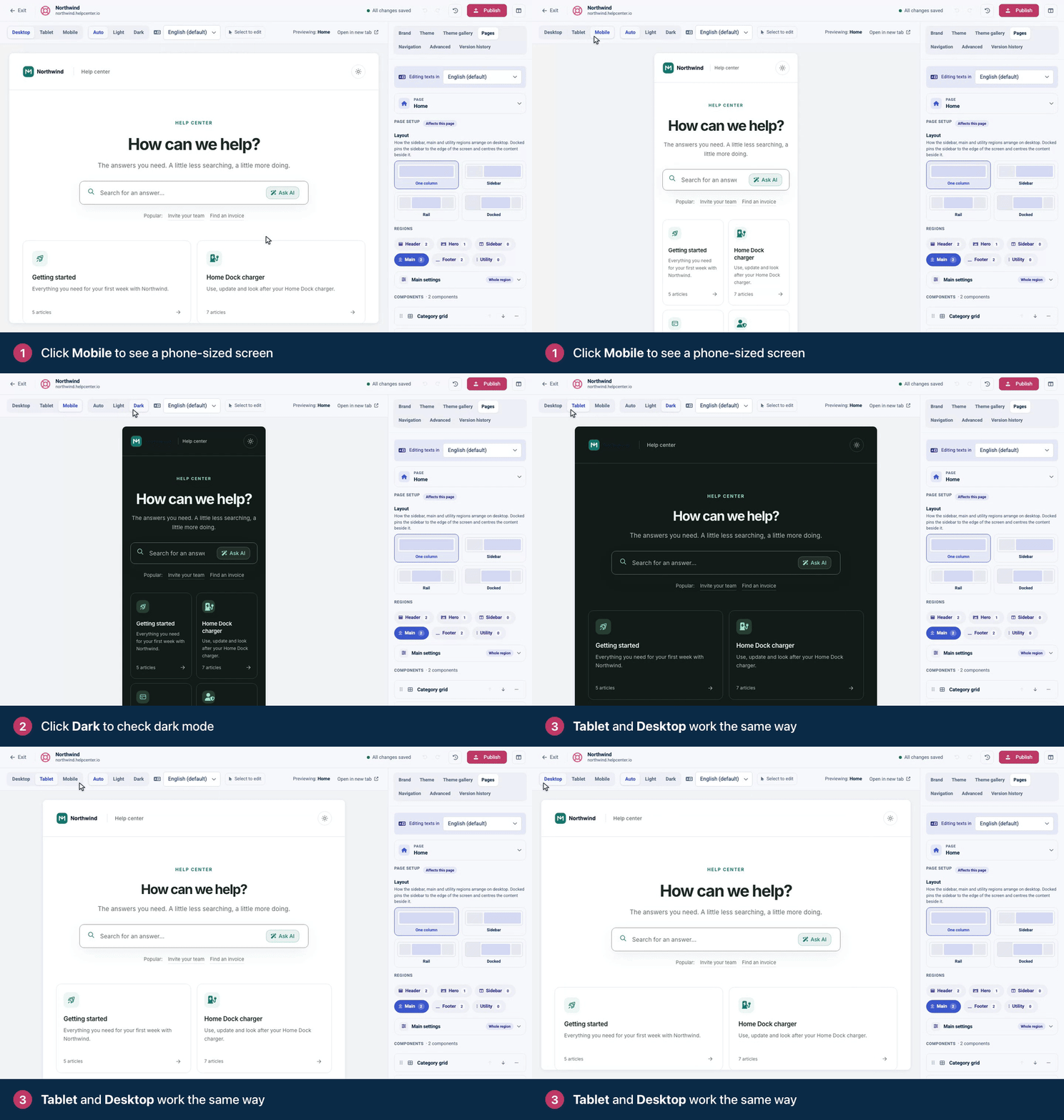
Layouts adapt to smaller screens by themselves: a sidebar moves above the main content, the right-hand rail moves below it, and a docked sidebar turns into a Browse button that opens it as a drawer.
Preview other pages
The label Previewing: at the right end of the bar above the preview names the page you're looking at.
To switch pages, pick one in the Pages tab, or click a link in the preview, such as a category card.
The preview uses your real content. The Article page shows your most recently updated published article, the Category page shows one of your categories, and the Search page lists your most recently updated articles. Type a search into the preview's search box to see real results.
On a help center with several languages, pick a language in the menu next to Select to edit to see your translations. The language you edit texts in switches with it.
Open the preview in a new tab
Click Open in new tab to see the current page at full size, without the editor around it. It shows your last saved draft, so wait until the top bar says All changes saved first.
The link works for team members who can edit your help center, while they're signed in. It isn't a way to share a draft with customers: they see your design once you publish.
What to check
Long names: your site name, category names and article titles.
The header menu wrapping on narrow screens.
Cards that get too narrow, and images wider than the page.
Tables and code blocks: they should scroll sideways inside their box, not push the page.
Buttons and links that are big enough to tap.
In dark mode: text you can read, visible borders, your logo, images with transparent backgrounds, and custom CSS with fixed colors. See Light and dark mode.
Your longest translation, if you have more than one language.
Edit straight from the preview
Click Select to edit, then click any part of the preview to open its settings. You can also change headings and other texts right where they are. See Edit text right in the preview.
Troubleshooting
The new tab shows an older version. It shows the last saved draft. Wait for All changes saved, then reload the tab.
Your change shows in the preview but not on your help center. Previews show your draft. Click Publish to put it live. See Publish your design.
The contact form's button does nothing. Forms don't send from the preview. Test them on your live help center after you publish.
Comments
Be the first to comment.