

Offer help at the moment visitors need it: on your pricing page, after they've been reading for a while, or as they move to leave. A proactive message is a small bubble above the widget's launcher, and one click on it opens the widget.
Who can do this: Owners and Admins · Plans: All plans. Bootstrap includes 2 messages with Page URL and Time on page rules. Growth and Catalyst include up to 50 messages and every rule.
Create a message
In the left menu, click the gear icon, then Embeddables, and open the Proactive messages tab.
Click New message. If you don't have any messages yet, you can click Start with a suggested message instead: it fills in a friendly offer of help that shows after 15 seconds on a page.
On the Message tab, fill in:
Name: only your team sees it, in the list of messages.
Title (optional): shown in bold, up to 80 characters.
Message: the text visitors read, up to 160 characters of plain text.
Emoji (optional): shown before the text.
A message has one title and one text for every language, so write it in the language most of your visitors read. If your website keeps each language under its own address, such as
/de/, create a message for each language and target it with a Page URL rule.
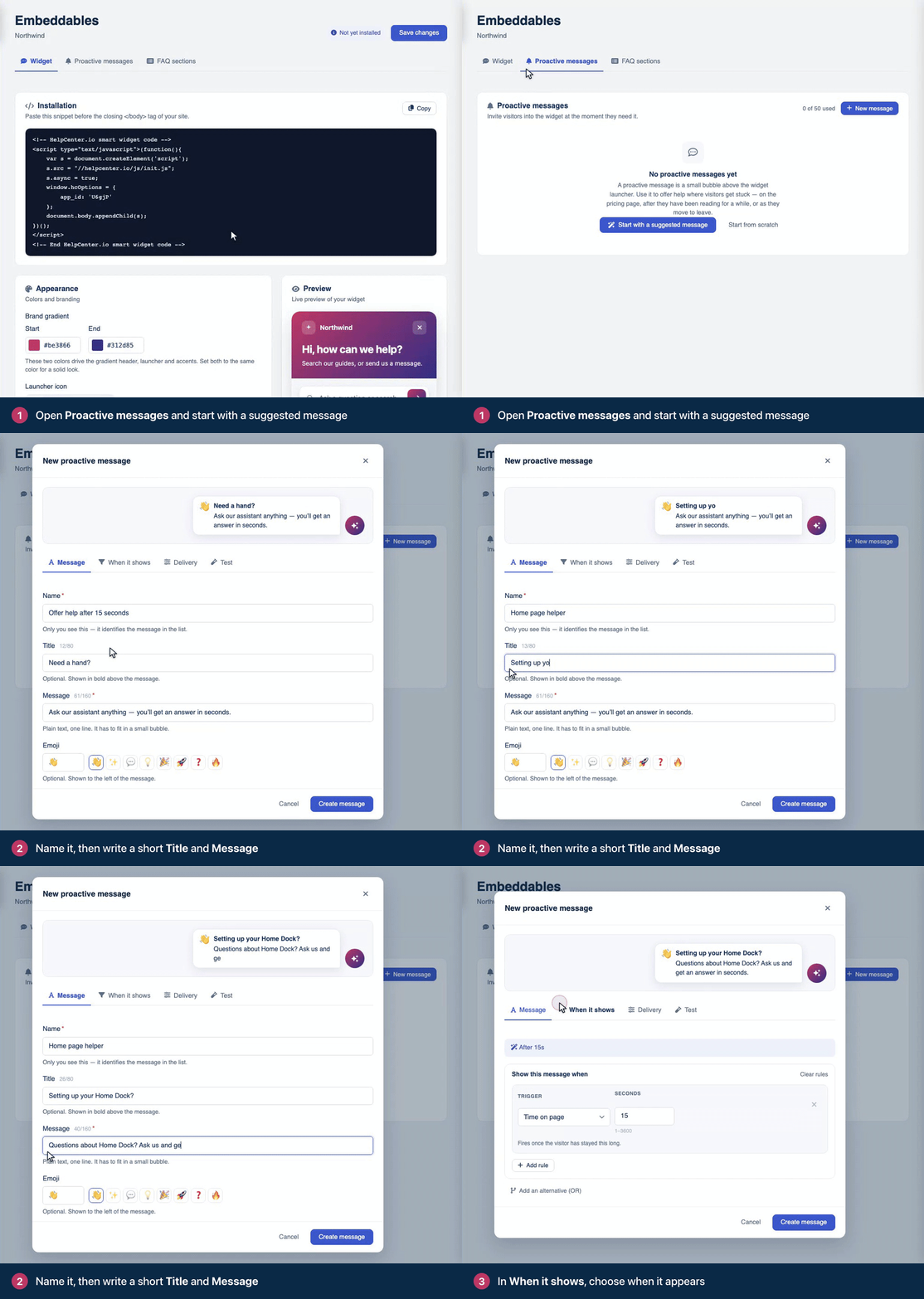
On the When it shows tab, add the rules that decide when the message appears. They're explained below.
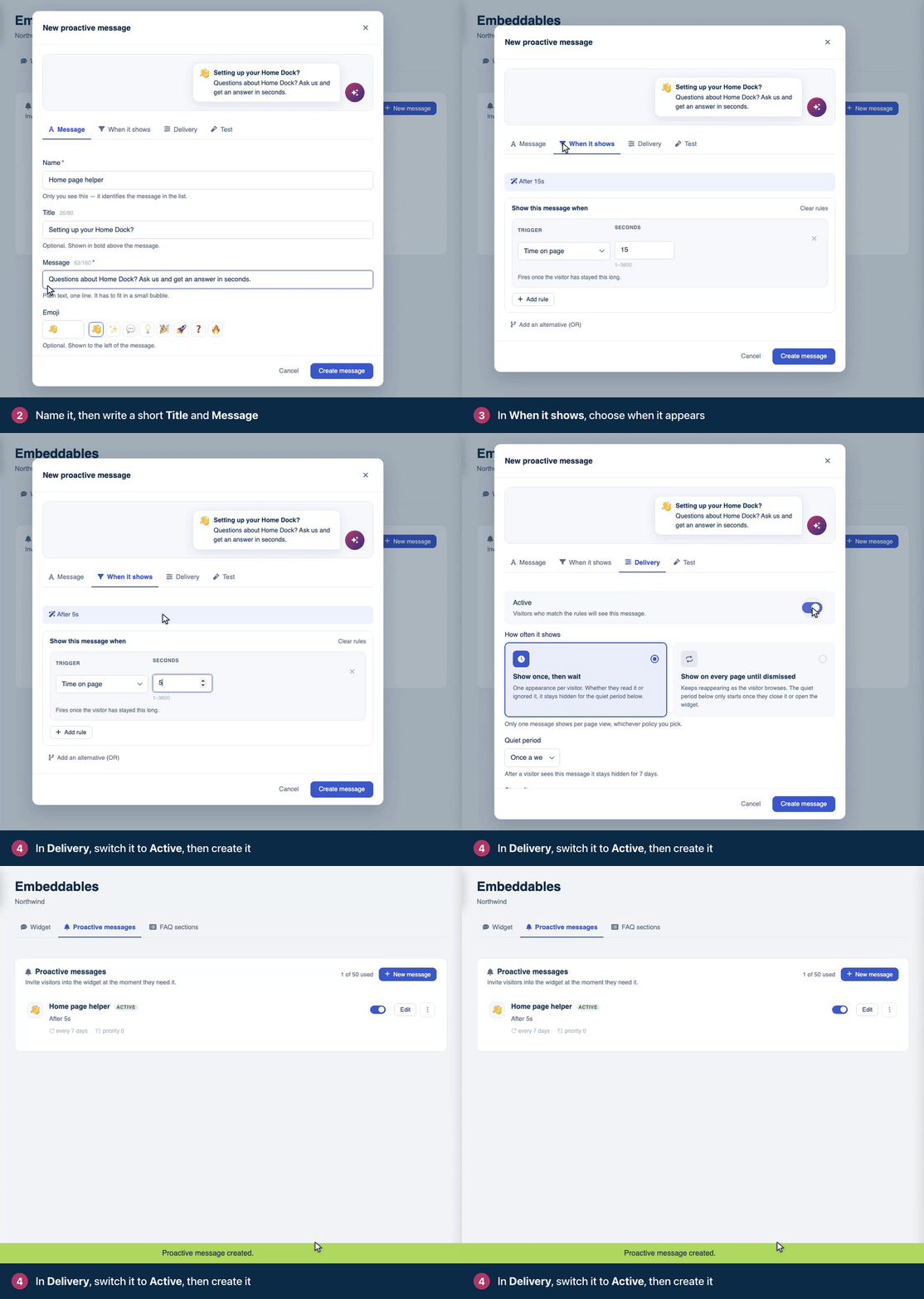
On the Delivery tab, switch on Active. New messages start inactive, so visitors don't see them until you do.
Click Create message.
What visitors see
When a visitor matches the rules, the bubble appears above the launcher with your emoji, title and message. Clicking it opens the widget, and the ✕ closes it. Only one message shows per page view.
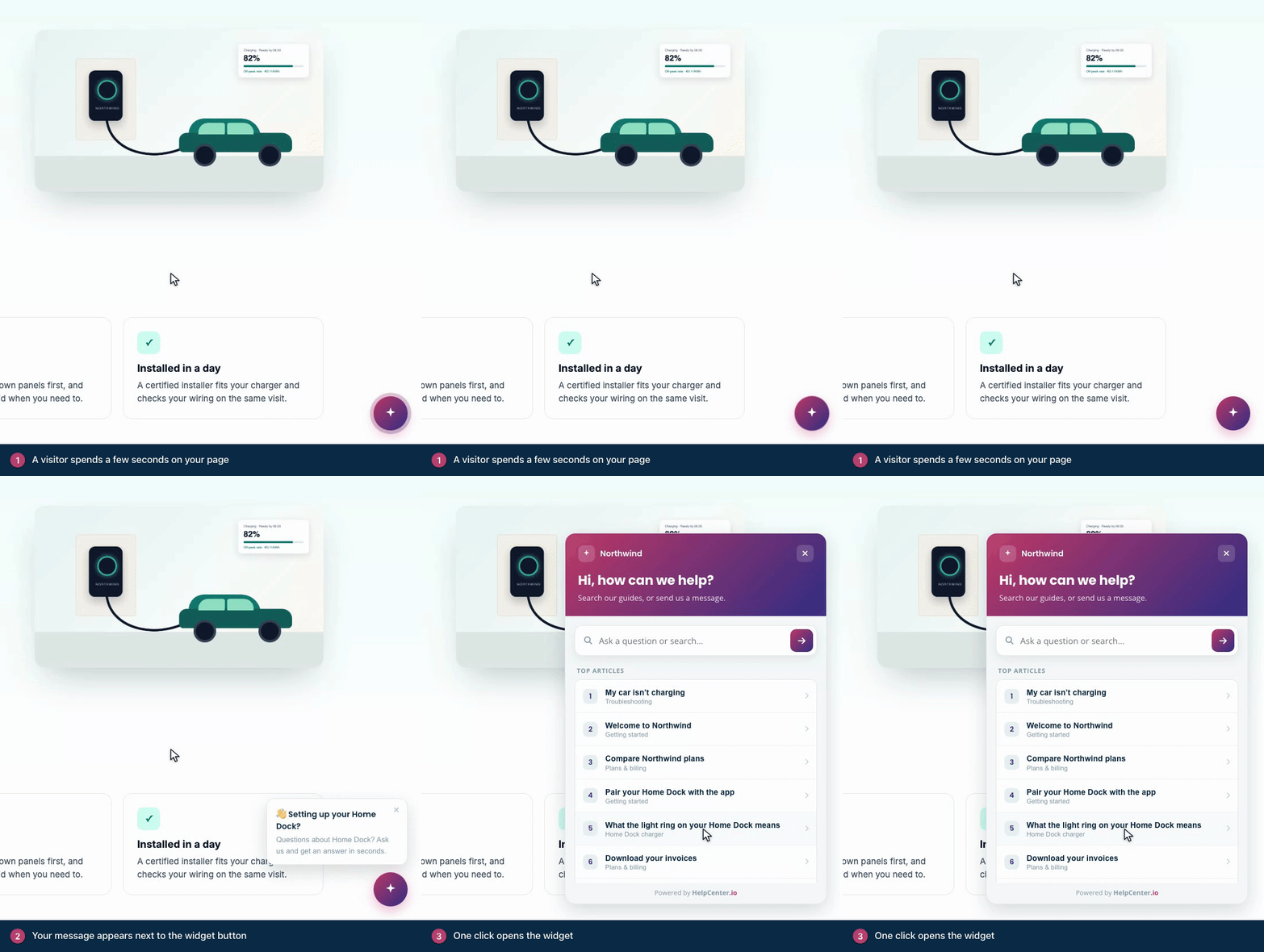
Messages don't show while the widget is open, or on pages where your snippet hides the launcher.
Choose when it shows
Under Show this message when, each rule is one condition. Click Add rule to add more: every rule in a group must be true. Click Add an alternative (OR) to start another group: the message shows when any one group is true. A message with no rules can show on any page.
Rule | The message can show when | Plans |
|---|---|---|
Page URL | The page's path and query string match, for example | All plans |
Time on page | The visitor has stayed on the page for this many seconds. | All plans |
Scroll depth | The visitor has scrolled this far down the page, in percent. | Growth, Catalyst |
Scrolled past element | An element you name with a CSS selector has scrolled out of view above. | Growth, Catalyst |
Visitor idle | No typing, scrolling or mouse movement for this many seconds. | Growth, Catalyst |
Clicked an element | The visitor clicks an element you name with a CSS selector, including elements added to the page later. | Growth, Catalyst |
Hovered an element | The pointer stays on an element for the dwell time you set. | Growth, Catalyst |
Exit intent | The pointer leaves through the top of the window. Desktop only, and never in the first 5 seconds. | Growth, Catalyst |
Form abandoned | The visitor starts filling in a form and leaves it unsubmitted. Field values are never read. | Growth, Catalyst |
Custom event | Your own code fires an event. See below. | Growth, Catalyst |
Referrer | The visitor arrived from a page that matches, such as | Growth, Catalyst |
URL parameter | A query-string parameter is present or has a value you choose. Any parameter works, not only | Growth, Catalyst |
First-time or returning | It's the visitor's first visit, or they've been before. This is remembered in the visitor's browser. | Growth, Catalyst |
On Bootstrap, the other rules appear with a lock. A locked rule never fires.
Control how often it shows
The Delivery tab sets the rest:
Setting | What it does |
|---|---|
Active | Switches the message on. While it's off, the message is saved but never shown. |
How often it shows | Show once, then wait shows it to a visitor once, then keeps it hidden for the quiet period. Show on every page until dismissed keeps showing it as they browse, and the quiet period starts once they close it or open the widget. |
Quiet period | How long the message stays hidden afterwards, from every page view up to a month, or a custom time. A week is the default. |
Stop after | The most times one visitor ever sees the message. Leave it empty for no limit. |
Priority | When several messages qualify on the same page, the one with the highest priority shows. |
Test it before it goes live
On the Test tab, enter a page address under Test against this page URL and click Run test. You'll see whether the message would show on that page and which rules pass. Rules that depend on what the visitor does, such as a click, get switches so you can pretend they happened. Time on page, scroll depth and idle rules get a box for the value to test.
To watch it on your real website, add ?hcnudge=debug to a page's address and open your browser's console. The widget lists every rule it checks and what it saw. This works once at least one message is active.
Manage your messages
The list shows each message's name, whether it's Active or Paused, its rules and how often it shows. Use the switch on a message to pause or activate it, Edit to change it, and the menu (⋮) to Delete it. The counter at the top shows how many of your plan's messages you've used.
A message marked Migrated is the bubble you had set up on the Widget tab, moved here so you can target it like any other message. It doesn't count toward your plan's limit, and switching it off here switches it off everywhere.
The dashboard doesn't show how many visitors saw or clicked each message. To see whether a message helps, filter Statistics to the Widget surface and compare the weeks before and after you switch it on.
Trigger a message from your own code
With a Custom event rule (Growth and Catalyst), your website decides the moment. Give the rule an Event name, such as checkout_failed, and fire it from your code:
if (window.hcWidget) {
  window.hcWidget.trigger('checkout_failed');
}
Event names can use letters, numbers and the characters _ . : - only. Events fired before the widget is ready wait and are applied once it is.
Troubleshooting
The message doesn't show. Check that it's Active, and use the Test tab to see whether the page matches its rules. If you've already seen the message, the quiet period hides it from you: try a private browser window.
Visitors still see the old text. Browsers keep the message settings for a few minutes. Reload after a few minutes.
A rule shows a lock. It isn't included in your plan, so it never fires. Use Page URL and Time on page, or move to Growth or Catalyst. See Plans and pricing.
New message is grayed out, and the tab says "You are using all 2 messages on your plan." Delete a message you no longer need, or move to Growth or Catalyst for up to 50.
Nothing shows on any page. Make sure the widget itself appears on your website. See The widget doesn't show up.
Related articles
Widget JavaScript API on the developer portal
Comments
Be the first to comment.