

Sign in once to work on every help center you belong to, from one place. Whichever help center you manage or read, you sign in at helpcenter.io/app/signin.
Who can do this: Anyone with a HelpCenter.io account · Plans: All plans
Sign in
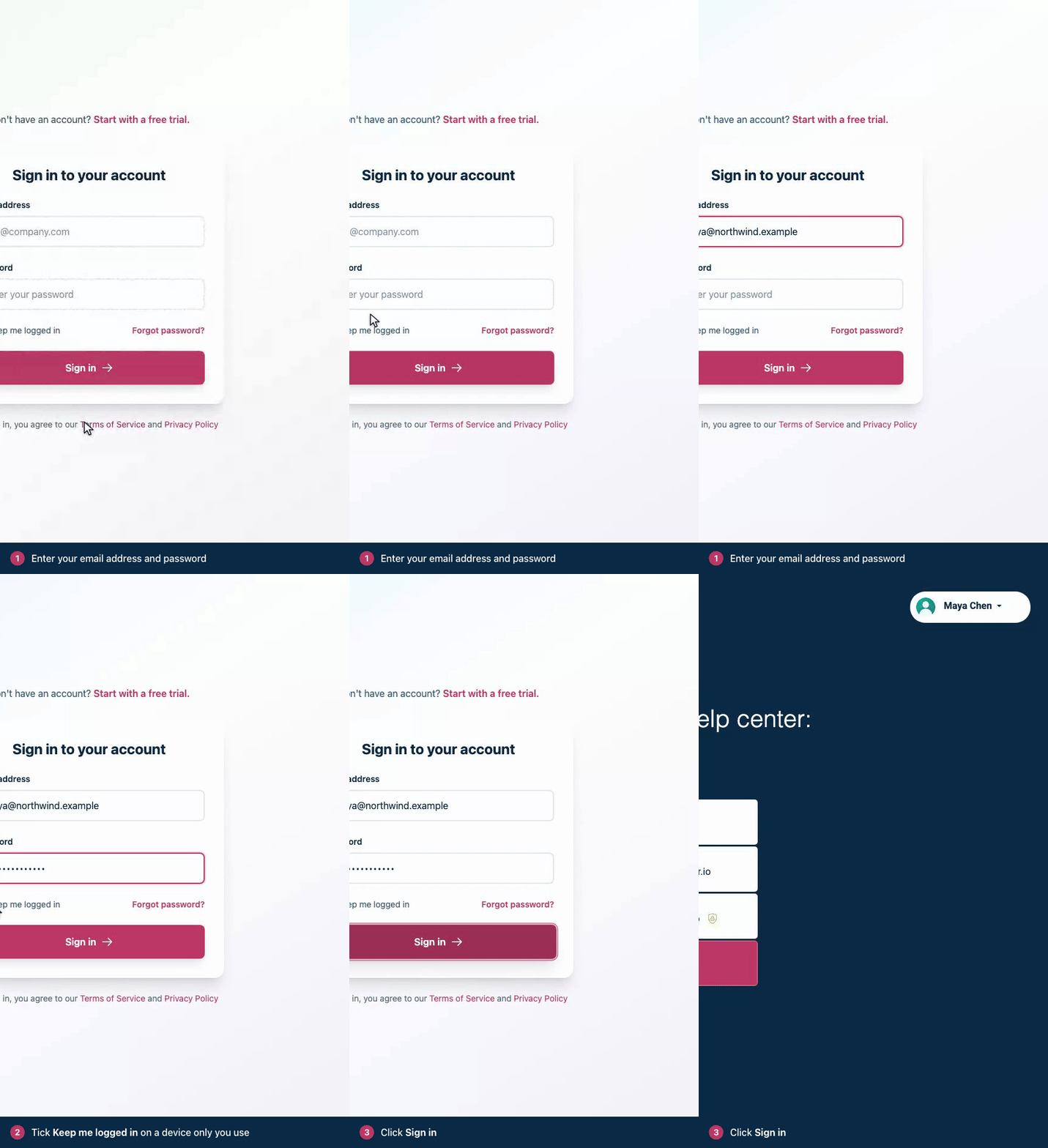
Go to helpcenter.io/app/signin.
Enter your Email and Password.
If you're on a device only you use, tick Keep me signed in on this device.
Click Sign in.
Sign in with Google
Click Continue with Google on the sign-in page and pick your Google account. You're signed in without typing a password.
Your Google address matches your HelpCenter.io account. The first time, Google is connected to that account for you, as long as you've verified your email address with us.
Your Google address is different. Sign in with your password once, then connect Google under Account Settings → Sign-in Methods. See Change or reset your password.
You don't have an account yet. You're taken to the sign-up page to finish creating one. See Create your HelpCenter.io account.
After you sign in
Next you see the list of your help centers. Click one to open its dashboard. If you opened a link to a dashboard page before signing in, you go straight to that page instead. See Switch between your help centers.
If you use two-factor authentication
After your password, or after you pick your Google account, the Enter your code page asks for a code. Open your authenticator app, type the code it shows under Authentication code and click Verify and continue.
Lost the phone with your authenticator app? See I lost my authenticator device.
Forgot your password?
Click Forgot password? on the sign-in page.
Enter your Email and click Send the reset link.
Open the email and click the reset link within 60 minutes.
Enter your email address and a new password of at least 8 characters, twice. Then click Reset password.
The page answers "If an account exists for that address, we've emailed a password reset link." whichever address you enter, so check that you typed the one on your account. No email after a few minutes? Check your spam folder. See Change or reset your password for more.
Reading a private help center
If a team invited you to read their private help center, sign in with the email address the invitation went to. When you open a private help center while signed out, it sends you to this sign-in page, and you return to the help center once you're in.
Some help centers sign readers in with their company's own login instead. If yours does, you're sent to that company's login page rather than this one.
Sign out
Click your avatar at the bottom of the left menu and choose Log out. On a shared computer, sign out when you're done.
Troubleshooting
"The provided email and password do not match." Check that you're using the email address you signed up with. If you still can't get in, reset your password.
"An account with this email already exists. Sign in with your password, then connect Google from Account Settings." Your HelpCenter.io email address isn't verified yet, so Google can't be connected for you. Sign in with your password and connect Google yourself.
"Too Many Requests" (error 429). You tried to sign in too many times in a short while. Wait a minute, then try again.
"This account has been suspended. Please contact support for more information." Contact our support team.
For more fixes, see I can't sign in.
Comments
Be the first to comment.