

Give the widget your brand colors and pick the icon on its launcher, so it looks like part of your site. The live preview shows every change before you save.
Who can do this: Owners and Admins · Plans: All plans
Change the colors and launcher icon
In the left menu, click the gear icon, then Embeddables.
On the Widget tab, find the Appearance card.
Under Brand gradient, set the Start and End colors. Pick one of the swatches or choose your own color. These two colors paint the widget's header, its launcher and its accents. For a solid color, set both to the same value.
Under Launcher icon, pick the icon for the round button visitors click: Sparkle, Chat, Question, Headset or Life ring.
Click Save changes at the top of the page.
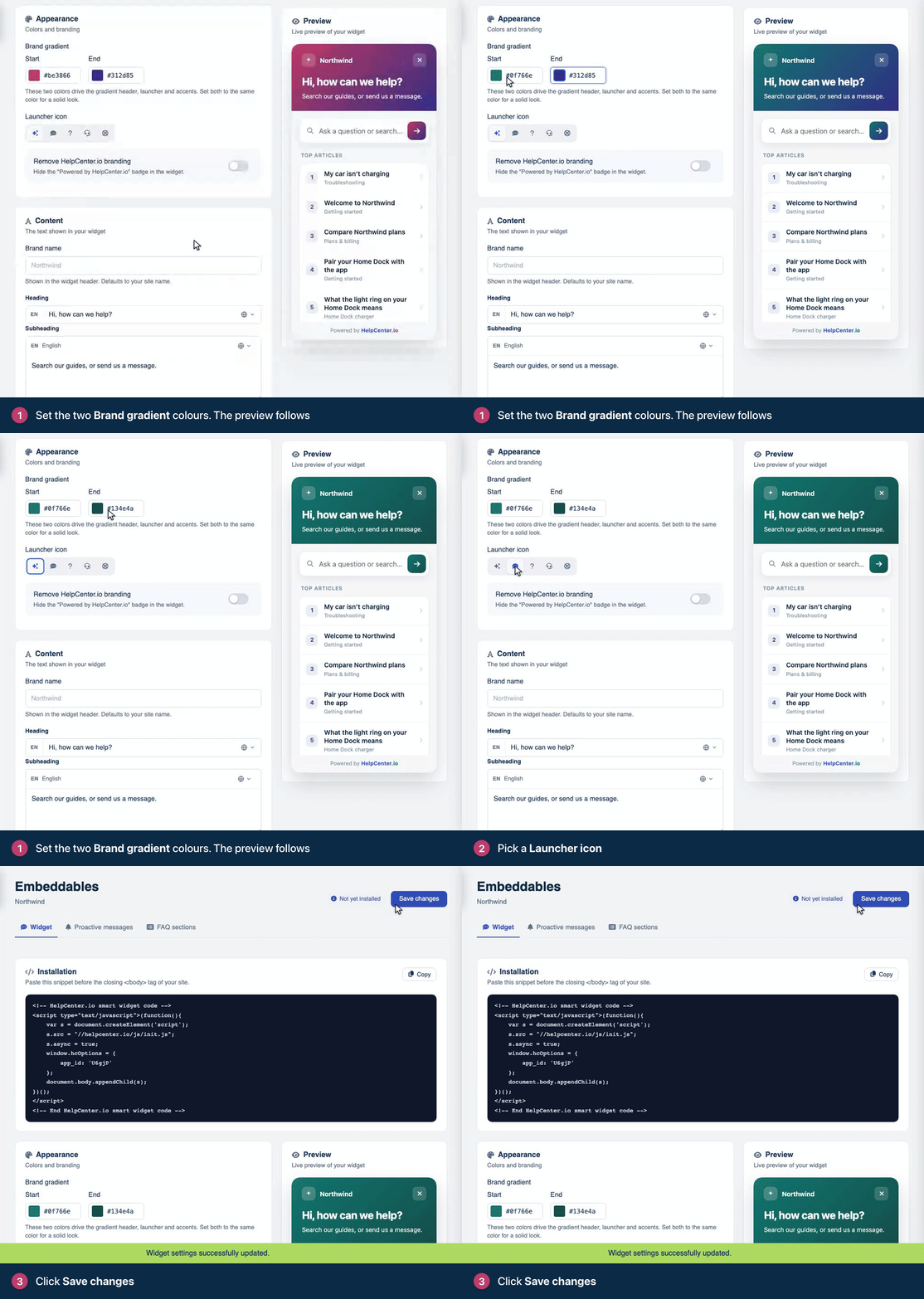
Visitors see the new look on your website within a few minutes.
Remove the HelpCenter.io branding
The widget shows a small "Powered by HelpCenter.io" badge at the bottom. To hide it:
In the Appearance card, switch on Remove HelpCenter.io branding.
Click Save changes.
This only affects the widget. The credit in your help center's own footer has its own switch: see Remove "Powered by HelpCenter.io".
Good to know
Save changes saves the whole Widget tab, including the texts in the Content card. If you haven't written your own Heading and Subheading yet, read them before you save: they come filled in with starter text, and saving puts that text live. See Change the widget's greeting and texts.
The launcher sits in the bottom-right corner. To move it to the bottom left, add
position: 'bottom-left'to your snippet. See Widget installation and options on the developer portal.To open the widget from a button of your own and hide the launcher, see Open the widget from your own UI on the developer portal.
Comments
Be the first to comment.