

Publish an article to put it on your help center, where readers can browse to it, search for it and get answers from it. Until you publish, it's a draft that only your team can see.
Who can do this: Owners, Admins and Editors · Plans: All plans
Publish from the editor
Open the draft from Articles, or write a new one. Once a draft is saved, the status pill in the top bar reads Draft saved: it's in your account, and readers can't see it.
When it's ready, click Publish in the top right corner.
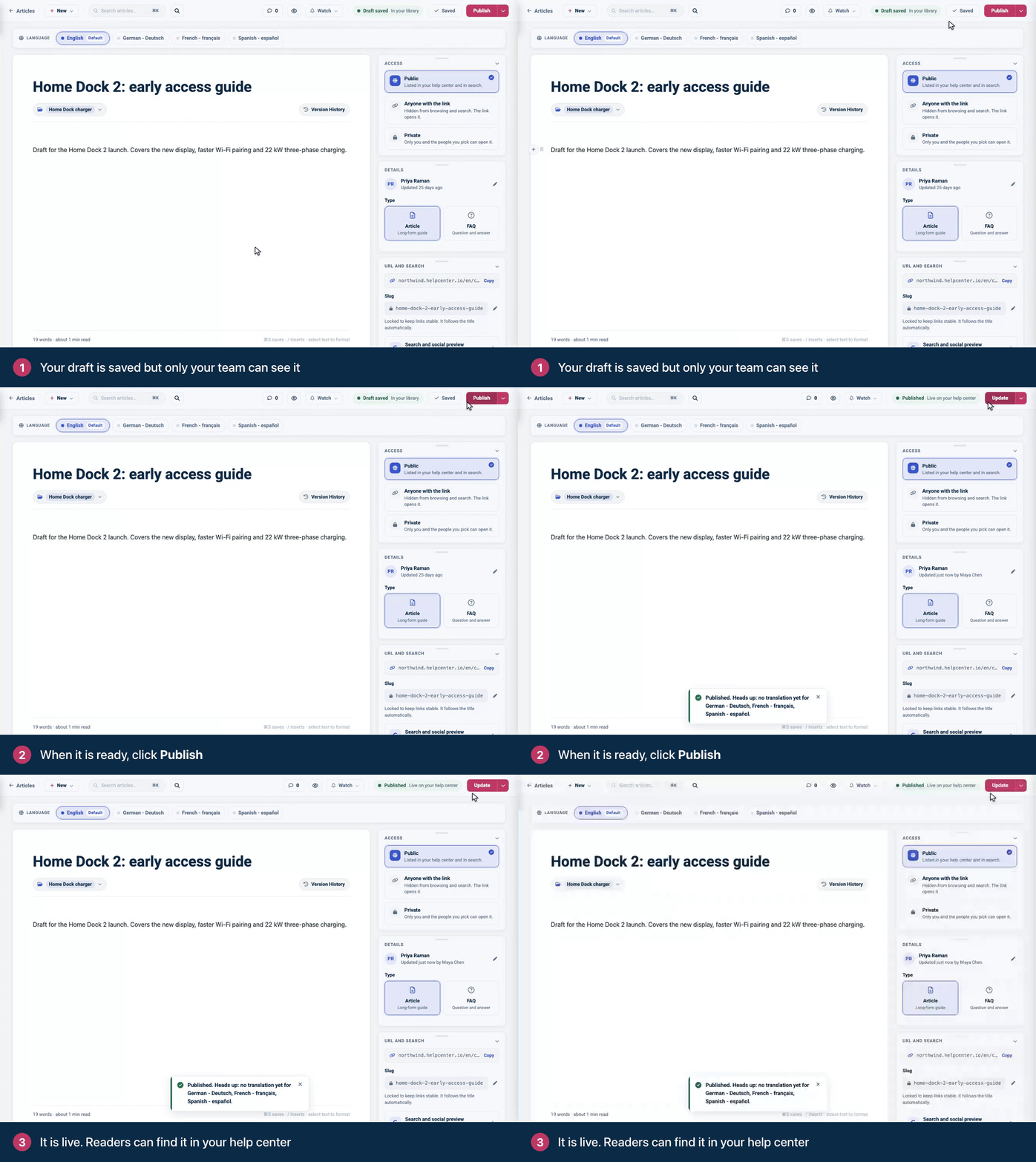
You'll see "Published. Your customers can read this now." A new article doesn't need saving first: Publish saves and publishes it in one step. To check how it will look before you publish, save the draft and click the eye icon (Preview article) in the top bar.
Publish from the Articles page
One article: open the … menu on its row and choose Publish, or click the article and then Publish in Article details.
Several articles: tick them and click Publish in the bar at the bottom. See Change many articles at once.
What happens when you publish
The article goes live at its own address on your help center and appears in its category.
Readers can find it with your help center's search and in the widget, and AI Answers can use it if you have AI Answers turned on.
It's added to your help center's sitemap, so search engines can find it.
On a help center with more than one language, publishing puts your default language live. Each other language appears once its translation is released, and the confirmation names any language that has no translation yet. See Translate an article.
The article's Access setting and its category decide who can see it. An article set to Anyone with the link stays out of navigation and search. An article set to Private, or filed in a category that isn't shared with everybody, only shows to the people allowed to see it. See Choose who can read an article.
More actions in the Publish menu
The arrow next to Publish (or Update, once the article is live) opens more actions:
Action | What it does |
|---|---|
Preview article | Opens the saved article in a new tab, the way readers will see it. Only your team can open the preview. |
Insert template | Adds one of your content templates to the end of the article. |
Save as template | Saves the article's content as a template you can start new articles from. |
Schedule for review | Sets a date to re-check the article. See Flag articles for review. |
Flag for review | Asks a teammate to check the article now. |
Unpublish (back to draft) | Takes a live article off your help center. See Unpublish an article. |
Move to trash | Deletes the article. You can restore it from Trash. See Delete and restore articles. |
Preview article, the review actions and Move to trash appear once the article has been saved.
Publish at a set time
Publish puts an article live straight away. To publish at a chosen date and time, add the article to a change set and schedule the release. Change sets are in early preview on the Catalyst plan. See Release many changes together with change sets.
Troubleshooting
"Title is required. Please add a title before saving the article." Give the article a title, then click Publish again.
The article doesn't show on my help center. Refresh the page after a moment. If it's still missing, check the article's Access, its category's Share with setting and, on a multilingual help center, whether the translation is released. See Someone can't see an article or the help center.
Comments
Be the first to comment.