

Choose how your help center appears in Google and other search engines, and how its links look when people share them. You set these defaults once for the whole help center, in the template editor.
Who can do this: Owners and Admins (Editors through Customize on your help center) · Plans: All plans
Set your title and description
In the left menu, click Template editor. It opens on Brand.
Scroll down to SEO.
In Default page title, enter the name search results should show, for example
Northwind Help Center.In Meta description, write one or two sentences about what readers will find.
Click Publish, then Publish again in the Publish changes dialog.
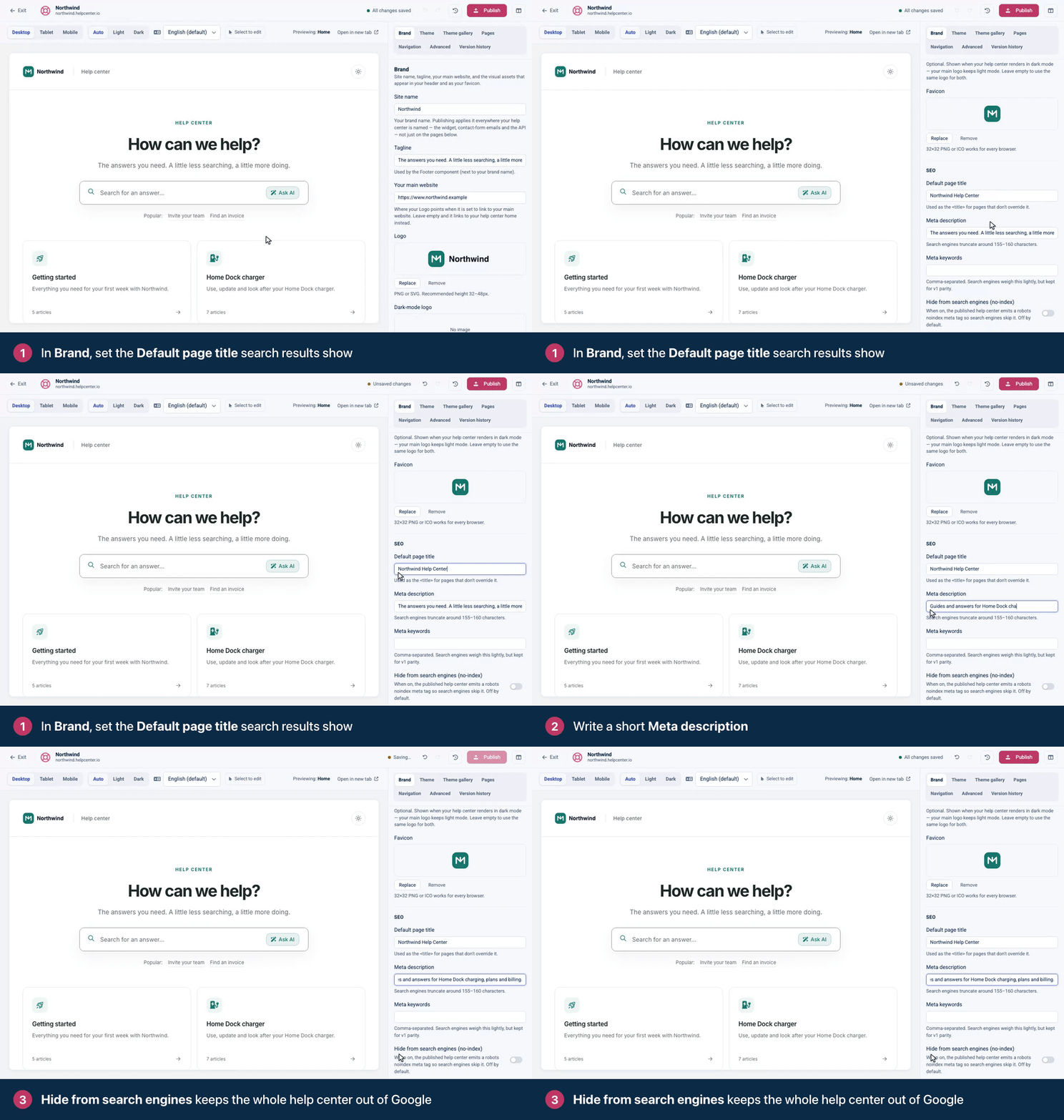
Your home page uses the Default page title as its title. Every other page puts its own name first and adds the Default page title after it: an article uses its search title, or its title if it has none. Any page without its own description uses your Meta description.
The Description field in Settings → General is for your own reference: search results and link previews don't show it. Write the description readers should see in Meta description here.
All SEO settings
You'll find these in Brand, under SEO and Open Graph (social sharing). Publish your design to apply changes.
Setting | What it does |
|---|---|
Default page title | The title of your home page, added to the end of every other page's title. Up to 80 characters. It also names your help center in llms.txt and on the page readers use to add your help center to their AI assistant. |
Meta description | The summary search engines may show under your title. Up to 300 characters, but search engines usually cut it off at around 155 to 160, so put the important part first. |
Meta keywords | Keywords separated by commas. Search engines give them little weight. |
Hide from search engines (no-index) | Off by default. When on, every page asks search engines not to list it. See Hide your help center from search engines. |
Nofollow external links | On by default. Adds |
Whitelisted domains | Shown while Nofollow external links is on. Websites whose links stay normal, separated by commas, for example |
og:title | The title shown when someone shares a link to your help center on social media or in a chat app. When empty, the page title is used. |
og:description | The description in those link previews. When empty, the meta description is used. |
og:image | The image in link previews. A 1200 × 630 PNG or JPG works best. Without one, your pages don't set a preview image. |
What HelpCenter.io does for you
Sitemap.
/sitemap.xmllists your home page, categories and published articles, and your robots.txt points search engines to it. If your help center is live in a subfolder of your website, the sitemap lists that address, and you add it to your website's own robots.txt (see Host your help center in a subfolder of your website).Canonical URLs. Every page names its main address, so search engines don't treat copies of a page as separate pages. Each language version names itself as its main address.
Languages. If your help center has more than one language, each page links to its translations with hreflang tags, and the sitemap lists every language version.
Breadcrumbs. Article and category pages include breadcrumb structured data that search engines can show in results.
No clutter. Search result pages and the not-found page ask search engines not to list them.
AI crawlers. Your help center also publishes llms.txt and ai.txt for AI assistants. See How search engines and AI crawlers read your help center.
When your own domain is connected, all of this uses it. See Use your own domain.
Titles and descriptions for single pages
Each article can have its own search title and description, which replace the defaults on that article's page. See Set an article's search title, description and URL.
Categories have their own Meta title and Meta description under Search engine listing in the category's settings. See Add a category icon, image and description.
Tips
Keep the Default page title short, since it's added to every page's title. Your brand name plus "Help Center" is usually enough.
Write the Meta description for people deciding whether to click, not for search engines.
For more on getting found, read Help center SEO: get your articles found.
Comments
Be the first to comment.