

Make your help center look like the rest of your brand: add your logo and favicon, set your brand name, and choose your colors and fonts in the classic template editor.
Who can do this: Owners and Admins · Plans: All plans
Add your logo, favicon and brand name
In the left menu, click Template editor, then click General.
Under Branding, type your Brand Name.
Click the first Select File button to upload your logo, or paste the address of an image you host into Enter logo URL.
Click the second Select File button to upload your favicon, or paste its address into Enter favicon URL.
Check the preview, then click Publish.
Images can be JPEG, PNG, GIF, WebP, SVG or ICO files of up to 10 MB. A bigger file doesn't upload, and no message tells you so. To take an image out, click Remove under it.
The logo is scaled to fit the header, so a wide logo with little empty space around it reads best. Without a logo, the header shows your brand name instead.
Brand Name is also used in the footer, in page titles (unless you set a Meta Title) and in contact form confirmation emails, and in the widget unless you've given the widget its own name. It's saved to your help center as soon as the draft saves, so your live help center shows a new name right away, without Publish.
Connected Site, under the logo fields, is your main website's address. Your logo can link to it. See Customize the header, search and menu in the classic editor.
Change your colors
Click Style.
Under Colors, click in Primary Color:. A color picker opens.
Pick a color, or type its hex code without the #, for example
1d4ed8.Do the same for Links Color:.
Check the preview, then click Publish.
Color | Where it shows |
|---|---|
Primary Color: | Buttons, the border of a category box when a reader points at it, the selected category in the side menu, the rating buttons, and the Ask Us and See all buttons |
Links Color: | Text links on your pages, such as the links in your articles |
The header and the footer have their own colors. Set them under Header, then Appearance, and under Footer. See Customize the footer in the classic editor.
Change your fonts
Click Style, then scroll to Typography.
Pick a font for Headings Font: and one for Text Font:.
Check the preview, then click Publish.
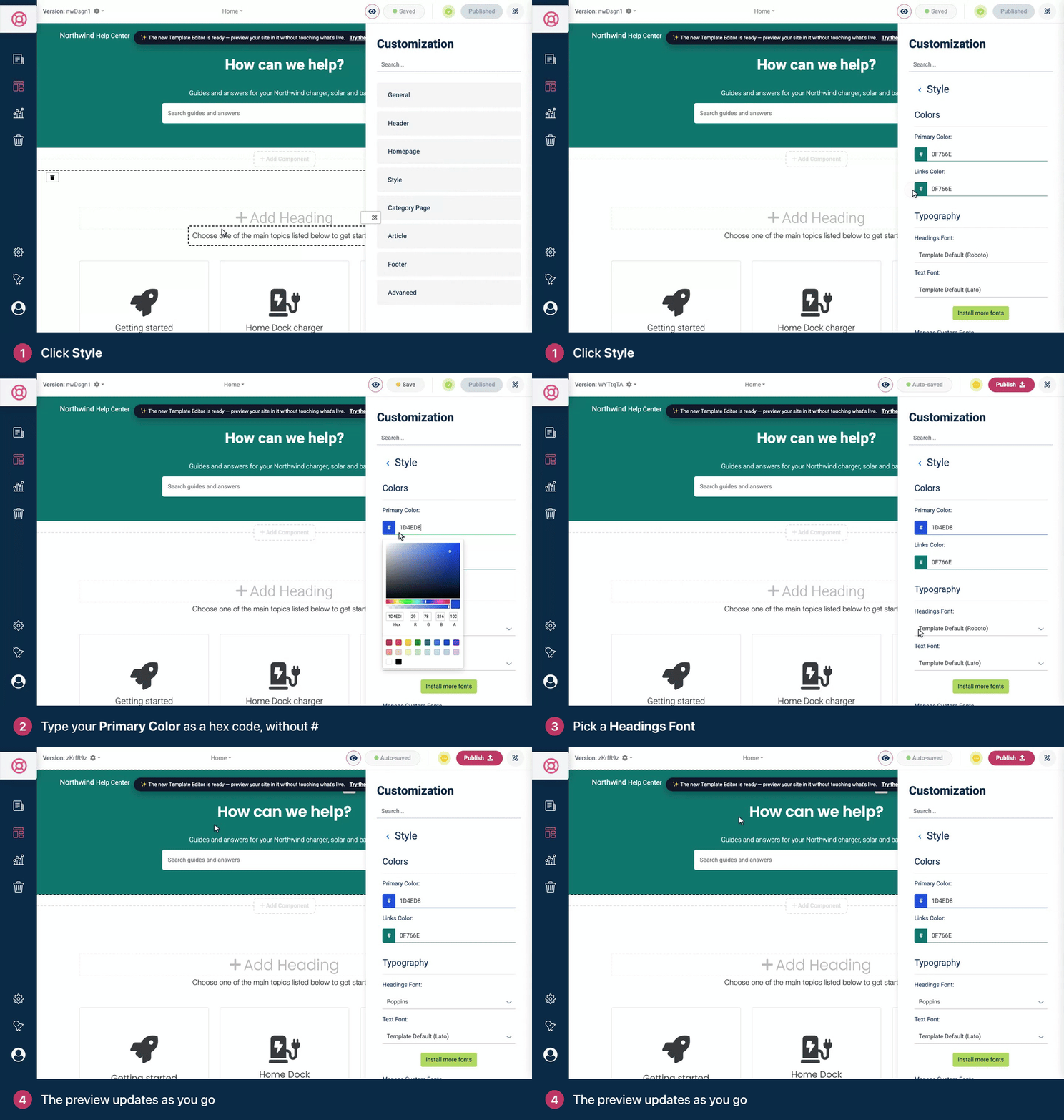
Your headings use Template Default (Roboto) and your text Template Default (Lato) until you pick something else. Under Default Fonts, each list offers Roboto, Roboto Condensed, Open Sans, Montserrat, Poppins, Lato, Oswald, Fira Sans and Rubik.
Install more fonts
Under Typography, click Install more fonts.
In Browse Fonts, type in Search fonts... or filter by All, Sans-Serif, Serif, Display, Mono or Handwriting.
Click Install next to the font you want, then close the window.
Pick the font from Installed Fonts in either list.
Upload your own font
Under Manage Custom Fonts, click Create Custom Font.
In Upload Custom Font, type the Font Name:.
Click Add Variant, choose its Weight: and Style:, then click Add File and choose the font file.
Add a variant for each weight and style you have, then click Upload Font.
When "Font uploaded successfully!" appears, pick the font from Custom Fonts in either list.
Font files can be .woff2, .woff, .ttf or .otf, up to 2 MB each. To delete a custom font, click the trash icon next to it and confirm. Installing, uploading and deleting fonts happens right away, outside your draft. Choosing which font your headings and text use is part of the draft.
The new template editor also lets you set a separate logo and colors for dark mode. See Move your help center to the new template editor.
Troubleshooting
"The format of the color entered is not valid. Please use the HEX color notation without leading #." Type 3 or 6 hex digits, such as fff or 1d4ed8, without the #.
My logo doesn't appear after I pick the file. Check that it's an image file of 10 MB or less, in one of the types above, and try again.
The font upload fails. The message says what's wrong: each file must be 2 MB or smaller and in one of the types above, and every variant needs a file. Two custom fonts can't share a name.
My changes don't show on my help center. Publish them. See Save, preview and publish in the classic editor.
Comments
Be the first to comment.