

Connect HelpCenter.io to Zapier and your help center works with the other apps your team uses: send reader feedback to Slack, turn the questions nobody could answer into Jira issues, publish articles from a Google Sheet, and post a weekly report every Monday. You build it all in Zapier, with no code.
Who can do this: Owners, Admins and Editors (Viewers and Translators can use the steps that only read) · Plans: All plans. Two actions need Catalyst.
Get access
The HelpCenter.io app on Zapier is private for now, so Zapier shows it to you only after we invite you.
In the left menu, click the gear icon, then Settings.
Under Integrations, click Request access on the Zapier card. Only Owners and Admins can request it.
Our team adds you, and Zapier emails the invite to the email address of your HelpCenter.io account. Accept it.
To use another email address for Zapier, or to get an invite for a teammate, email support@helpcenter.io.
Connect your account
Once you have accepted the invite, create a Zap in Zapier and search for HelpCenter.io when you choose the app for a trigger or an action.
Pick an event, then connect your HelpCenter.io account when Zapier asks. A HelpCenter.io window opens. Sign in if you aren't signed in already.
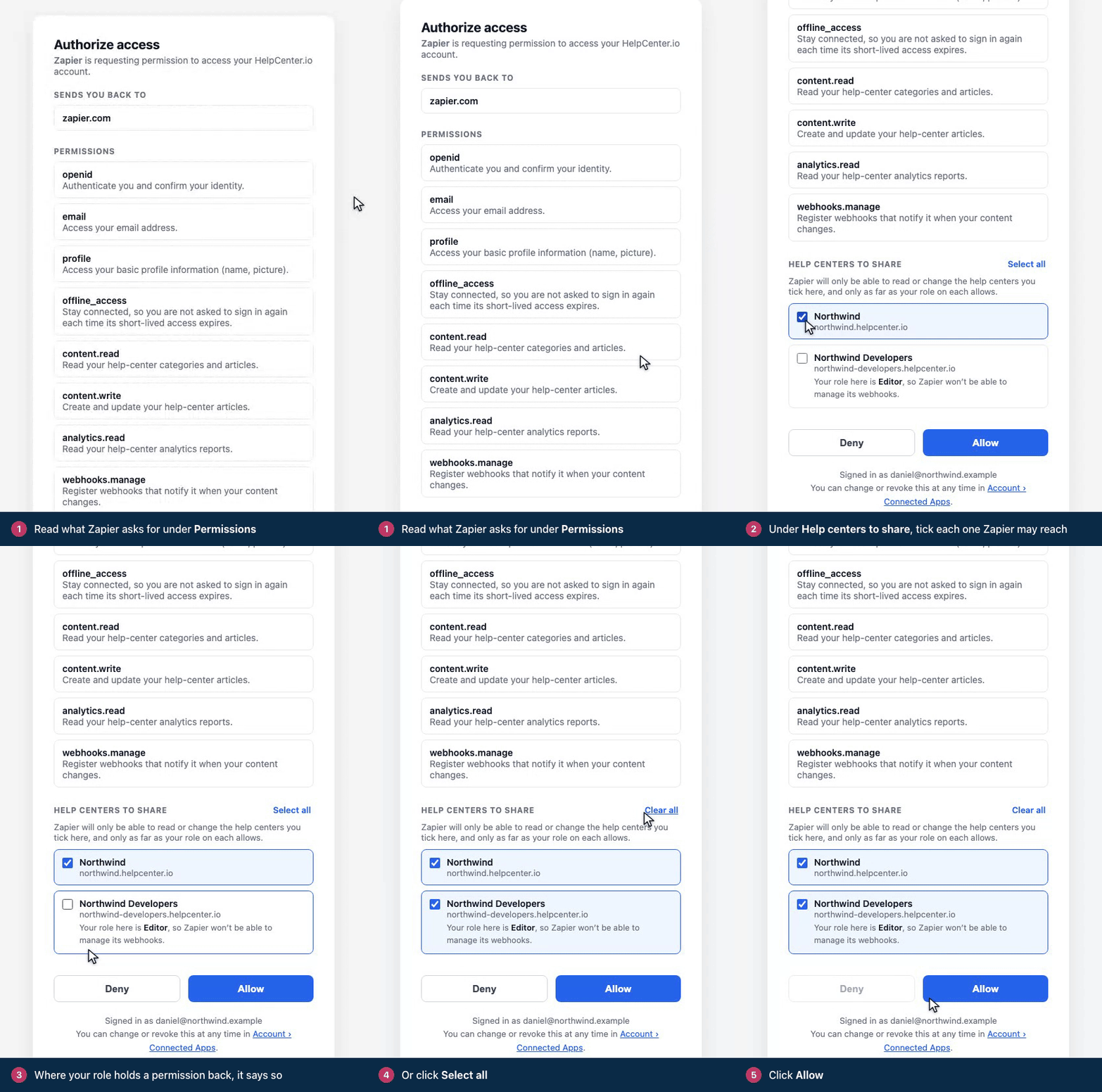
On the Authorize access screen, read what Zapier asks for under Permissions.
If you work on more than one help center, tick each one Zapier may reach under Help centers to share, or click Select all. Nothing is ticked until you tick it.
Click Allow. Back in Zapier, the connection is named after you, with your email address.
Every trigger, action and search then starts with a Help Center field: pick the help center that step works on. It lists only the help centers you shared.
What you approve
You allow the permissions together or deny access: you can't pick single ones. Zapier asks to:
"Read your help-center categories and articles."
"Create and update your help-center articles." For Zapier this covers every change it makes to your content: articles, categories, images, ratings, comments, staged changes and FAQ sections.
"Read your help-center analytics reports." New Reader Feedback, New Unanswered Search, Article Needs Attention and Get Help Center Report use it.
"Register webhooks that notify it when your content changes." The instant triggers use it.
It also asks to confirm who you are, see your name and email address, and stay connected so you aren't asked to sign in again.
Zapier follows your role
Zapier acts as you, with your role on each help center, so it can't do anything there that your role doesn't allow. Where your role holds a permission back, the screen says so beside the help center, for example "Your role here is Editor, so Zapier won't be able to manage its webhooks."
Owners and Admins can use every trigger, action and search.
Editors can use everything except the instant triggers, because each instant trigger adds a webhook to the help center.
Translators and Viewers can use the steps that only read: New Reader Feedback, New Unanswered Search, Article Needs Attention, New Comment, Find Article, Find Category and Get Help Center Report. What the dashboard keeps from their role, such as private categories and their articles, stays out of what those steps return.
If your role changes, that applies on the Zap's next run. See Roles and permissions.
Triggers
A trigger starts a Zap. Instant triggers run as soon as the change happens. Zapier checks the others on a schedule, and how often depends on your Zapier plan.
Trigger | Runs | When |
|---|---|---|
New Reader Feedback | On a schedule | A reader rates an article. By default only thumbs-down votes where the reader also wrote why: Vote and Only Feedback With a Message change that. A reader who changes their vote, or adds a message later, starts it again. It never says who the reader is. |
New Unanswered Search | On a schedule | Readers keep searching for something your help center doesn't answer: the same search at least Minimum Searches times (3 by default) in the last 7 days. Kind of Gap chooses searches with no results, searches whose results nobody opened, or both. Each question starts it once, however long it stays unanswered. |
Article Needs Attention | On a schedule | A well-read article gets too many thumbs-down ratings over the last 30 days: by default 40% of its ratings or more (Unhelpful Share (%)) and at least 50 views (Minimum Views (30 days)). At most once a month per article. Category limits it to one category. |
New Comment | On a schedule | A reader comments on an article. By default only comments waiting for your approval (Which Comments). Include the Commenter's Email adds their email address, for Owners, Admins and Editors. |
Article Published | Instant | An article goes live: published when it's created, or a draft published later. Only Public Articles (Yes by default) skips private and link-only articles, so an announcement never links to a page readers can't open. |
Article Updated | Instant | An article is saved, from the dashboard, the API or an AI agent. Only Published Articles (Yes by default) ignores saves to drafts. |
New Draft Article | Instant | A new article is created as a draft, from the dashboard, an import, the API or an AI agent. |
Article Moved to Trash | Instant | An article is deleted, which moves it to the Trash. |
New Category | Instant | A category is added. |
Most triggers also have a Language field, for a help center in several languages.
Actions
Action | What it does |
|---|---|
Create or Update Article | Creates an article, or updates the one that already has the same External ID, such as a spreadsheet row or a ticket number. A Zap that runs twice never makes a duplicate. The article is saved as a draft unless Publish is Yes, so an update with Publish set to No takes a live article offline. Content Format takes HTML or Markdown, and images in the content (up to 25) are copied onto your help center, so they keep working when the original link expires. |
Update Article | Changes an article straight away: on a published article, readers see the change at once. Publish set to Yes publishes it, No unpublishes it, and empty leaves it as it is. |
Propose Article Edit | Saves a new title or body for a published article as a staged change. Readers keep seeing the live article until someone publishes the change. Catalyst plan. |
Publish Proposed Edits | Publishes the staged changes waiting on an article, for example after an approval in Slack or Jira. The previous version stays in the article's history. Catalyst plan. |
Upload Image | Copies a JPEG, PNG, GIF or WebP image from an https link onto your help center, and returns its permanent link with HTML and Markdown ready to paste into an article. |
Create Category | Adds a public category, at the top level or inside another category. |
Record Reader Feedback | Adds a rating (Helpful, Not helpful or Loved it) to an article, with an optional message of up to 1,000 characters, for example from a chat or a satisfaction survey. It counts with the ratings readers leave on the article. With a Reader ID, a later vote from the same reader replaces their earlier one. Without one, the votes a Zap records on the same article can replace each other, so map one, such as a customer ID. |
Reply to Comment | Posts a reply under a reader's comment, or a new comment on an article, as you. It's published at once, and the reader you answered gets an email. |
Approve or Reject Comment | Publishes or unpublishes a reader's comment. |
Add FAQ to FAQ Section | Adds an FAQ article to one of your Custom FAQ sections, so it shows wherever that section is installed. |
Searches
A search looks something up for the next steps of a Zap.
Search | What it finds |
|---|---|
Find Article | Searches your published articles the way readers do, best match first, for example to suggest an article in a support reply. Or finds one article by its ID, published or not. |
Find Category | Finds a category by name, an exact match first. |
Get Help Center Report | Views, visitors and searches for the last 7 or 30 days, each with the change since the period before, how many ratings came in and how many articles were published and updated, plus your most-read articles and the searches nobody answered (5 of each by default, up to 10). It also gives the whole report as text, ready to post. |
Ideas for Zaps
Send unhelpful-article feedback to Slack. New Reader Feedback, then a Slack channel message with what the reader wrote and a link to the article.
Turn unanswered searches into writing tasks. New Unanswered Search, then an issue in Jira, Linear, Asana or Trello for each question readers keep searching for. Each question opens one issue, not a new one every week.
Post a weekly report. Schedule by Zapier every Monday, then Get Help Center Report, then a Slack message with the report's text.
Publish articles from a spreadsheet. A new or updated Google Sheets row, then Create or Update Article with the row's key as the External ID and Publish set to Yes. Editing the row updates the same article.
Let AI suggest fixes, and publish only after review. Article Needs Attention, then Find Article for its current text, then ChatGPT to rewrite it, then Propose Article Edit. Readers keep the live article until someone on your team publishes the change. This one needs Catalyst.
A Zap with more than two steps needs a paid Zapier plan.
Good to know
Instant triggers add a webhook. Turning on a Zap with an instant trigger adds a webhook to that help center, and turning the Zap off removes it. Every delivery is signed, and Zapier ignores any whose signature doesn't match.
One connection, several help centers. A connection reaches every help center you shared, and each step names the one it works on. To share another help center later, tick it on the Connected Apps page (below).
Zaps act as you. Articles a Zap creates name you as their author, and its replies to comments are posted as you.
See or remove the connection
Go to https://helpcenter.io/app/account/connected-apps. The Authorize access screen links there too.
To change what Zapier can reach, tick or untick help centers under Help centers it can reach and click Save help centers.
To remove Zapier, click Disconnect and confirm. It loses access to your help centers immediately.
Before you disconnect Zapier, or untick a help center, turn off the HelpCenter.io Zaps that use it. A Zap removes its webhook when it's turned off, which it can't do once its connection is gone.
The account owner sees the apps everyone on the team has connected, and can change or disconnect any of them. Everyone else sees only their own.
Troubleshooting
The page says "You already allowed Zapier." Your answer went through the first time. Go back to Zapier: if it shows the connection, you're done. If it's still waiting, start connecting again from Zapier.
Zapier says "This connection reaches no help center." No help center is shared with Zapier. Reconnect HelpCenter.io in Zapier and tick at least one help center.
A help center is missing from the Help Center field. Zapier lists only the help centers you shared. Tick it on the Connected Apps page and click Save help centers, then reload the field in Zapier. If it's ticked there and Zapier still doesn't list it, you aren't on its team: ask one of its Owners or Admins to invite you. Zapier reaches only help centers that belong to your own HelpCenter.io account. If you already had an account when you were invited to this help center, it isn't on the Connected Apps page at all: ask its owner to build the Zap.
A Zap with an instant trigger won't turn on. The error starts "Your role on this help center" and names the webhooks.manage permission. Instant triggers need an Owner or Admin. Ask one of them to build that Zap with their own connection, or to change your role.
"Staged changes are not included in your current subscription plan." Propose Article Edit and Publish Proposed Edits need the Catalyst plan. On other plans, Publish Proposed Edits reports that the article has no staged changes. Instead, have the Zap create a new draft with Create or Update Article, so someone reviews it before it goes live.
Propose Article Edit says the article has never been published. A staged change waits beside the live article, so the article must be published. Change a draft with Update Article instead, or publish it first.
A trigger finds nothing when you test it. Feedback, unanswered searches, low ratings and comments come from your readers, and a quiet help center may have none yet. Readers can comment only when comments are on for your help center. To see sample data, try a wider setting, such as Vote set to Any vote.
Upload Image fails. The link must start with https and lead straight to a JPEG, PNG, GIF or WebP file.
Comments
Be the first to comment.