

Go beyond the settings with your own code: custom CSS to fine-tune the look of your help center, and scripts for analytics, chat tools and other services.
Who can do this: Owners and Admins · Plans: All plans
Your changes save to a draft automatically, and your code reaches visitors after you click Publish. See Save, preview and publish in the classic editor.
Add custom CSS
In the left menu, click Template editor, then click Style.
Scroll to Custom CSS and type your CSS in the code box.
Click the eye icon (Preview) to check the result on real pages.
Click Publish.
You can write SCSS, such as nested rules and variables. It's turned into CSS for your help center.
The preview in the editor is only a rough check. It updates as you type with plain CSS only, so check SCSS, and anything that matters, with Preview.
One error drops all of it. If your custom CSS contains something that can't be read, your help center shows none of it and keeps its standard styles. After a big change, check Preview before you publish.
To find the class names to target, right-click an element on your help center and choose Inspect in your browser. See My custom CSS doesn't work.
Add a script
Click Advanced, then Add Script under Custom Scripts.
In Add Custom Script, type a Script Name you'll recognize, such as "Chat widget", and choose its Position.
Paste the whole snippet into Script Content, including the
<script>tags.Click Add Script.
Click Publish.
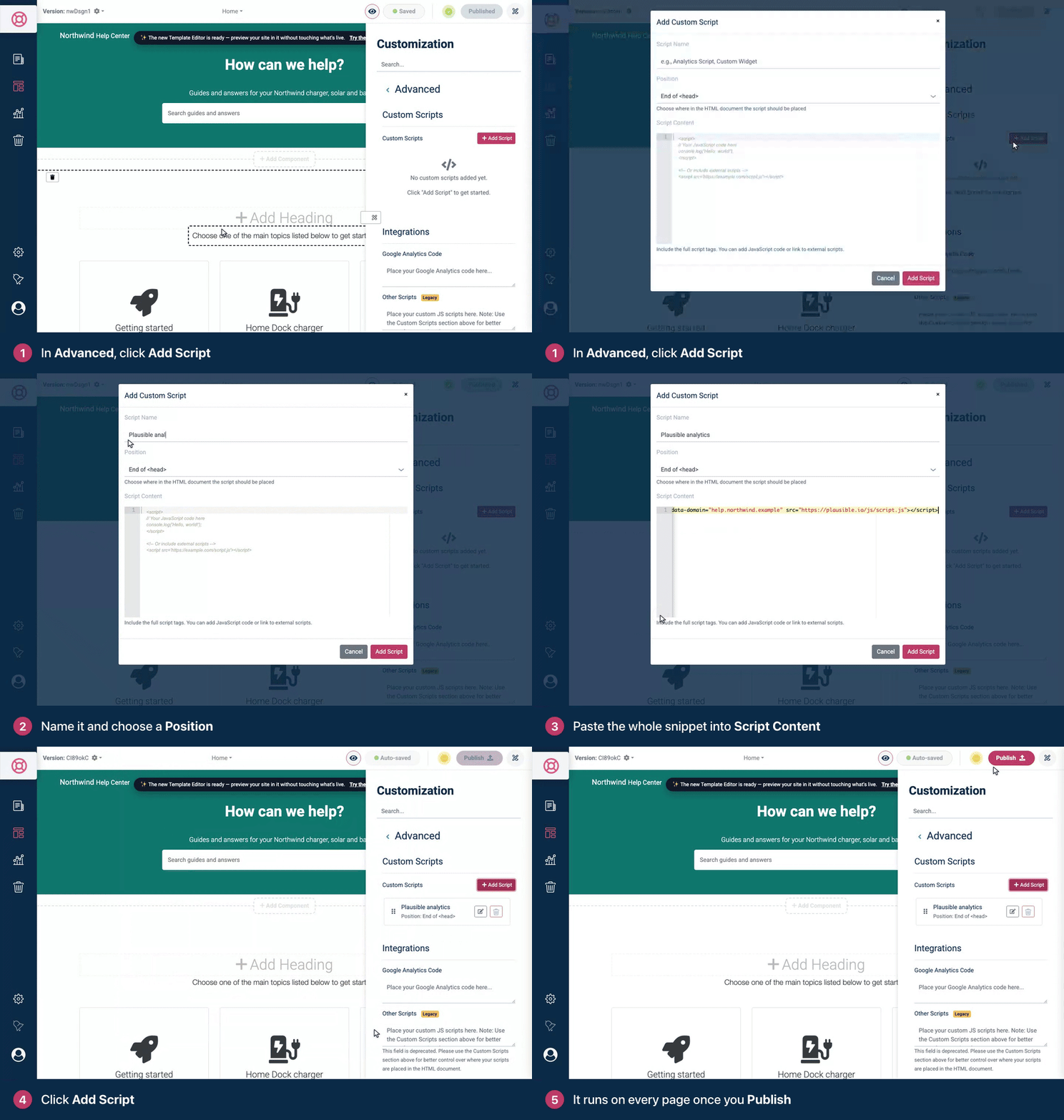
Position decides where the script goes in each page: Start of <head>, End of <head> (the default), Start of <body> or End of <body>. Follow the instructions of the service the script comes from.
Your scripts run on every page of your help center, and in Preview. They don't run inside the editor itself.
To change a script, click its pencil icon, edit it and click Update Script.
To delete a script, click its trash icon, or Delete in the script's window. It's removed straight away, without a confirmation.
To change the order of scripts in the same position, drag them in the list.
Google Analytics and older scripts
Under Integrations, in the same group:
Google Analytics Code takes the whole Google Analytics snippet. Paste it as Google gives it to you, including the
<script>tags. It goes near the top of every page. See Add Google Analytics or Google Tag Manager.Other Scripts is the older place for scripts, at the end of every page. Its note says it's deprecated: move anything in it to Custom Scripts, where you choose the position.
HTML you write in a Custom HTML block or in Custom HTML Footer: also goes on the page exactly as written, so scripts in it run too. See Arrange your home page in the classic editor.
When you move to the new template editor, your custom CSS and scripts carry over, though CSS written for the classic design may need changes: see What carries over to the new template editor.
Troubleshooting
"Name is required" or "Script content is required". Fill in both before you click Add Script.
My CSS works in the editor but not on my help center. Check that you published, then look at Preview: if none of your custom CSS shows there, part of it can't be read. Remove recent changes until it shows again.
My script doesn't run. Check that you published and that you pasted the full snippet with its <script> tags. Open your help center, not the editor: scripts don't run in the editor's preview.
Comments
Be the first to comment.