

Manage several help centers? Move between them without signing in again. You land in the same section of the other help center, so if you're looking at Statistics in one, you see Statistics in the next.
Who can do this: Anyone on the team of more than one help center · Plans: All plans
Switch from the left menu
Hover over the logo at the top of the left menu. It shows which help center you're in.
Click the arrow next to it to list your other help centers.
Click the help center you want.
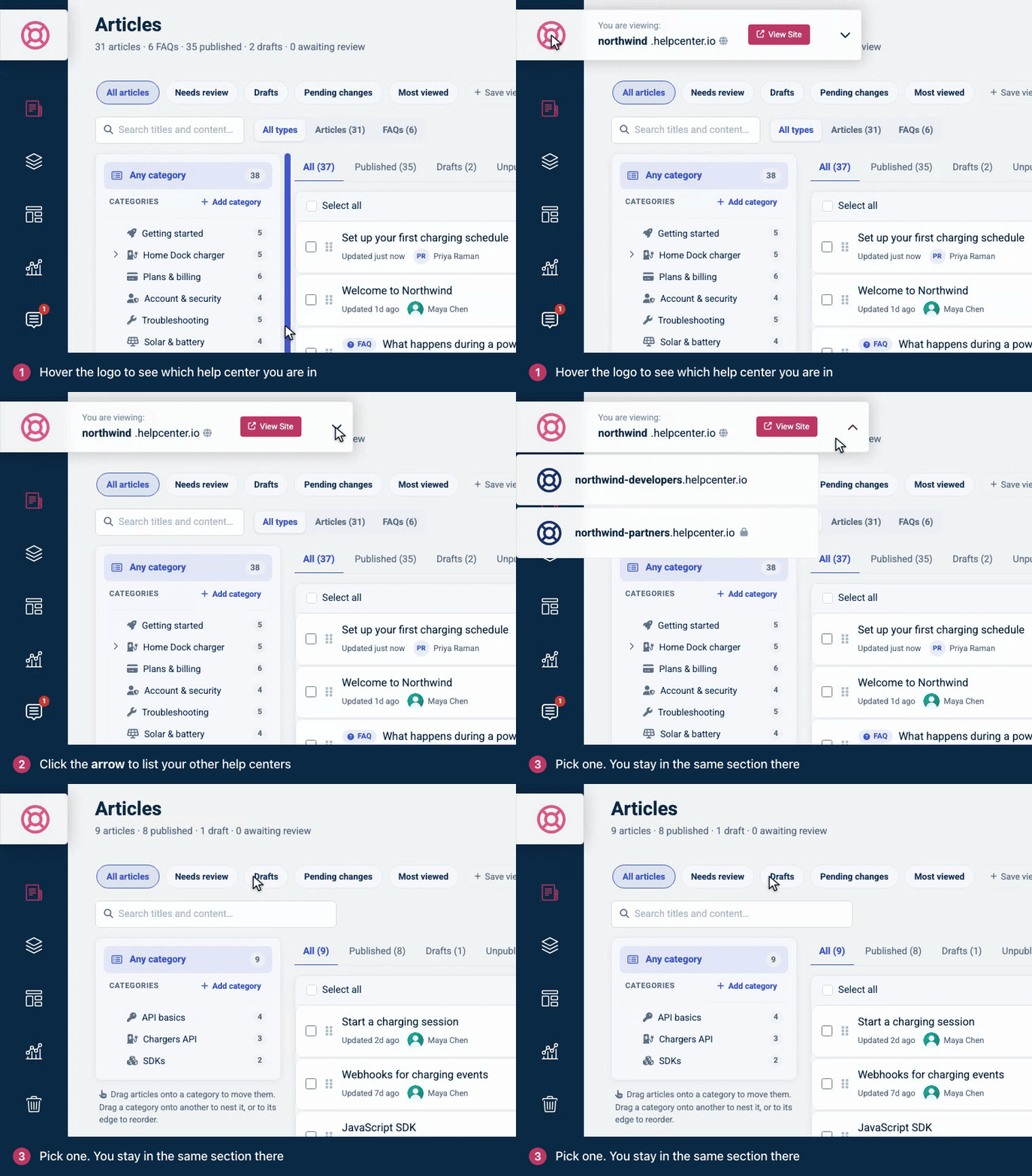
In the list, a lock means the help center isn't public, and a globe means it has more than one language. View Site opens the help center you're in.
If your role in the other help center doesn't include the section you're on, you land on its Articles page. If you're a Viewer there, you go to the help center itself, because Viewers don't use the dashboard.
Use My Help Centers
My Help Centers lists every help center you belong to. Open it at helpcenter.io/app/sites, or open Account Settings, click your name at the top of the page, then click My Help Centers. Click a help center to open it.
It's also the page you see right after you sign in, and where account owners create new help centers. See Create another help center.
Troubleshooting
A help center is missing from the list. Check that you signed in with the email address you were invited with. If it's still missing, ask the help center's owner or an admin to check that you're on its team.
Comments
Be the first to comment.