

See a heading you want to reword? Click it in the preview and type. Select to edit also takes you straight to the settings of anything you click, so you don't have to hunt for the right panel.
Who can do this: Owners and Admins (Editors through Customize on your help center) · Plans: All plans
Edit text in the preview
In the template editor, click Select to edit above the preview.
Click a heading or other text in the preview. Its text is selected, ready to type over.
Type the new text.
Press Enter to keep it, or Esc to cancel. Clicking somewhere else also keeps it.
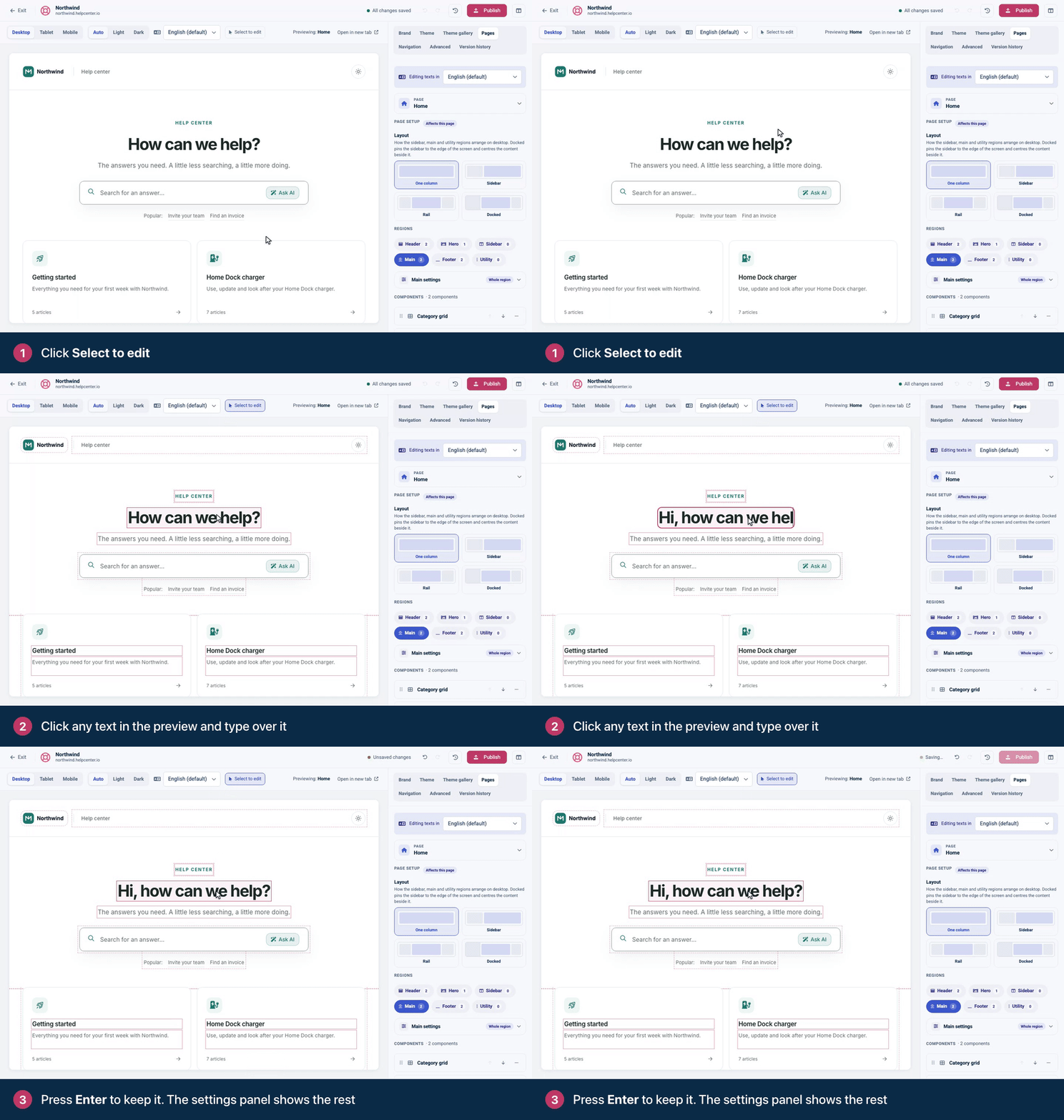
When you're done, click Select to edit again to use the preview like a visitor.
Click Publish to make your changes live.
Headings and labels are single lines of text, so Shift+Enter doesn't add a line break there. A Rich text block works differently: you edit its Markdown source, Enter starts a new line, and you keep your change by clicking outside the block. To break a hero heading over two lines, add <br> in its settings instead. See Customize the hero and search bar.
What you can edit in the preview
The hero's heading and subheading.
The headings of the Category grid, Article list, Featured articles, FAQs, Content tree, Related articles, Recently viewed and Comments, plus the intro line of FAQs.
The search bar's helper text and the label of the browse link on category cards.
The question asked by the Was this helpful? component.
The heading, text and button label of a Contact CTA.
Rich text blocks.
Your site name, where the logo shows it as text.
Category names and descriptions. Read the warning below first.
Everything else is set in the settings panel.
Click anything to open its settings
While Select to edit is on, clicking a part of the page that isn't editable text, such as the search field or the footer, opens that component's settings in the Pages tab. It's the quickest way to find the setting for something you can see.
Category names and descriptions change straight away. They belong to your categories, not to the design. A click on a category card selects the Category grid; editing starts only when you click the category's name or description text. When you keep your change, a dialog such as Rename this category? asks you to confirm, because the change goes live on your help center right away, without Publish, and ⌘Z can't undo it. Click Rename category (or Change description) to save it, or Cancel to put the old text back. To change it back later, edit it again. The same goes for the questions in an FAQ section: adding or removing them in the FAQs component's settings changes that section everywhere it's used, right away.
Good to know
All other text you edit in the preview is part of your draft: ⌘Z undoes it, and visitors see it after you publish.
If you edit a component in a synced header or footer, the change shows on every page.
On a help center with more than one language, text you edit in the preview is saved in the language the preview shows, category names included. Your site name is the exception: it's the same in every language. See Translate texts in your design.
Troubleshooting
Clicking text does nothing. Turn on Select to edit first. If the text still doesn't become editable, it's set in the settings panel instead, which opens when you click it.
I renamed a category by accident. Click the name in the preview again and type the old name, or change it from your category's settings. See Create and organize categories.
Comments
Be the first to comment.