

Blocks are the building pieces of an article: headings, lists, images, tables, callouts and more. You add every one of them from the same insert menu, without leaving the keyboard.
Who can do this: Owners, Admins and Editors · Plans: All plans (AI drafts: Catalyst plan, or the AI add-on on Bootstrap and Growth)
Insert a block
Click an empty line and type
/. The insert menu opens.Type a few letters to filter the list, for example
numfor a numbered list.Press Enter to insert the highlighted block, or use the arrow keys to pick another one first.
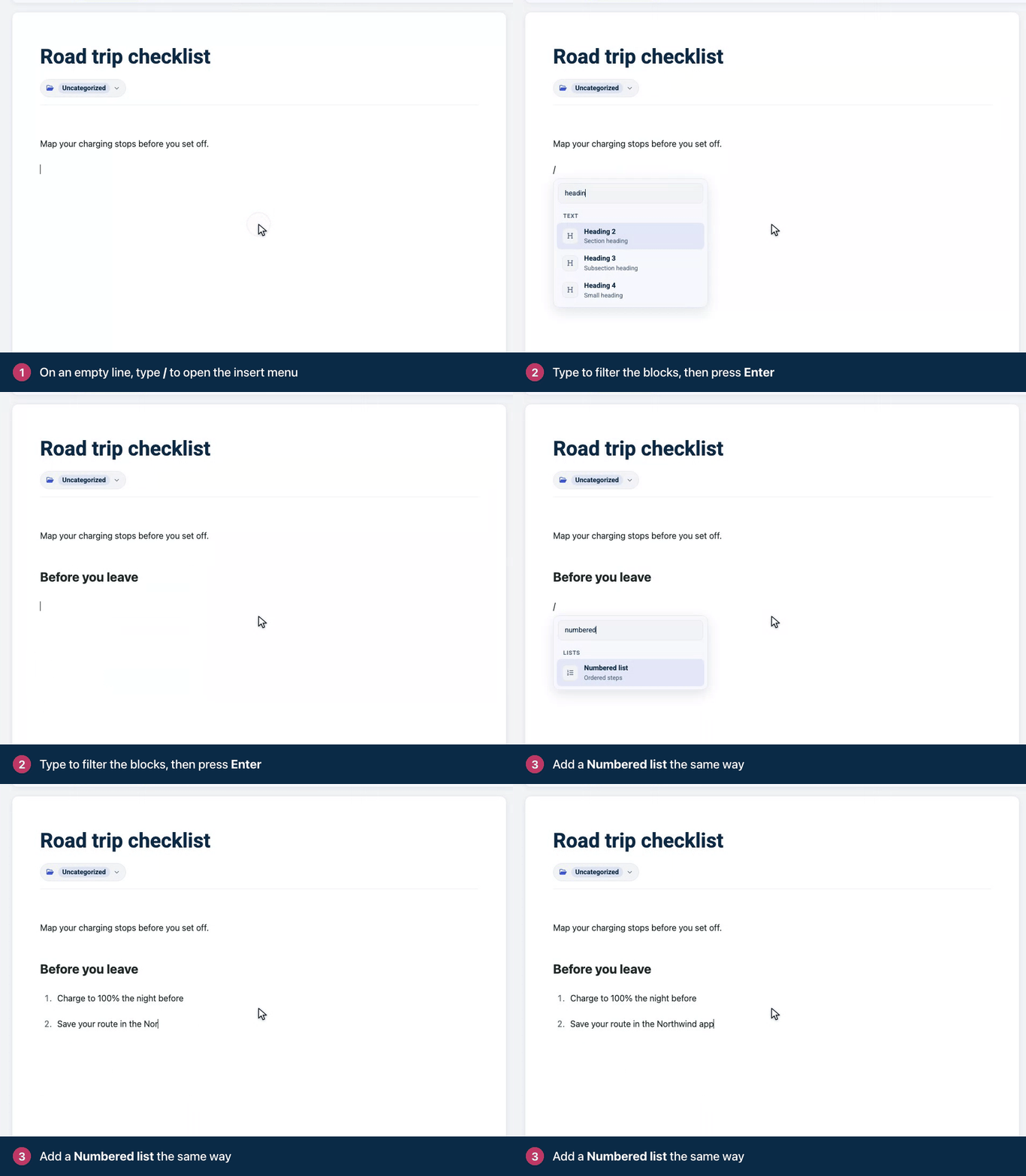
You can also point at any line and click the + that appears to its left, or click Insert a block in an empty article. If you want a real slash at the start of a line, press Esc when the menu opens and the slash stays.
What you can add
Block | Use it for |
|---|---|
Heading 2, Heading 3, Heading 4 | Sections and subsections. The article title is already the page's main heading. |
Bulleted list, Numbered list | Groups of items, and steps in order. |
Task list | A checklist. Readers see which items are ticked, but can't tick them. |
Image, Inline image | Screenshots and pictures. An inline image sits inside a line of text, like an icon in a sentence. See Add images to an article. |
Video | A YouTube, Vimeo or Loom video. See Embed videos. |
Code block | Code with syntax highlighting. See Add code blocks. |
Divider | A horizontal line between sections. |
Callout | A colored box for tips and warnings. See Highlight tips and warnings with callouts. |
Blockquote | A quotation. |
File attachment | A file readers can download. See Attach files. |
Custom embed | Embed code from another service, such as a form or a map. It runs in a sandboxed frame, apart from your help center: it can't read your help center's page, cookies or sign-in, so a script that needs them won't work there. Only paste code from sources you trust. |
Internal note | Text only your team sees. See Leave notes for your team. |
FAQ section | A saved set of FAQs, shown inside the article. See Write FAQs and add them to articles. |
Table | Comparisons and reference data. See Add tables. |
Article link | A card that points readers to another article, with its title and a short summary. |
API endpoint | An API reference: method, path, parameters and responses. Readers get ready-made code samples. |
Change, move or remove a block
Change a block's type: click the + to the left of a paragraph and pick a heading or a list. The menu ticks the type the block already has. Pick that one again to turn the block back into plain text.
Move a block: point at it and drag the handle next to the + to a new spot.
Remove a video, FAQ section or article card: click it (for a video, click the dashed frame around the player), then click Remove this block in the toolbar. To remove a file, click the trash icon next to it in the Attachments card. For text, select it and press Delete.
Edit or remove a custom embed or API endpoint: click Edit at the top of the block to change it. To remove it, click the block to select it and press Delete or Backspace.
Add a custom embed
Type
/embedand press Enter. The Add a custom embed dialog opens.Choose how to add it:
Paste a snippet: paste the embed code a service gives you, such as a form, a map or a CodePen.
Write HTML / CSS / JS: write your own HTML, CSS and JavaScript. They show together as one block in the published article.
Click Insert embed.
When the code is a single player or frame from another site, the dialog says Embedded as a player and adds it as it is, so it works as it does anywhere else. Some widgets that load a script or open a frame of their own may stay blank in the sandbox. If that happens, paste the service's iframe embed code instead.
To change the code later, click Edit on the block, make your changes and click Save changes.
Markdown shortcuts
If you know Markdown, type these at the start of a line, followed by a space:
Type | To get |
|---|---|
| Heading 2, Heading 3 or Heading 4 |
| Bulleted list |
| Numbered list |
| Task list |
| Blockquote |
| Code block |
| Divider |
Headings build the table of contents
Use Heading 2 for the main sections of an article and Heading 3 for the parts inside them. The On this page list that many themes show beside an article is built from these headings. See When does an article show a table of contents?
AI drafts
With AI writing help, the menu ends with AI · drafts you review first:
Continue writing, Draft a section and Summarize into an intro put their text in a marked draft block. Click Keep it to make it part of the article, or Discard. Readers never see a draft you haven't kept.
Turn into a FAQ drafts short FAQs from the article into the Related FAQs card. Save the article first.
See Write faster with AI writing help.
Comments
Be the first to comment.