

Choose a plan and add a payment method to keep your help center online after the free trial. You can do it at any time during the trial without losing the days you have left.
Who can do this: The account owner · Plans: All plans
Pick your plan
At the bottom of the left menu, click your avatar, then Billing & Invoices.
You see the plan you're trying and the days left in your trial. To pick a different plan or billing period, click Change.
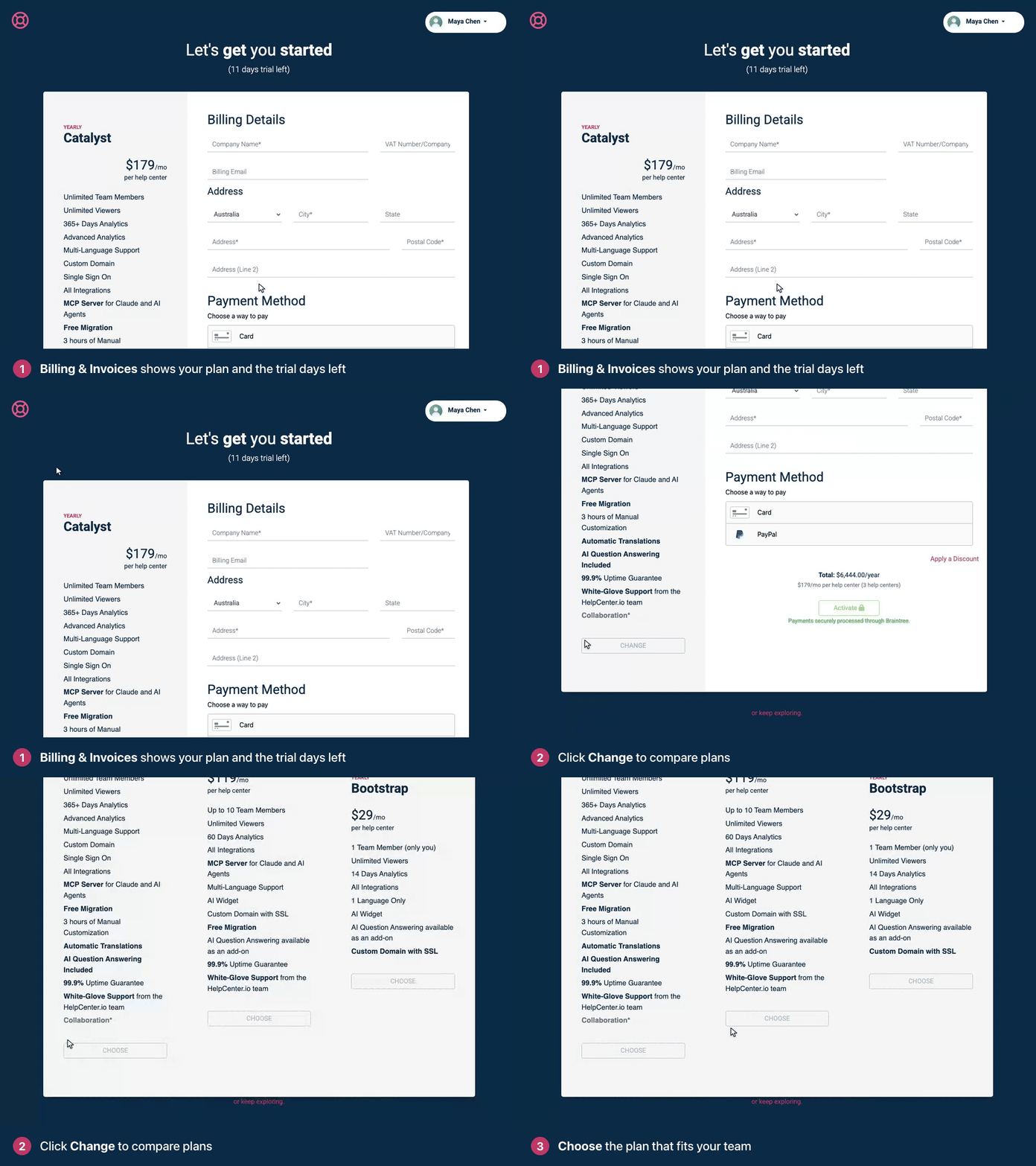
Choose Yearly or Monthly, then click Choose on the plan you want.
Add your details and activate
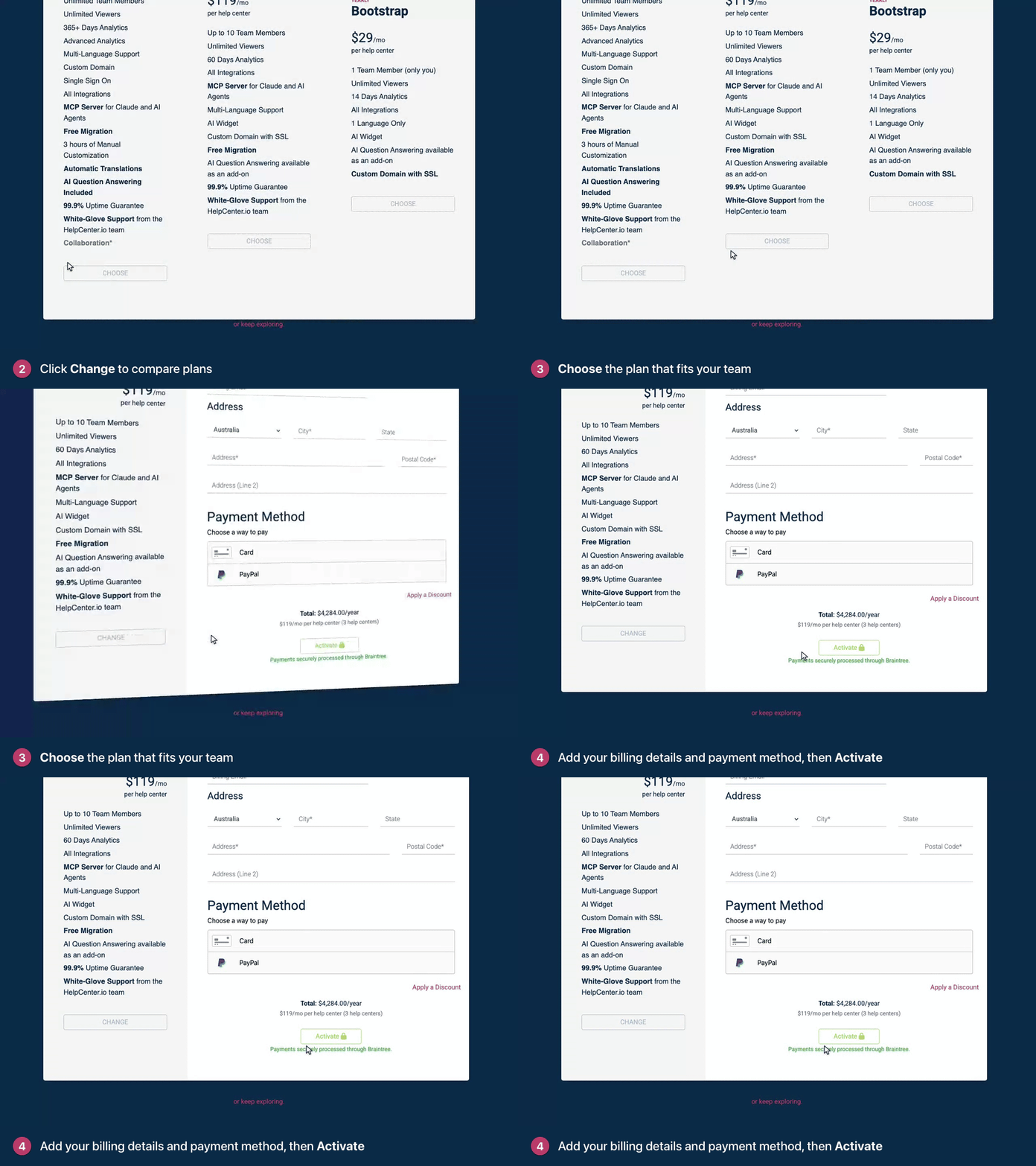
Under Billing Details, fill in Company Name, your country, City, Address and Postal Code. These are required. If you're not a company, use your own name, and pick your country from the list.
If your company is in the EU, enter your VAT number in VAT Number/Company Id. Without a valid one, 20% VAT is added.
Enter a Billing Email. Invoices are emailed to this address.
Under Payment Method, add a card or choose PayPal.
Have a discount code? Click Apply a Discount, enter the code and click Apply. If you ticked the box for product tips and offers when you signed up, your one-time $10 code is already applied. To use another code instead, click Use a different code.
Check the Total, then click Activate. Keep the page open until the confirmation appears.
What happens next
Still in your trial? You keep the remaining trial days. Your first payment is taken when the trial ends.
Trial already over? You're charged right away, and your help center is back online immediately.
Renewals: monthly plans are charged every month and yearly plans once a year, up front. Your subscription renews automatically.
Invoices appear under Invoices on the same page and are emailed to your Billing Email. See Download invoices and update billing details.
Payments are processed by Braintree, a PayPal service. HelpCenter.io doesn't store your card number.
Troubleshooting
You see "Verify Your Email" instead of a payment form. You need a verified email address before you can add a payment method. Click the link in the verification email we sent you, or click resend it on the page.
"Only the account owner can manage the help center subscription and billing details." Billing belongs to the person who created the account. Ask them to activate the plan.
"Please choose your billing country." Pick your country in Billing Details and try again.
"Please correct the data above and try again." A required billing field is empty. Fill in the fields marked in red.
"3D Secure verification failed." Your bank couldn't confirm the payment. Try again, or use another card or PayPal.
"Your card was declined." Check the card with your bank, or use another payment method.
"Discount not available." The code is wrong, has expired, has already been used, or doesn't apply to the plan and billing period you picked.
Comments
Be the first to comment.