

Tables make comparisons and reference information easy to scan: plans side by side, settings and what they do, error codes and their fixes.
Who can do this: Owners, Admins and Editors · Plans: All plans
Add a table
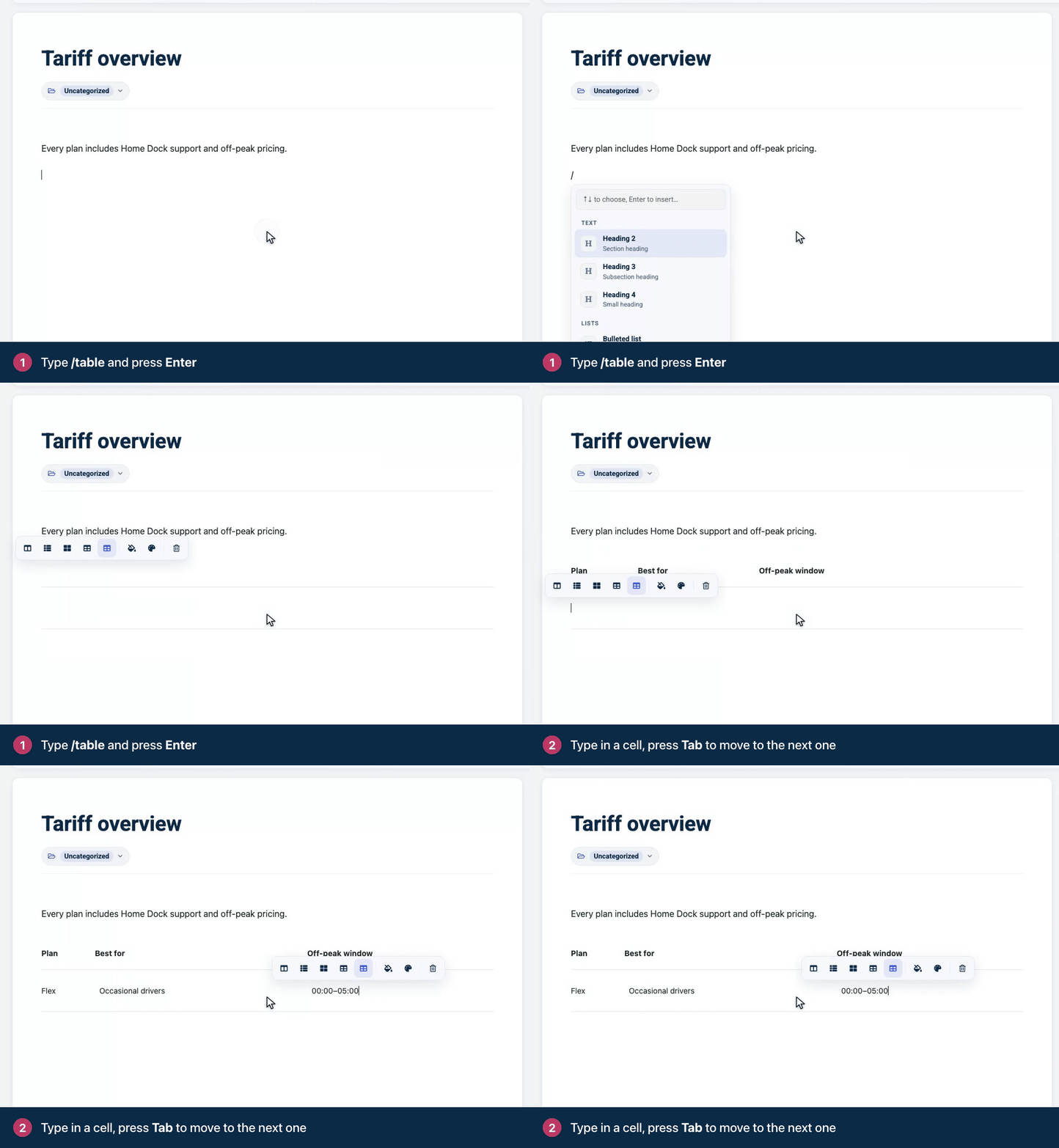
On an empty line, type
/tableand press Enter. A table with three rows and three columns appears. The first row is the header.Click in a cell and type.
Press Tab to move to the next cell, or Shift+Tab to go back. Pressing Tab in the last cell adds a new row.
Add or remove rows and columns
Click in any cell and the table toolbar appears:
Button | What it does |
|---|---|
Columns | Add column before, Add column after or Delete column. |
Rows | Add row before, Add row after or Delete row. |
Merge or split cells | Joins the cells you've selected into one, or splits a merged cell again. Drag across cells to select them. |
Toggle header row | Turns the header style on or off for the first row. The button looks pressed while the table has a header row. |
Toggle header column | Turns the header style on or off for the first column. The button looks pressed while the table has a header column. |
Highlight cell | Tints the selected cells in one of seven tones, from Gray to Purple. No highlight removes the tint. |
Table style | Opens the style panel for this table. See below. |
Delete table | Removes the whole table. |
To change a column's width, drag the border between two columns.
Style a table
Give a table its own look, such as a grid, stripes or a coloured header, without touching the rest of your help center.
Click in the table and click Table style (the palette icon) in the table toolbar. A panel opens beside the table.
Pick a preset: Theme, Grid, Minimal, Striped, Bold or Boxed. Theme draws the table the way your help center theme does.
Under Accent, keep your help center's primary colour or pick one of ten swatches, or any colour from the picker.
Open Customize to fine-tune the table:
Setting | Choices |
|---|---|
Borders | Theme, a line around every cell, lines between rows only, one line around the table, or no lines at all. |
Lines | Theme, Subtle, Strong or Accent. |
Header | Theme, Plain, Tint, Fill or Line. A table without header cells offers Add a header row instead. |
Stripes | Theme, On or Off. |
Spacing | Compact, Normal or Roomy. |
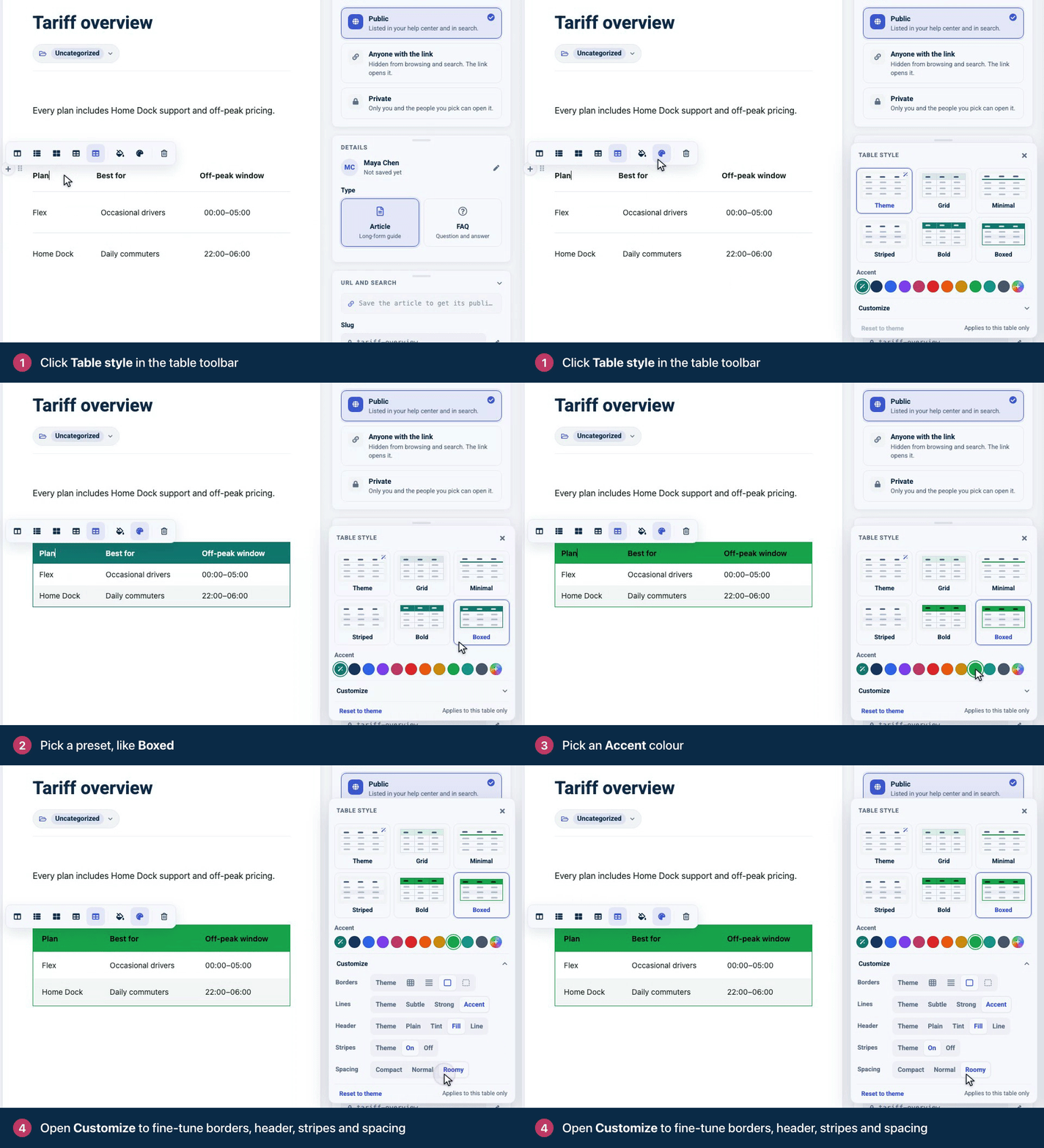
Every change applies to this table only, and you can undo each one. To go back to your theme's look, click Reset to theme. Press Escape or click elsewhere to close the panel.
Readers see the same style on your help center, in the widget and in embeds, on light and dark themes.
How tables look to readers
Tables fill the width of the article. On a phone, a table that's too wide scrolls sideways inside the article, so the rest of the page stays readable.
Tips for good tables
Use tables for data that compares or lists things, not to lay out a page. Screen readers read a table cell by cell.
Give every column a short header, so readers know what they're looking at.
Keep cells short. A few words or a number reads well; a paragraph does not.
The fewer the columns, the less readers on a phone have to scroll sideways. Split a wide table into two.
Comments
Be the first to comment.