

Connect Claude, ChatGPT or another AI agent to your help center, and it can search and write articles, organize categories, answer reader comments and read your statistics, within the permissions you approve. You ask in plain language; the agent does the work in your help center.
Plans: Growth and Catalyst, including their free trials
Connect an agent
In the left menu, click the gear icon, then Settings, and find the AI agents card.
Next to Connector URL, click Copy. Every help center uses the same address,
https://mcp.helpcenter.io.Add the address to your AI app, for example as a custom connector in Claude. For Claude Code, copy the ready-made command on the card instead.
When the app asks, sign in to HelpCenter.io, choose the help centers it may reach and click Allow.
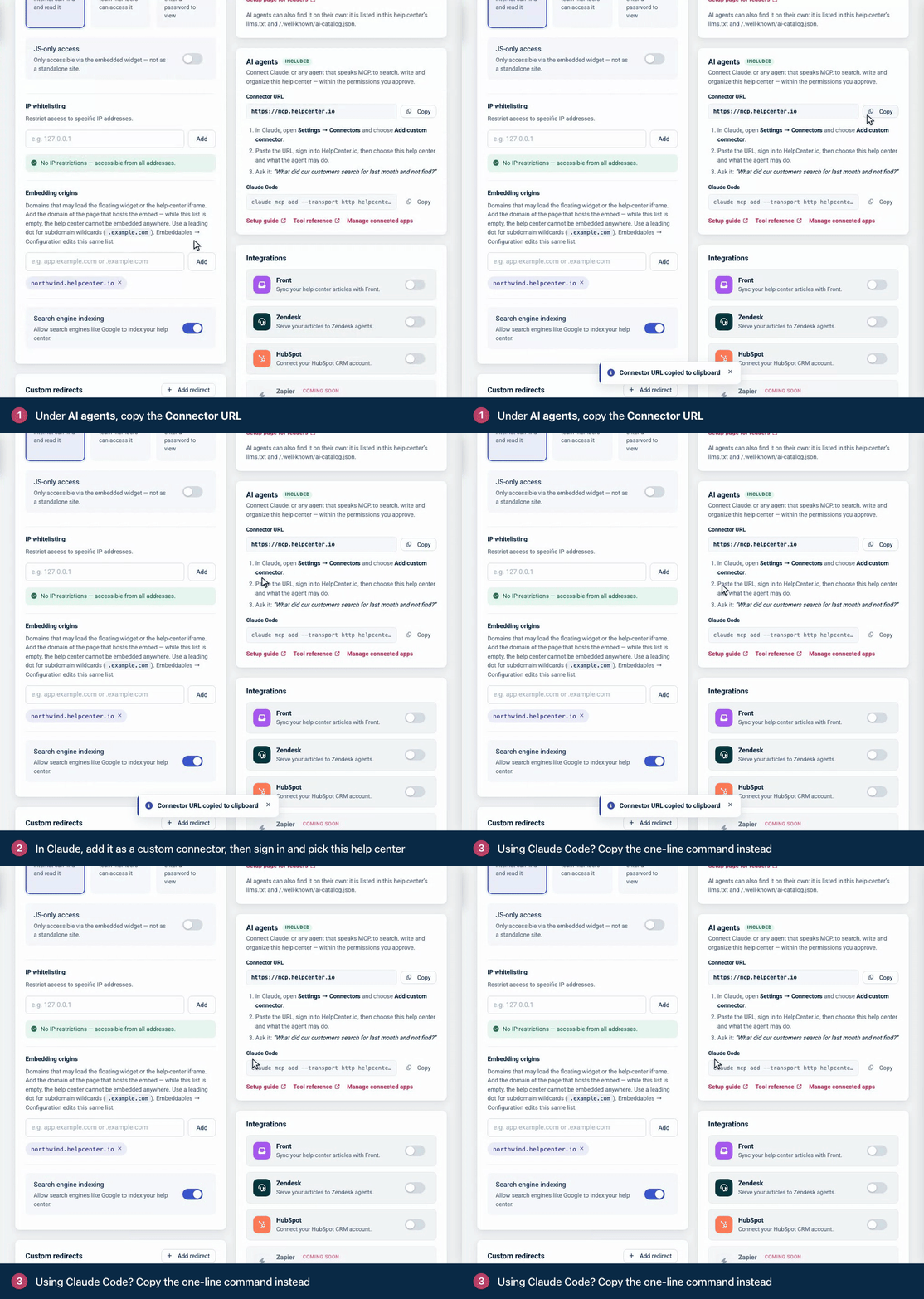
Each app adds connectors its own way. The step-by-step for Claude, Claude Code, ChatGPT and other apps is in Connect an AI assistant to your help center on the developer portal, which the card's Setup guide link opens too. There is no add-on to buy and no charge per request.
What you approve
On the Authorize access screen, HelpCenter.io lists the permissions the app asks for. You allow them together or deny access: you can't pick single permissions. For AI agents they are usually:
"Read your help-center categories and articles."
"Create and update your help-center articles." This one covers every change an agent can make: articles, categories, comments and staged changes.
"Read your help-center analytics reports."
"Read the private notes your team leaves on drafts. Readers never see these."
"Reply to and resolve the private notes your team leaves on drafts."
Two design permissions: one to see your help center's design (its theme, page layouts, components, custom CSS and scripts) and one to change and publish it.
Some apps also ask to confirm who you are, see your name and email address, or stay connected so you aren't asked to sign in again. If you have more than one help center, tick each one the app may reach. Help centers whose plan doesn't include AI agents are shown locked, with an Upgrade link.
The agent follows your role
An app you sign in to acts with your role on each help center, so it can never do more there than you can in the dashboard. The screen lists the help centers you're on the team of. Where your role holds a permission back, it says so beside the help center, for example "Your role here is Viewer, so Claude won't be able to change its content or manage its webhooks."
Owners and Admins can use every permission.
Editors can use everything except managing webhooks.
Translators can read content and statistics and work with team notes.
Viewers can read content and statistics.
Through an agent, Translators and Viewers don't get private categories or their articles, and statistics don't name the private articles a row is about, the same as in the dashboard. If your role changes, or you're removed from the team, that applies on the agent's next request. See Roles and permissions.
To see what an agent can do with each permission, read What AI agents can do in your help center.
Your own agent
An agent you build can connect with an API key instead of signing in. It reaches only the help center the key belongs to, with the key's scope, and that help center still needs Growth or Catalyst. A key isn't tied to anyone's role. See Create an API key.
Good to know
Edits to published articles go live at once, unless the agent stages them. To keep control, ask for drafts, or use staged changes on Catalyst.
Design changes stay in a draft. With the design permissions, an agent can restyle your help center, rearrange its pages and apply a theme. Its changes go to the template editor's draft, and readers see them only once the design is published, by you or by the agent when you ask. When you ask for a theme, say which parts you want, for example its colors and fonts only. Otherwise the agent starts the whole design over from that theme.
Agents can't delete articles or upload images. They also can't change your settings, team or billing.
Risky actions are marked. Deleting a category, discarding staged changes and restoring an earlier version are marked as destructive, which tells assistants such as Claude to ask you first.
Several help centers: if you tick more than one, the agent picks the help center for each request, so name the one you mean when you ask. To lock a connection to a single help center, ask the agent to list your help centers, then connect with
https://mcp.helpcenter.io/?site=and the id of the one you want.
See and revoke access
Click Manage connected apps on the AI agents card, or go to https://helpcenter.io/app/account/connected-apps.
To change what an app can reach, tick or untick help centers under Help centers it can reach and click Save help centers.
To remove an app, click Disconnect and confirm. It loses access to your help centers immediately.
The account owner sees the apps everyone on the team has connected, and can change or disconnect any of them. Everyone else sees only their own. An agent that uses an API key stops working when you delete the key in Settings → API keys.
Troubleshooting
The AI agents card says "Not included in your current plan". Connecting AI agents is part of the Growth and Catalyst plans. Click View plans to upgrade. See Plans and pricing.
The sign-in screen says "Your plan doesn't include the MCP server". None of your help centers is on Growth or Catalyst. Move one to either plan, then connect again. Nothing has been shared.
A help center you work on isn't listed on the sign-in screen. The screen lists the help centers you're on the team of, with the account you signed in with. If you aren't on that help center's team, ask an Owner or Admin to invite you, or use an API key created in that help center's settings.
The agent says your role does not allow this action. Your role on that help center doesn't include what you asked for, for example changing content as a Viewer. Ask an Owner or Admin for a role that allows it. You don't need to connect again afterwards.
The agent can't read statistics or team notes, or change the design. Those need their own permissions. If the sign-in screen didn't list them, the app didn't ask for them: the setup guide explains how to connect again. For team notes, the person who connected also needs access to team notes in the dashboard.
The agent can't stage changes. Staged changes are part of Catalyst and must be turned on for your help center. See Edit live articles safely with staged changes.
Comments
Be the first to comment.