

Export articles as PDF files to share them offline, keep an archive, or send them to someone who can't open your help center.
Who can do this: Owners, Admins and Editors (the whole help center: the Owner) · Plans: All plans
Export selected articles
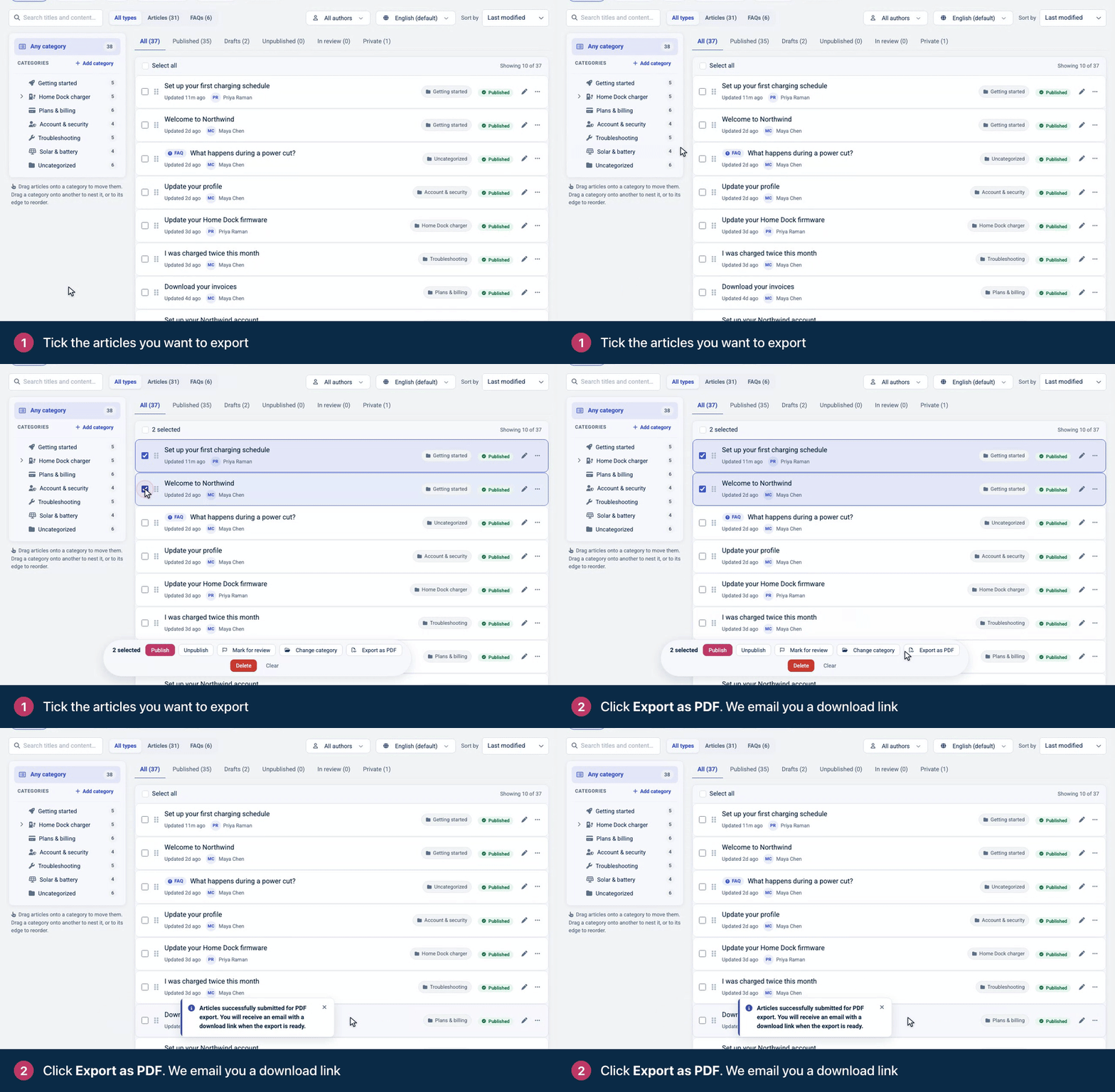
On Articles, tick the articles you want to export.
Click Export as PDF in the bar at the bottom.
Look for an email with the subject "Your help center articles PDF export is ready", and click the download link in it.
What's in the export
A ZIP file with one PDF for each article in each of its languages.
Every article you selected, including drafts and articles that aren't public.
Private articles only if you're their author.
The download link works for 7 days.
Export the whole help center
The help center's owner can export every article at once: go to Settings → Danger zone and click Request a PDF export. The download link arrives by email. You can request one full export every 30 minutes. Exporting selected articles doesn't count toward that wait. See Export or delete a help center.
Developers can also export your categories and articles as data through the API. See Back up your help center on the developer portal.
Let readers print or download an article
Add the Export menu to your article page in the template editor. Readers then get an Export menu on every article, with Print article, Download PDF and Download Markdown. See Customize the article page.
Troubleshooting
The email hasn't arrived. Give it a few minutes, then check your spam folder. See I'm not getting emails from HelpCenter.io.
"You cannot run more than 1 full export every 30 minutes." A full export of this help center was requested less than 30 minutes ago. Wait, then request it again. Exporting selected articles isn't affected.
The download link doesn't work. Links expire after 7 days. Export the articles again to get a new one.
Comments
Be the first to comment.