

Invite teammates so they can write, translate or manage your help center with you. You choose each person's role when you invite them, and you can change it later.
Who can do this: Owners and Admins · Plans: All plans (the number of team members depends on your plan)
Invite someone
In the left menu, click the gear icon, then Users.
Click Invite user.
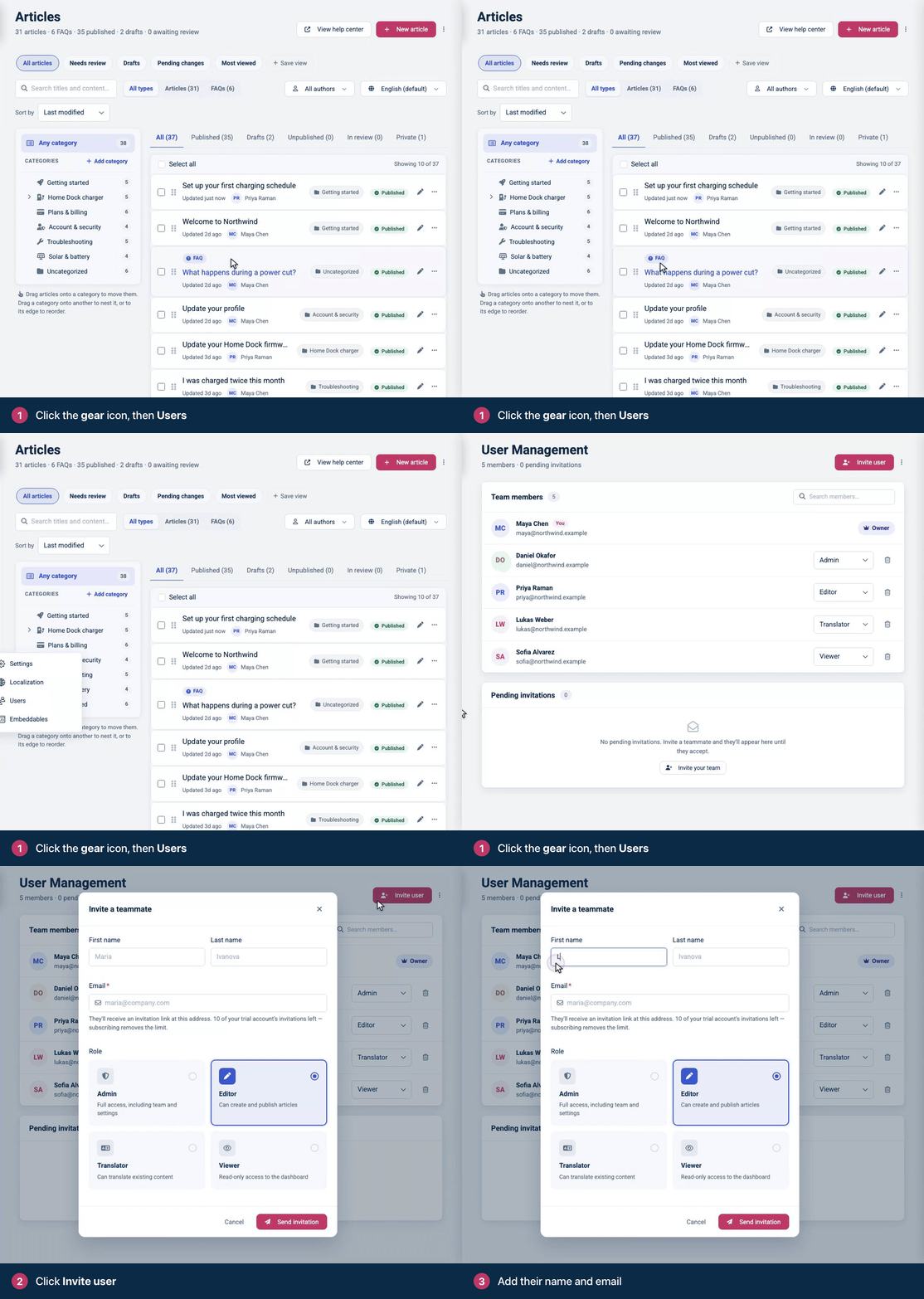
Enter their First name and Email. The invitation goes to this address. Last name is optional.
Pick a Role: Admin, Editor, Translator or Viewer. On the Catalyst plan, your custom roles are listed too. See Create custom roles for your team.
Click Send invitation.
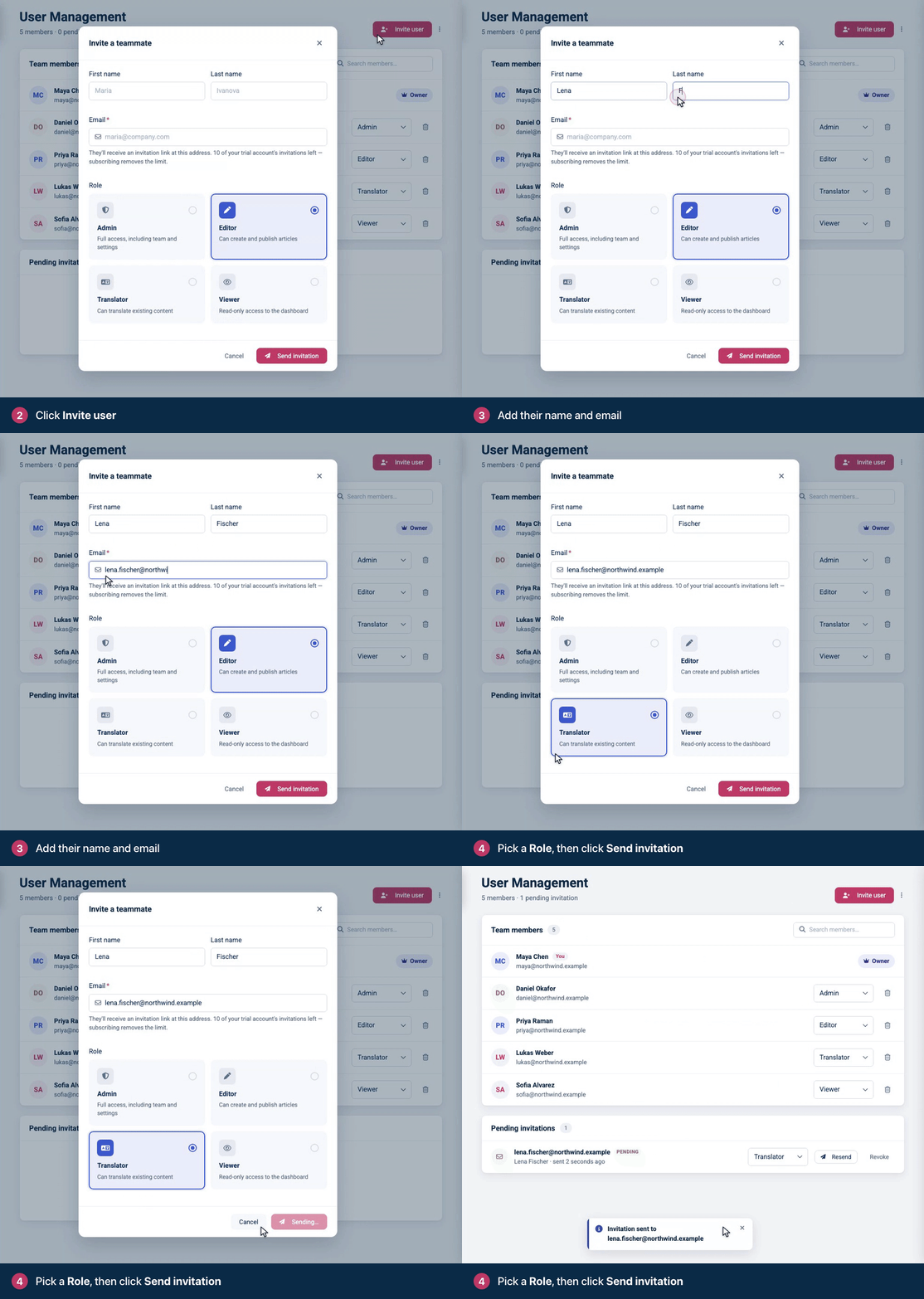
Which role to pick
Role | Good for |
|---|---|
Admin | People who run the help center with you: content, design, settings and the team. |
Editor | Writers who create, edit and publish articles. |
Translator | People who translate existing articles into your other languages. |
Viewer | Colleagues who only need to read a private help center. |
Roles apply to one help center. If you run several, invite people to each one separately. See Roles and permissions for everything each role can do.
What happens next
Someone new to HelpCenter.io gets an email from you via HelpCenter.io. Its link opens a page that shows who invited them, to which help center and with which role. Under Set up your account, their name is already filled in and the address you invited is shown. They can only join with that address, and the same applies when they choose Continue with Google. They click Join followed by your help center's name.
Someone who already has a HelpCenter.io account joins your team straight away and gets an email saying you added them.
After joining, a Viewer goes straight to your help center. Everyone else starts on the Articles page.
An invitation link works for 14 days. While an invitation is waiting, you can Resend it (up to five times) or Revoke it from Pending invitations. A resend sends a new link, and the previous link stops working. When an invitation runs out, it shows Expired under Pending invitations. Click Resend to send a link that works again.
How many people you can invite
Bootstrap includes one team member: you.
Growth includes up to 10 team members.
Catalyst includes unlimited team members.
Every member counts toward your plan's limit, you and Viewers included, and so does every invitation that hasn't been accepted yet. When you reach the limit, Users says "You've reached your plan's seat limit" and Invite user is grayed out. Remove a member or revoke a pending invitation to free a seat, or upgrade your plan.
During the free trial you can send up to 10 invitations. Subscribing removes that limit. Each person can send up to 50 invitations and reminders an hour. See Plans and pricing for the details of each plan.
Troubleshooting
"That email is already on the team or has a pending invitation." They are already a member, or an invitation is waiting. Check Team members and Pending invitations.
They didn't get the email. Ask them to check their spam folder for a message from app@helpcenter.io, then use Resend.
"This invitation link isn't valid anymore." The link was already used, has expired or was replaced by a newer one. If they haven't joined yet, click Resend to send them a fresh link.
"This invitation was sent to ..." They tried to join with a different address. Ask them to use the address you invited, or invite the address they want to use.
"This invitation is for someone else." They are signed in to HelpCenter.io with a different account. They can click Sign out and continue to join with the invited address.
"Trial accounts can send up to 10 invitations." Activate your subscription to invite the rest of your team.
Comments
Be the first to comment.