

Billing & Invoices keeps every invoice, your billing details and your payment method in one place. Download invoices for your records and keep your company details up to date.
Who can do this: The account owner · Plans: All plans, once your subscription is active
Download an invoice
At the bottom of the left menu, click your avatar, then Billing & Invoices.
Scroll down to Invoices. Each row shows the invoice number, Amount, Bill To and Created On.
Click View to open the invoice in your browser, or Download to save it as a PDF.
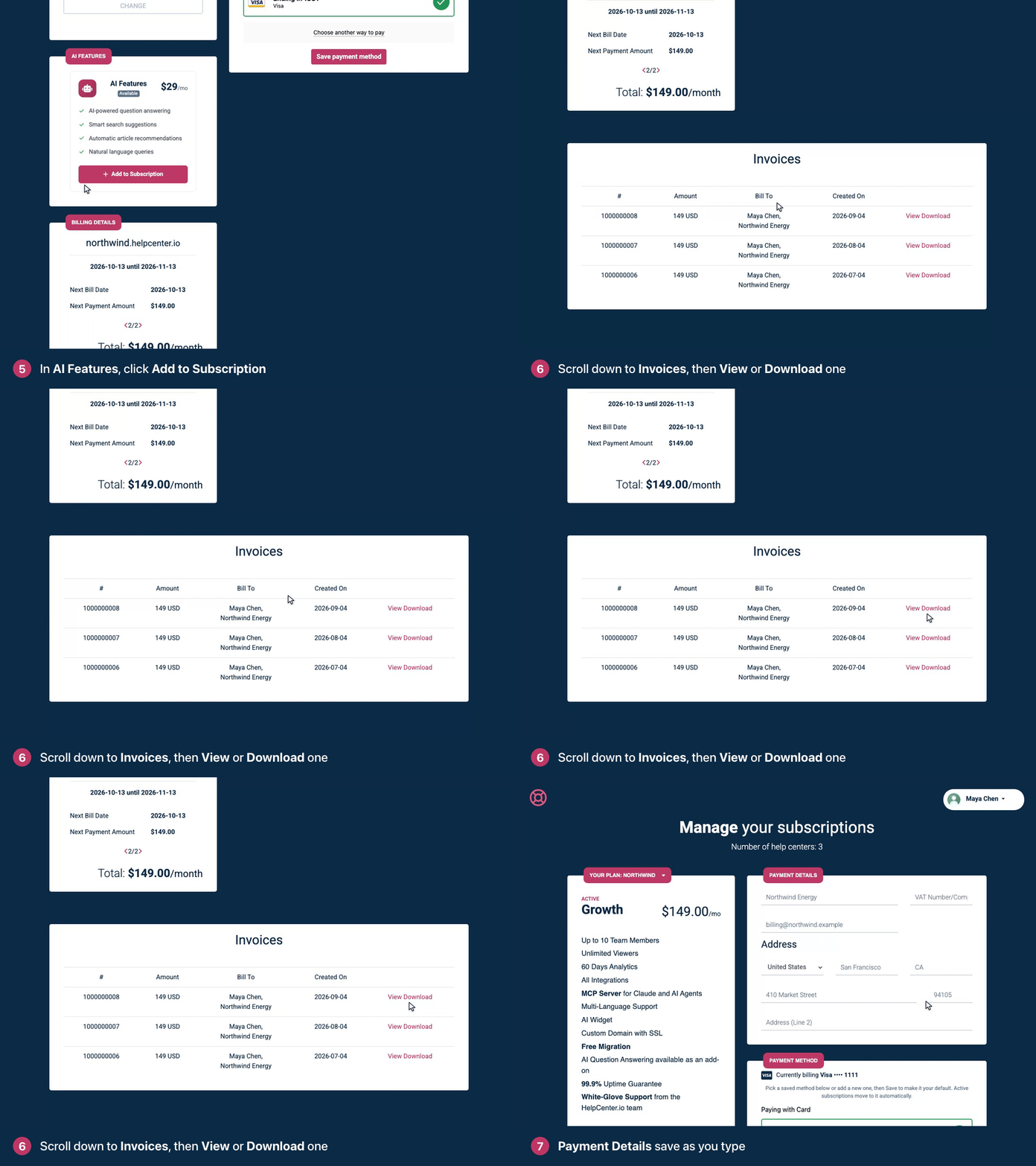
You get an invoice for every payment. If you activated during your free trial, the first one arrives after the trial ends. Until then, the list says "You don't have any invoices, yet."
If our team transferred a help center to you, its past invoices are listed here too, and you can view and download them. Issued invoices never change, so their Bill To still shows whoever was billed at the time.
Get invoices by email
Each invoice is emailed to the Billing Email in your billing details, with the PDF attached and the subject "You have a new invoice available for HelpCenter.io". If Billing Email is empty, no invoice emails are sent, but every invoice is still listed on this page.
Update your billing details
On Billing & Invoices, find Payment Details.
Edit your Company Name, VAT Number/Company Id, Billing Email or address. Changes save automatically as you type.
New details apply to future invoices. Invoices you already have keep the details they were issued with; if one needs correcting, email support@helpcenter.io. Adding or removing an EU VAT number changes the VAT on your next payments. See Do you charge VAT?
Change your payment method
Under Payment Method, check which card or PayPal account you're Currently billing.
Pick one of your saved methods, or add a new card or PayPal account.
Click Save payment method.
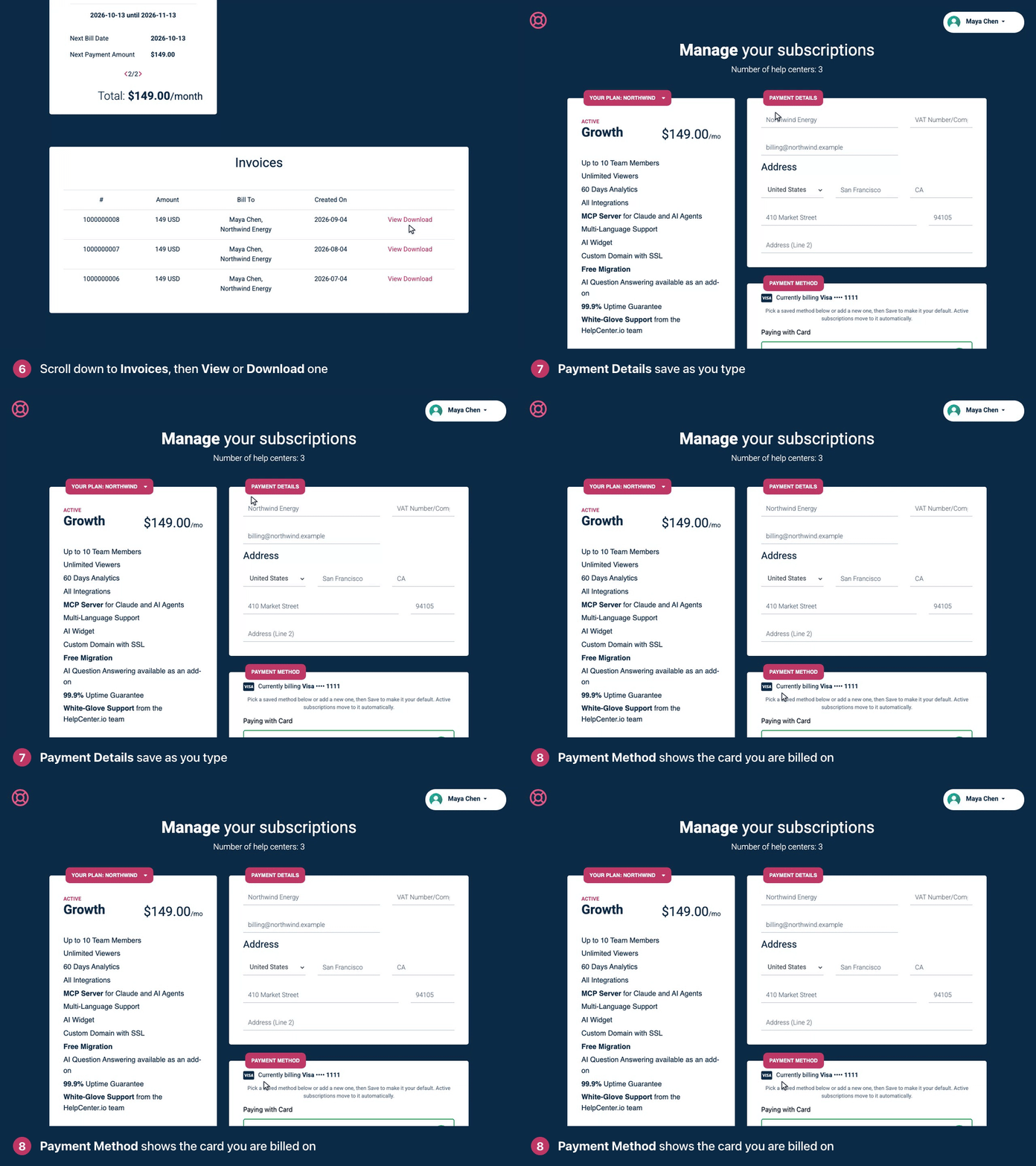
The method becomes your default, and your active subscriptions move to it automatically. If a payment is overdue, saving a new method also retries it.
Saved methods stay in the list: you can't remove one from the dashboard. To remove an old card or PayPal account, email support@helpcenter.io.
Check your next payment
The Billing Details card shows your current billing period, Next Bill Date, Next Payment Amount, any add-ons and discounts, and the Total. If you have more than one help center, use the arrows at the bottom of the card to move between them.
Troubleshooting
No invoice emails. Add a Billing Email under Payment Details, and check your spam folder. You can always download invoices from this page.
"Your payment session expired before the card could be saved." Enter your card details again and click Save payment method.
"3D Secure verification failed." Your bank couldn't confirm the card. Try again, or use another card or PayPal.
You see "Unauthorized". Only the account owner can see billing. Ask them for the invoice you need.
Comments
Be the first to comment.