

Add links to your header and footer so readers can reach your main website, your status page or your contact page from anywhere in your help center. You keep them in one list, and your header menu and footer share it.
Who can do this: Owners and Admins (Editors through Customize on your help center) · Plans: All plans
Add a link
In the left menu, click Template editor, then open the Navigation tab.
Click Add link. A link called "New link" appears at the end of the list.
Type a Label: the text readers see.
Enter the URL: a path on your help center that starts with
/, such as/categories, or a full address that starts withhttps://.Pick a Kind: Internal link, Category or External link.
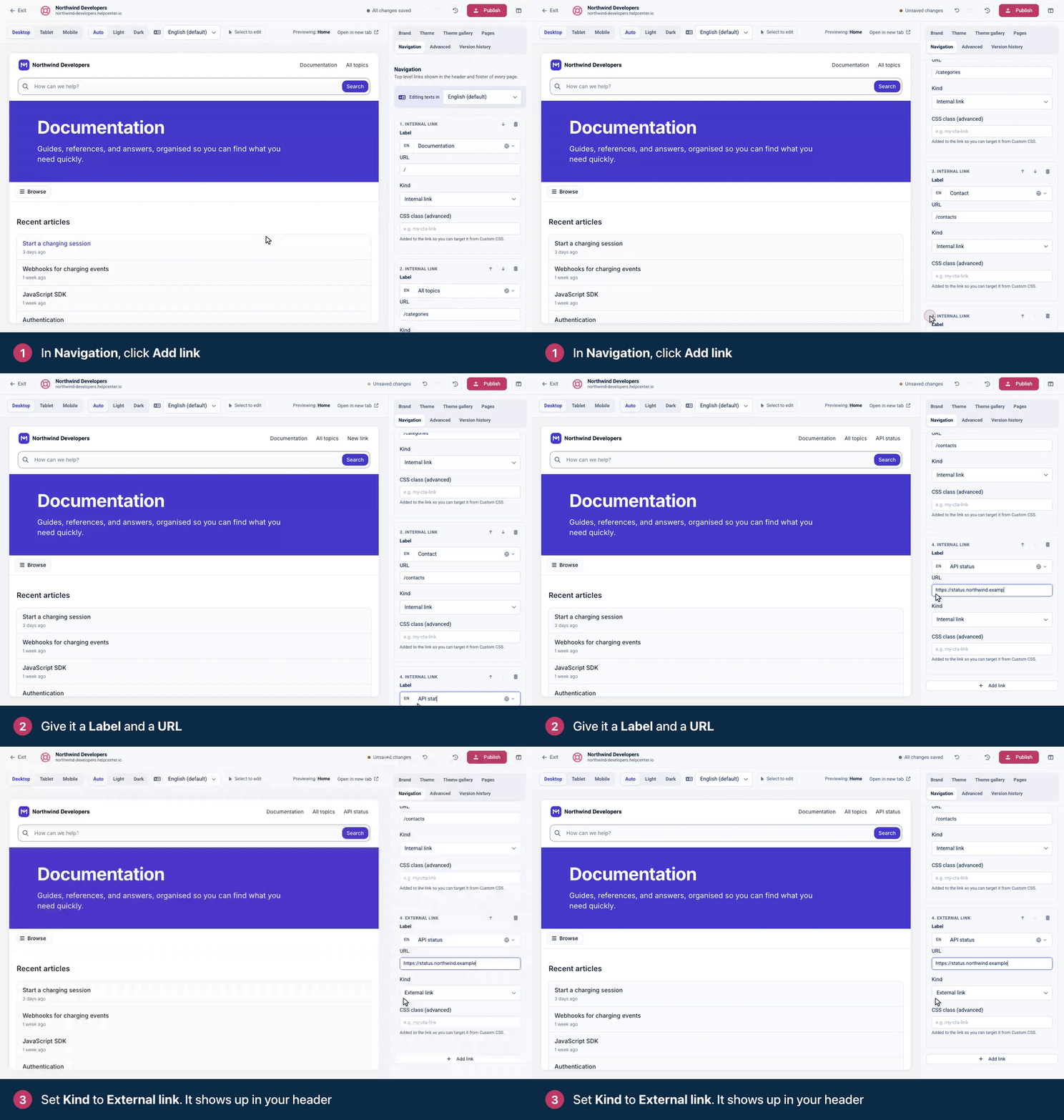
Check the link in the preview, then click Publish. Readers see it once you publish.
Which kind to pick
Kind | Use it for |
|---|---|
Internal link | A page of your help center, such as |
Category | One of your categories. Open the category on your help center and copy the part of its address after your domain, for example |
External link | Another website, such as your product or your status page. In your header menu it opens in a new tab. |
The easiest way to get an internal path right is to open the page on your live help center and copy what comes after the domain in the address bar. On a help center with several languages, paths that start with / keep the reader's language automatically.
Reorder, edit or remove links
Use the up and down arrows on a link to change its place in the list. Your menu shows the links in this order.
Edit any field in place. Changes show in the preview right away.
Click the trash icon to remove a link. Changed your mind? Press ⌘Z (Ctrl+Z on Windows).
Translate link labels
On a help center with more than one language, the Navigation tab shows an Editing texts in bar. Pick a language, then type the translated Label for each link. The URL is shared by every language.
Style one link with a CSS class
Want your "Contact support" link to look like a button? Type a class name in CSS class (advanced), such as support-cta, without a leading period. The class is added to that link in your header menu, so you can target it from Advanced → Custom CSS. The Custom CSS reference has a ready-made example.
Where your links appear
In the header: wherever a page has a Navigation component. Most themes include one in the header. Its settings let you show the links as Horizontal, Vertical (sidebar) or Pills.
In the footer: the Footer component lists them in a "Links" column until you give the footer columns of your own. After that, add links to a Links column in the Footer instead.
Contact links (anything that points to
/contacts) stay hidden while your contact page is off. The page switches on when your contact form has a recipient email.
A link to a private category doesn't make it public: readers who can't see the category still can't open it.
Troubleshooting
Your link doesn't show in the header. Your header has no Navigation component. Compass, the theme new help centers start with, doesn't include one. Open Pages, pick the Header region, click Add component and pick Navigation, then publish. The label next to the component's name shows how far the change reaches. If it names one page, such as Home only, the header isn't shared between pages: add Navigation on each page where you want the menu. In Compass, each page starts with its own header, because the Category and Article pages also have a search bar there. See Pages, regions and shared headers explained.
Your link doesn't show in the footer. Your Footer uses its own columns (Compass's does). Add the link to a Links column in the Footer. See Customize the header and footer.
The Contact link disappeared. Your contact page is off. Add a recipient email to your contact form and publish. See Set up your contact page and form.
The link leads to a "not found" page. Check the URL. Internal paths start with / and must match an address on your help center; copy it from your browser's address bar.
The preview is right but your help center isn't. Click Publish. Saved changes stay in your draft until you do.
Comments
Be the first to comment.