

Put your most important categories first, and arrange the articles in each category in the order readers should read them, such as setup steps from first to last.
Who can do this: Owners, Admins and Editors · Plans: All plans
Reorder categories
Click Articles in the left menu.
In the Categories panel, drag a category up or down and drop it at the top or bottom edge of another category.
Drop it at the edge, not on top: dropping a category onto another one makes it a subcategory. The new order is saved right away, and your help center lists your categories in this order, for example on the home page.
Arrange the articles in a category
In the Categories panel, click the category.
Set Sort by to Custom order.
Drag the articles into the order you want.
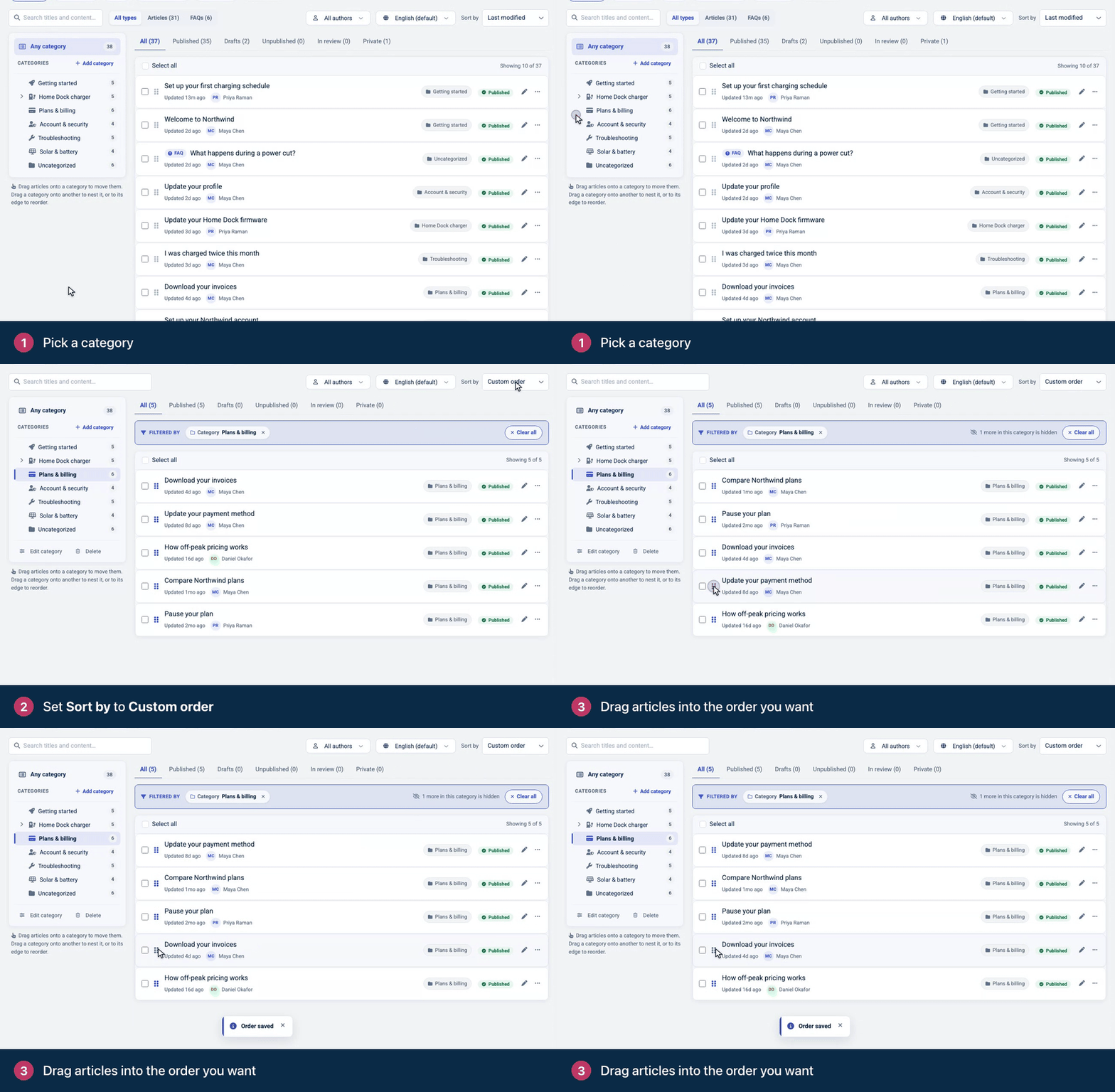
You'll see "Order saved" after each drop. Custom order works inside one category at a time, and you move one article at a time. It isn't available for Any category or Uncategorized.
Show your order on the help center
Whether category pages follow your order depends on a setting of the Category page in the template editor. Compass, the theme new help centers start with, uses your order. The other themes list the most recently updated articles first. To check or change it:
Open Template editor from the left menu, click Pages and choose the Category page.
Find Category articles and set Order articles by to Custom (drag to reorder), or pick another order.
If you pick Alphabetically, set the Direction to A → Z. It starts at Z → A.
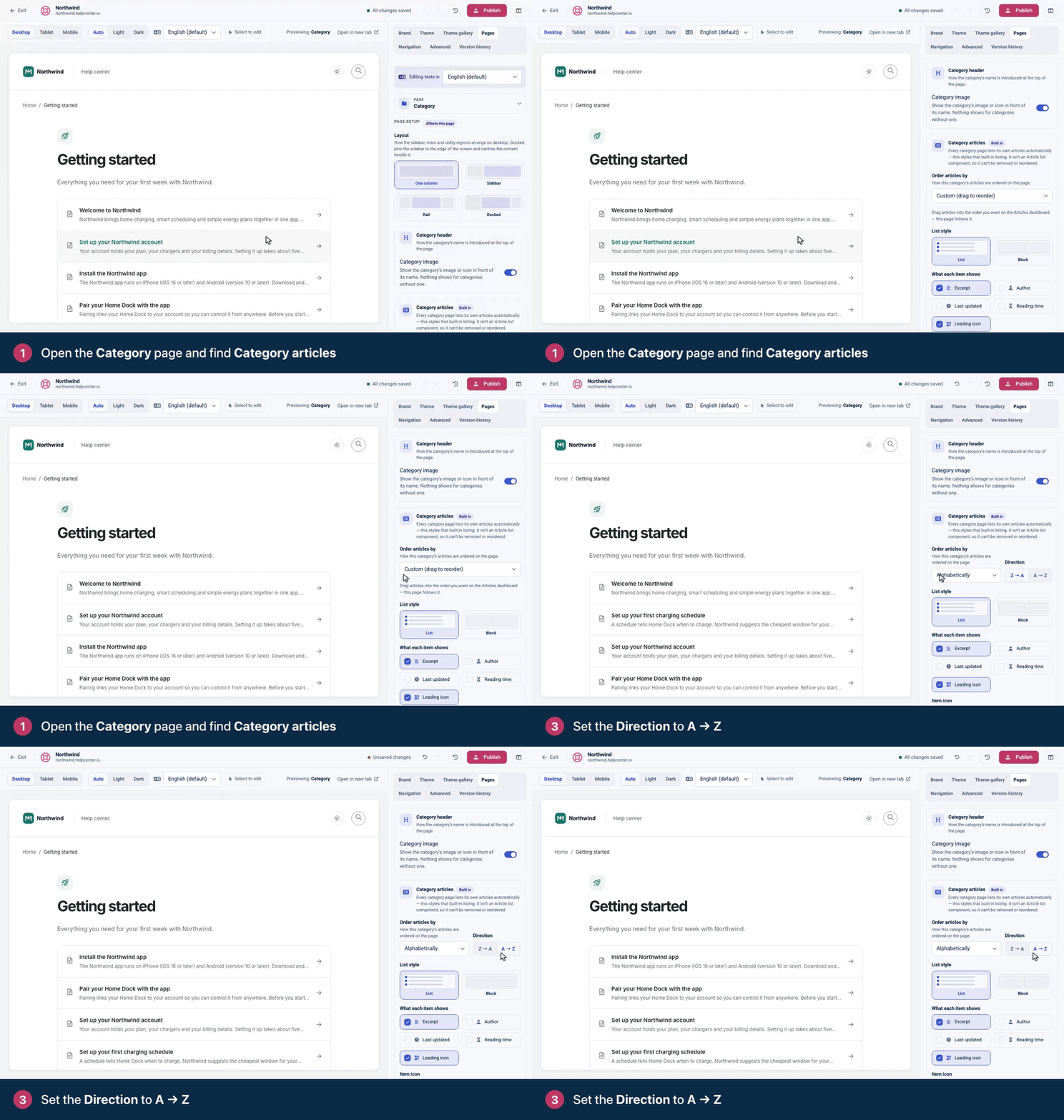
Click Publish so readers see the new order. See Publish your design.
Order articles by | Direction |
|---|---|
Last updated | Newest first or Oldest first |
Create date | Newest first or Oldest first |
Alphabetically | A → Z or Z → A |
Custom (drag to reorder) | Your order from the Articles page |
The same order applies wherever your help center lists a category's articles, such as a content tree. Article lists you add to other pages have their own sort setting. See Customize category and article lists.
Owners and Admins open Template editor from the left menu. Editors can open it with Customize in the team toolbar that shows on your help center while they're signed in. Opened from a category page, it goes straight to the Category page's settings.
Comments
Be the first to comment.