

Your home page is built from blocks, such as your categories, lists of popular articles, FAQs and a contact prompt. In the classic template editor you choose which blocks to show, put them in order and set each one up.
Who can do this: Owners and Admins · Plans: All plans
Your changes save to a draft automatically, and readers see them after you click Publish. See Save, preview and publish in the classic editor.
Add a block
In the left menu, click Template editor, then click Homepage.
Under the list of blocks, click + Add New.
Choose a block in the list that appears.
Click Add.
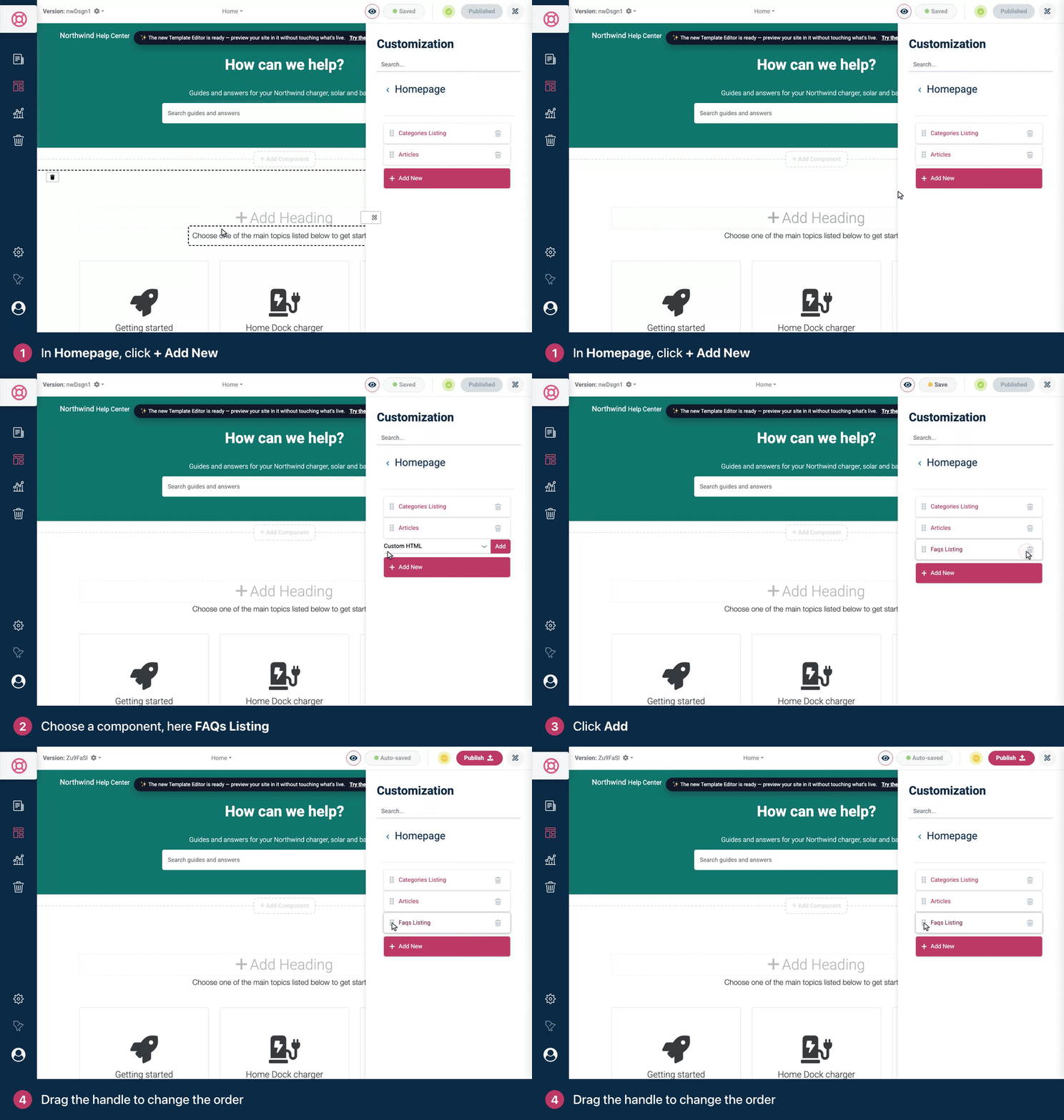
The new block goes to the end of the list and of your home page. To put it somewhere else straight away, use the preview instead: click Add Component where you want the block, choose it and click Add.
Block | What it shows |
|---|---|
Categories Listing | Your categories as boxes or lists |
Articles Listing | Up to two lists of articles, such as FAQs and your most viewed articles |
Contacts Section | A short message with an Ask Us button that emails your team |
FAQs Listing | Your FAQ articles, grouped by category |
Heading | A heading with an optional subheading |
Custom HTML | Anything you write in HTML |
You can add Heading and Custom HTML as often as you like. The other blocks can be on your home page once each, so they leave the list after you add them. Your help center shows the first 10 blocks only.
Arrange and remove blocks
Move a block by dragging it up or down in the list.
Remove a block with the trash icon next to it in the list, or with the trash icon that appears when you point at it in the preview.
Change a block's settings by clicking its name in the list, or by clicking the block in the preview. Its settings open under the list.
Category boxes in the preview are your real categories. Dragging them into a new order, renaming them, editing a description, changing an image or creating one with the Create a Category box changes your categories right away, on your live help center too, without Publish. Reset to Published doesn't undo these edits.
Categories Listing
Setting | What it does |
|---|---|
Categories Position | Content shows the categories below the header. Header shows them inside the header, under the search field. Header needs the standard header style: with the minimal header, the categories don't show at all. |
Display background color, Background Color: and Text Color: | While Display background color is on, which is the default, the two colors set the band behind your categories. Turn it off to keep the standard look. |
Show categories listing heading and Show categories listing subheading | Show a heading and a subheading above the categories. Until you change them in Categories Listing Heading and Categories Listing Subheading, they read "Where to go from here?" and "Choose one of the main topics listed below to get started." The paintbrush icon next to each field sets its Text Size:, Text Align: and Text Color:. |
Hide categories with no published articles | Leaves out empty categories, here and in the category menu on your other pages. |
Categories Box Style: | Vertical Box puts each category's image above its title. Horizontal Box puts the image next to the title and description. Listing shows each category with a list of its top articles. |
What would you like to include in the category box? | The title always shows. Add the Description, Articles count and authors or only the Articles count. |
Full Width | For Vertical Box only: stretches category images you uploaded to the full width of the box. Icons keep their size. |
Image Size:, Spacing and Category boxes per row: | The size of category images in pixels, the space inside each box (Narrow, Medium or Large), and how many boxes sit side by side, from one to four. They don't apply to Listing. |
How many categories to display on the homepage? | All, or 3, 6, 9 or 12. When you have more categories than that, a See all button leads to the full list. |
The category boxes follow the order of your categories. See Change the order of articles and categories.
Articles Listing
Background Color: and Text Color: set the colors of the band behind the lists and of its text.
Layout: List shows article titles. Block shows each article as a card with the start of its text.
Sections are the lists themselves. Pick FAQs, Trending Articles (your most viewed), Latest Articles (the newest) or Recently Updated under Add a Section: and click Add. You can have two sections.
Rename a section by clicking its title under Current Sections, typing the new title and pressing Enter. Remove one with its trash icon.
A section with no articles to show says "There isn't anything here, yet." on your help center. For example, FAQs stays empty until you have FAQ articles. See Write FAQs and add them to articles.
Contacts Section
This block needs a Contacts Email under General; without one, it doesn't show. Until you write your own text, it reads "Can't find what you are looking for? Don't worry, you can always" followed by an Ask Us button that opens an email to that address.
To write your own, use Contacts Section Content:. You can use HTML, and {email} inserts your contact email. The same text appears in every Contacts Section, including ones on category and article pages. To send readers to your contact form instead, see Set up the contact form in the classic editor.
FAQs Listing, Heading and Custom HTML
FAQs Listing lists your FAQ articles under the name of their category. Set its Heading: (until you change it, "FAQs") and an optional Text: under it.
Heading has a Heading: and a Subheading field. You can also click the text in the preview and type.
Custom HTML shows the HTML you write in Custom HTML Component:, exactly as written. Scripts in it run too. See Add custom CSS and scripts in the classic editor.
Translate text in Custom HTML
Write a variable in curly braces where text should change by language, such as {welcome}, or {welcome|Welcome to our help center} to include a default text made of letters, numbers and spaces. Each variable gets a field under Translatables, where you enter its text for each language. Fill in every language: where one is missing, a {welcome} variable shows nothing in that language, and a variable with a default text shows the default.
The new template editor has many more blocks, which you can place on any page. See Move your help center to the new template editor.
Troubleshooting
A block doesn't show on my help center. Check that you published. Then check that it's among the first 10 blocks, and for a Contacts Section, that Contacts Email is filled in.
I can't add a second Articles Listing. Use the two sections of one Articles Listing instead.
"You already have the maximum number of sections." An Articles Listing holds two sections. Remove one with its trash icon to add another.
My section title change doesn't stick. Press Enter after typing the new title.
Comments
Be the first to comment.