

FAQs are short question-and-answer articles. They answer the quick questions your customers ask most, and you can write them right next to the article they belong to.
Who can do this: Owners, Admins and Editors (only Owners and Admins can build new FAQ sections) · Plans: All plans (AI drafting: Catalyst plan, or the AI add-on on Bootstrap and Growth)
Write an FAQ from an article
Open the article and save it, if it's new.
In the Related FAQs card on the right, click New.
Write the question the way a customer would ask it, then a short answer of up to 600 characters.
Click Create FAQ.
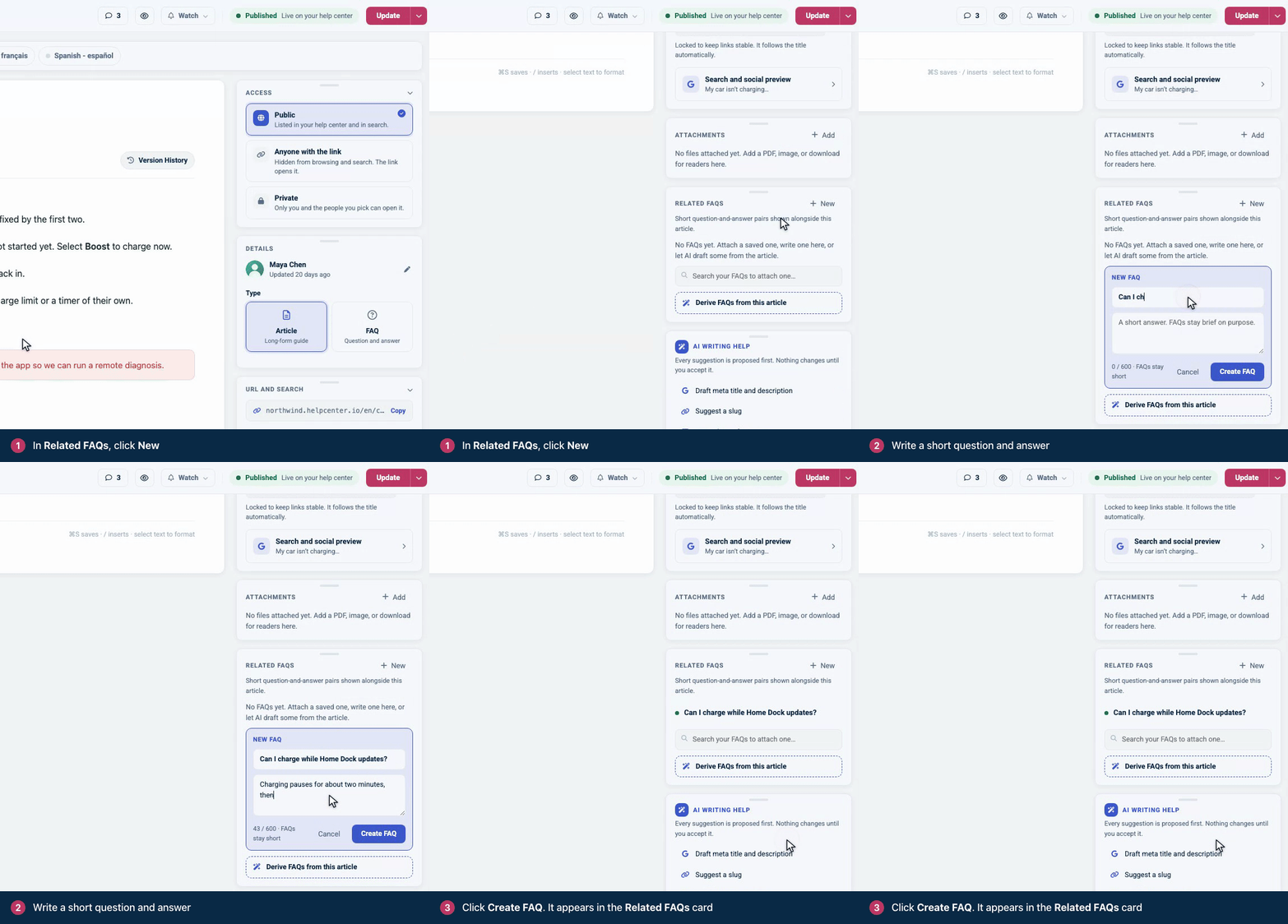
The FAQ is published straight away, in the same category as the article. If the article is in several categories, or in none, the FAQ goes into your help center's oldest category instead; open it in the editor to move it. To attach an FAQ you already have instead, type in Search your FAQs to attach one… and click it.
Each FAQ in the card has a … menu with Publish or Unpublish, Edit, Open in editor and Detach. Detaching only removes the FAQ from this article; the FAQ itself stays. When you edit an FAQ, the change shows everywhere it's attached.
A circular-arrows icon next to an FAQ means the article changed after the FAQ was last updated. Check the answer, then click the icon to mark the FAQ as up to date.
Let AI draft FAQs
With AI writing help, click Derive FAQs from this article at the bottom of the card. AI reads the article and drafts FAQs, each marked with a wand icon. They're saved as drafts, so readers don't see them yet. Check each one, edit it if needed, and publish it from its menu. When several drafts are waiting, a button at the top of the card publishes them all at once.
Turn an article into an FAQ
Any article can be an FAQ. In the Details card, set Type to FAQ. The title becomes the question and the content becomes the answer. FAQs are capped at 600 characters, so shorten a longer article first.
When you open an FAQ in the editor, its side panel shows Attached to articles instead of Related FAQs: every article it's attached to, each with Open in editor and Detach.
Where readers find FAQs
The article page: the published FAQs in an article's Related FAQs card show as expandable questions right after the article text, before ratings and comments. On a translated page, only the FAQs translated into that language show. An FAQ in a category readers can't see stays hidden from them; signed-in team members still see FAQs in Team members only categories. The questions are also marked up as FAQs for search engines.
Category pages: the FAQs in a category appear as expandable questions at the top of the category page. You can change this in the template editor (Pages → Category → Separate FAQs). See Customize category and article lists.
The FAQs component: add it to your home page, or to a category or search page, in the template editor. It lists every FAQ, or the FAQs of one section. See Add, move and remove components.
FAQ sections: sets of FAQs that you place inside an article or embed on your own website. See Embed FAQ sections on your website.
Search: FAQs show up in your help center's search results like any article.
Add an FAQ section to an article
On an empty line, type
/faqand pick FAQ section.Under Saved sections, pick a section. Owners and Admins can also switch to Build custom, give the section a title and search for the FAQs and articles to put in it.
Click Insert section.
Inside an article, the section always takes your help center's look. The design you give it under Embeddables applies where you embed it on your website and on its share page.
Comments
Be the first to comment.