

Here's the quickest way from a blank page to a live help article: write it, save it as a draft, then publish it.
Who can do this: Owners, Admins and Editors · Plans: All plans
Write your article
Sign in to HelpCenter.io and click Articles in the left menu. You can also go straight to helpcenter.io/app/articles.
Click New article.
Type a title your customers would search for, such as "How do I reset my password?"
Click below the title and start writing. To add headings, lists, images and more, type
/on an empty line.Click the category under the title and pick where the article belongs. If you had a category selected on the Articles page, it's already filled in.
Click Save draft.
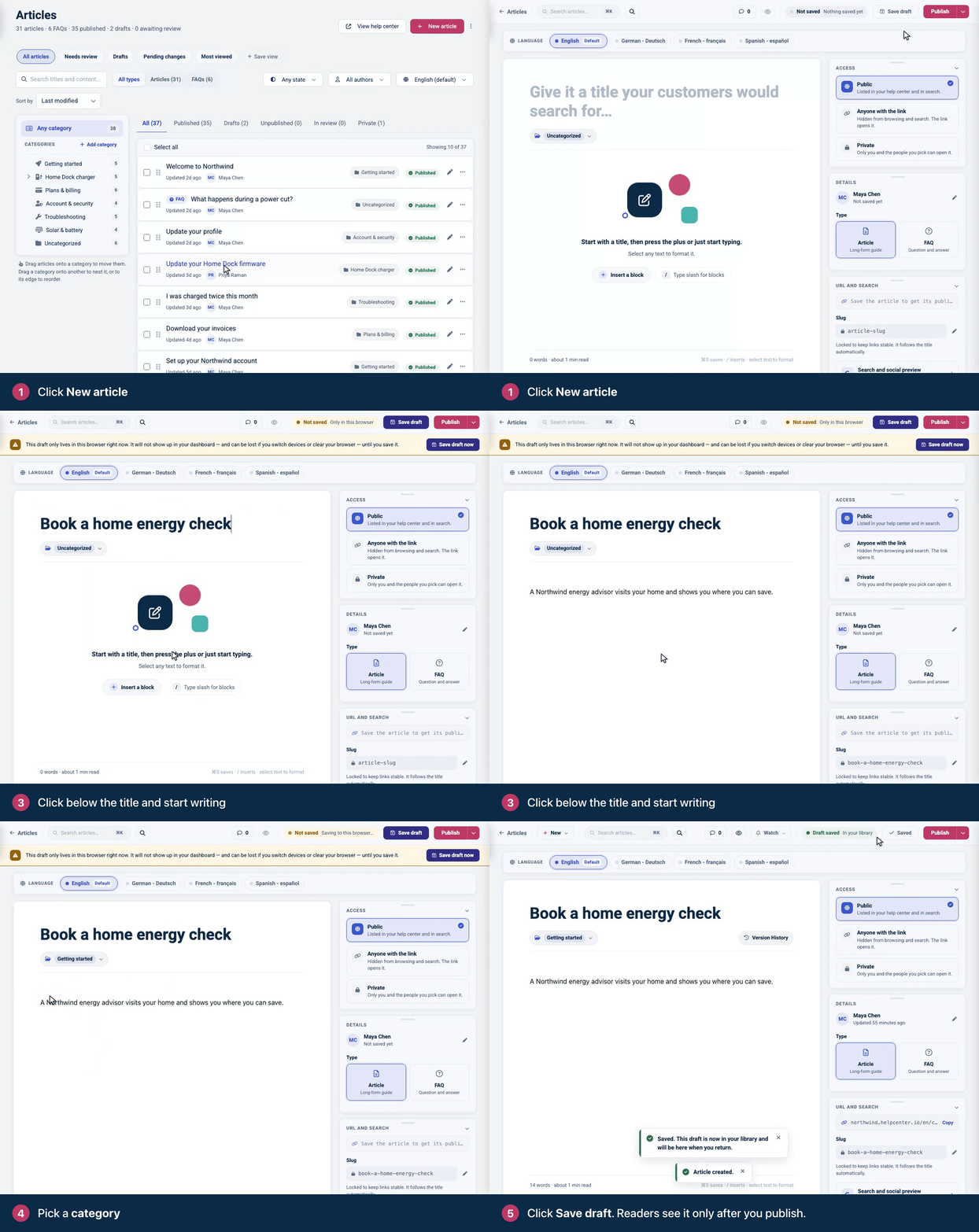
Your draft is now saved in your library, where your team can find it. Readers can't see it yet.
Publish it
When the article is ready, click Publish.
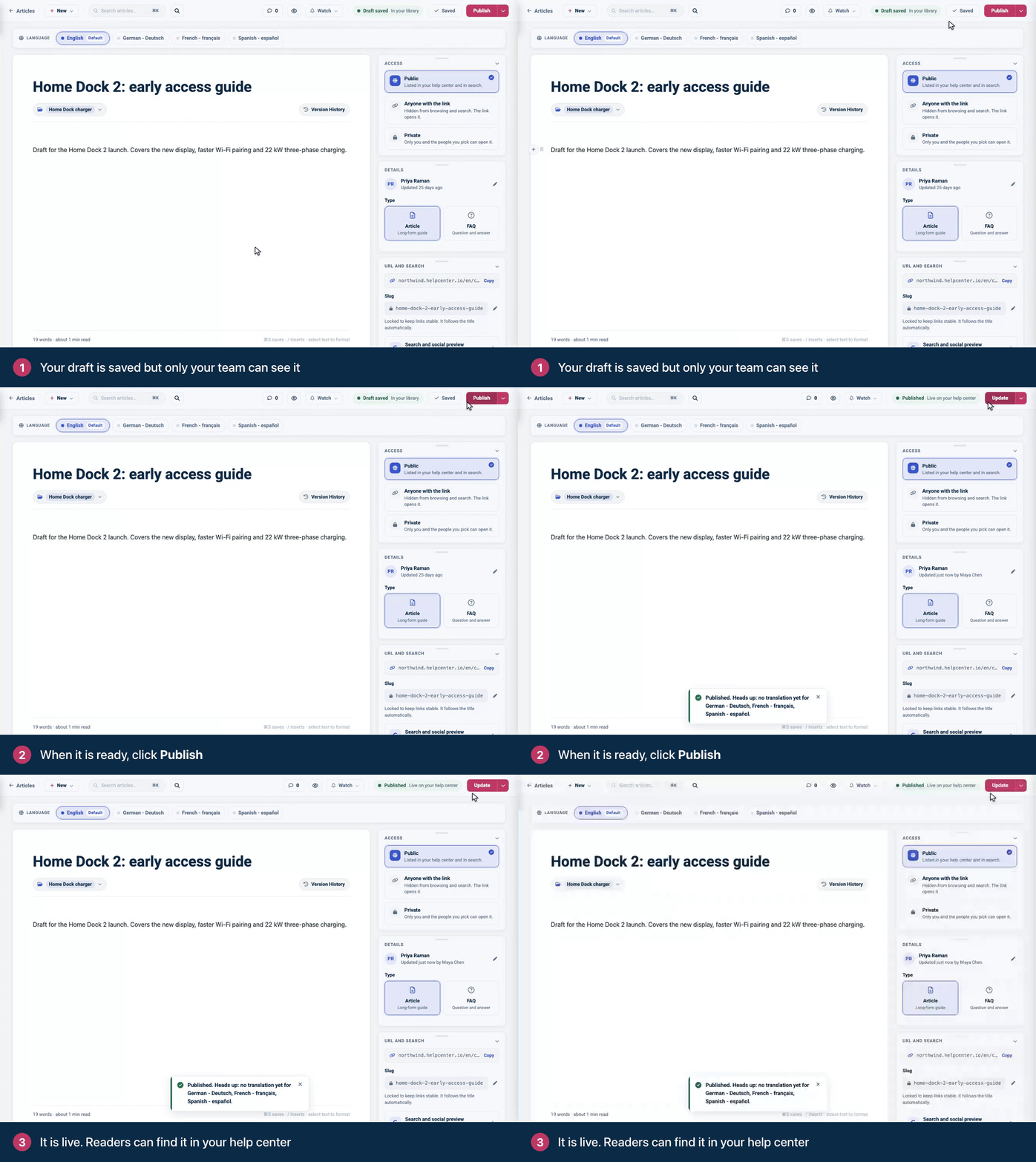
Is your help center still private? New help centers start private, so only your team can read your articles for now. When you're ready for customers, make your help center public.
Tips for a great first article
One task per article. "Change your password" and "Delete your account" are two articles, not one.
Steps as a numbered list. Give each step one action, and name buttons exactly as they appear on screen.
Show it. Add a screenshot or GIF where a step is hard to picture: type
/and choose Image.Preview before you publish. Click the eye icon at the top of the editor to see the article the way readers will.
Keep going. Use the New menu at the top of the editor to start your next article without going back to the list.
For more on writing articles people finish reading, see How to write help articles people actually read.
Troubleshooting
"Title is required. Please add a title before saving the article." Add a title, then click Save draft again.
Readers can't see the article. Check that it's published, that your help center is public, and that its category isn't private. See Someone can't see an article or the help center.
Comments
Be the first to comment.