

The article editor is where you write, format and publish your help articles. Here's what each part of the screen does, so you always know where to find a tool.
Who can do this: Owners, Admins and Editors (Translators work in your other languages) · Plans: All plans
Open the editor
A new article: go to Articles and click New article.
An existing article: open the … menu on its row and choose Edit article. Or click the row, then Open in editor.
Write in the canvas
The canvas in the middle of the screen is your article.
Type a title at the top. Use the words your customers would search for.
Pick a category from the pill under the title.
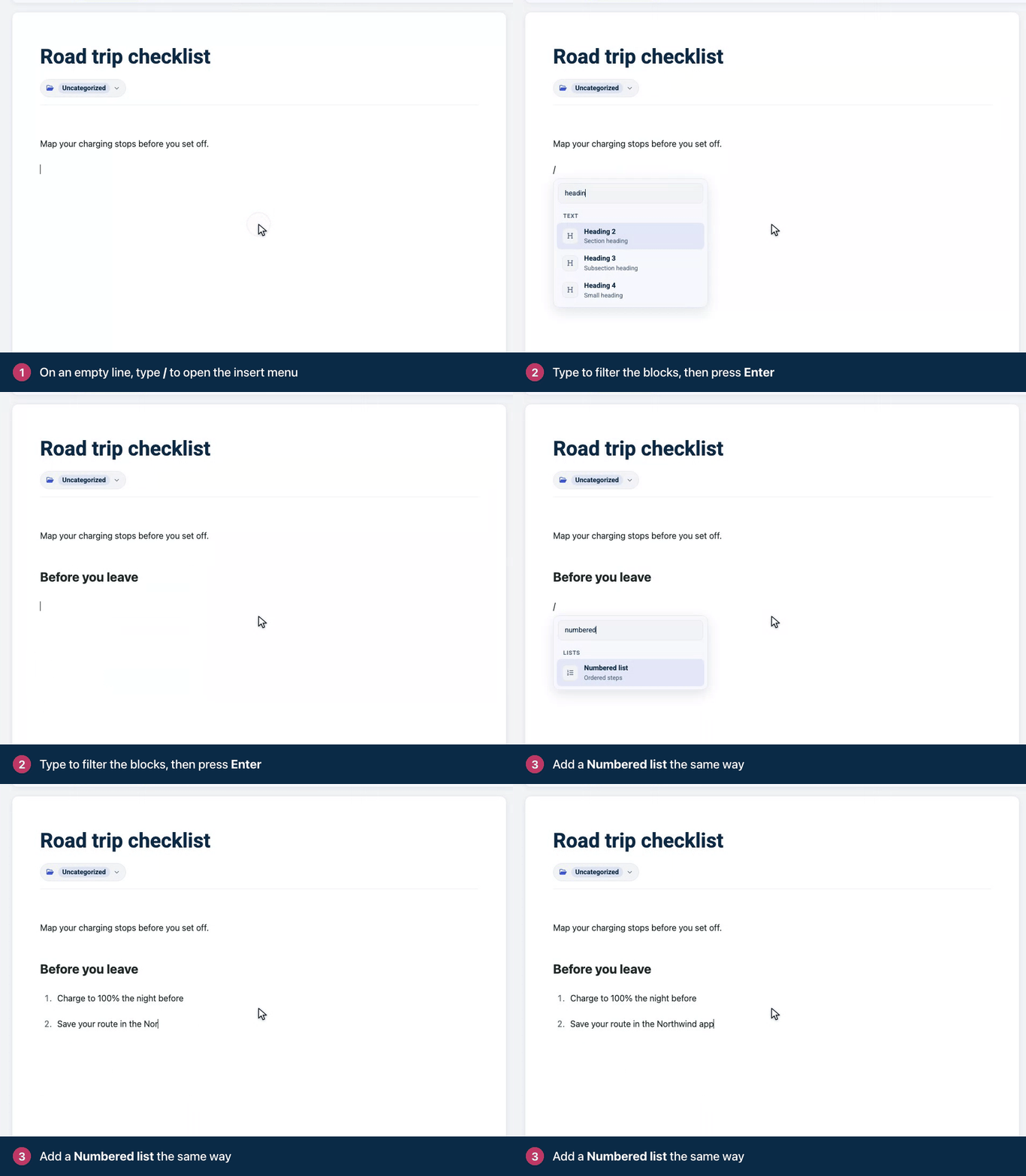
Click below the title and start writing. On an empty line, type
/to insert a block, such as a heading, a list, an image or a table.Select any text to format it or turn it into a link.
Once the article is saved, the Version History pill next to the category shows earlier versions. The line under the canvas counts your words and estimates the reading time.
The top bar
Articles (with the back arrow) returns to your article list.
New starts another article in a new tab: Blank article, From a template or Duplicate this article. It appears once the article is saved. A duplicate is a draft titled with "Copy" after the original title, in the same categories. You can also duplicate an article from its row on the Articles page: see See article details and make quick edits.
Search articles… finds and opens another article. Press ⌘K (Ctrl+K on Windows) to open it from anywhere in the editor.
The speech bubble with a number opens Comments: your team's comments and the ones readers left.
The eye icon (Preview article) opens the saved article in a new tab, the way readers will see it.
Watch notifies you when someone changes the article.
The status pill shows if your work is saved and live (see the table below).
Save draft saves your work without publishing it. On a published article, it only appears if your help center uses staged changes.
Publish makes a draft live. On a published article the button reads Update, or Publish changes when you have staged changes. The arrow next to it (More publish actions) holds Insert template, Save as template, the review options, Unpublish (back to draft) and Move to trash.
What the status pill means
Status | What it means |
|---|---|
Not saved | The article only exists in this browser. Click Save draft to keep it. |
Unsaved changes | You changed a saved draft. Click Save draft to keep the changes. |
Draft saved | Saved to your account, and not published. |
Published | Live on your help center. |
Unpublished edits | The article is live, but your latest edits aren't. Click Update to publish them. |
Staged changes | Only on help centers that use staged changes: your edits are saved, and readers still see the live version until you publish them. |
A brand-new article stays in this browser until you save it, and a banner reminds you. If you switch devices or clear your browser first, the draft is lost, so save early.
The right-hand panel
Card | What you do there |
|---|---|
Access | Choose who can read the article: Public, Anyone with the link or Private. |
Details | See the author and when the article was last updated, and by whom if it was someone else. To change the author, click the pencil icon (Change author) next to their name and pick a teammate. The change is kept when you next save or update the article. Set the type: Article or FAQ. Translators can't change the author or the type. |
URL and search | Copy the article's link, change its slug, and set the title and description search engines show. |
Attachments | See the files attached to the article and add more. |
Related FAQs | Write or attach short questions and answers that belong with the article. |
AI writing help | Draft the search title and description, suggest a slug, write alt text and check the structure. Catalyst plan, or the AI add-on on Bootstrap and Growth. |
Drag a card by its grip to rearrange the panel. The editor remembers your layout.
Work in your other languages
If your help center has more than one language, a Language bar sits above the canvas. Click a language to write that version. The Released switch decides when readers can see a translation. See Translate an article.
Comments
Be the first to comment.