

When a page on your help center moves or goes away, send its old address somewhere useful instead of a not-found page. A custom redirect takes readers, and search engines, from an old path on your help center to any URL you choose.
Who can do this: Owners and Admins · Plans: All plans
Add a redirect
In the left menu, click the gear icon, then Settings.
Under Custom redirects, click Add redirect.
In From path, type the old path without a leading slash. For
https://help.example.com/docs/pricing-2024, typedocs/pricing-2024.In To URL, enter the full address of the page it should open, starting with
https://. For example:https://help.example.com/content/plans-and-prices.Click Save redirect.
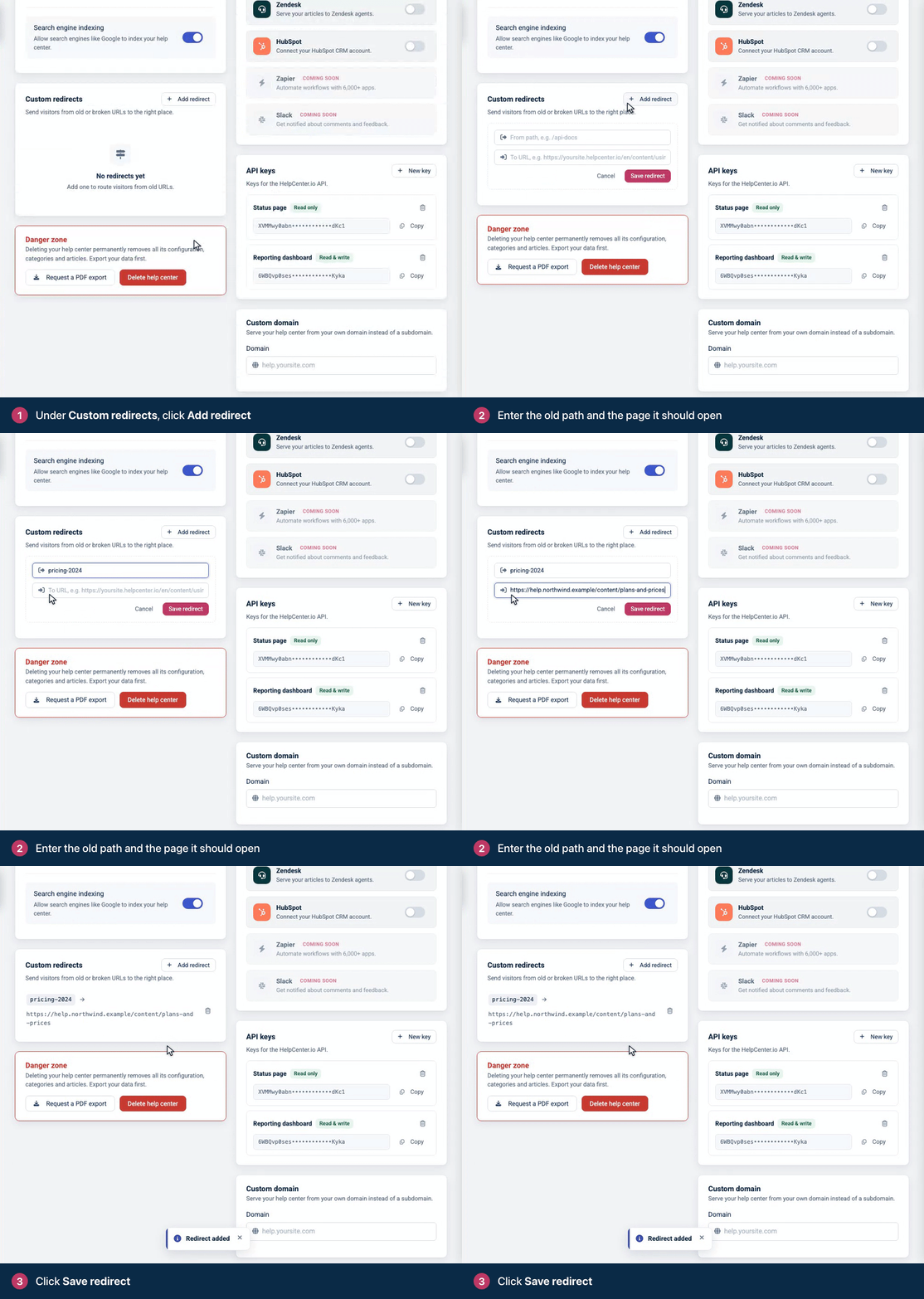
You'll see "Redirect added", and the new redirect appears in the list as old path → new URL.
Type the path without a leading slash. The From path field's example shows one (/api-docs), but a path saved with a leading slash never matches. Type docs/api, not /docs/api. Also leave out your domain, any slash at the end, and anything from a question mark on. If you've already saved a redirect with a leading slash, delete it and add it again without the slash.
How redirects work
They only run on not-found pages. A redirect kicks in when nothing else lives at the old path. If a published article or category still uses that address, readers see it instead.
They're permanent. HelpCenter.io answers with a 301 redirect, which tells search engines the page has moved for good.
They can point anywhere: another article in your help center, a page on your website, or another site.
A path needs at least two parts. A one-part path like
pricing-2024opens your home page instead of the not-found page, so a redirect saved for it never fires. Paths with a slash in the middle, likedocs/pricing-2024orcontent/old-article, work.One redirect per path. Adding a redirect for a path that already has one replaces its destination.
Copy the path exactly as it appears after your domain. On help centers with more than one language, every article and category path starts with a language code, your default language's included, for example
en/content/pricingorde/content/preise. An address without the code, likecontent/pricing, is sent on to its language version first, so a redirect saved without the code never fires.
To delete a redirect, click the trash icon next to it. When your list grows long, a search box appears so you can find a redirect by its path or destination.
Redirects HelpCenter.io handles for you
Changed article URLs. When you change an article's URL, its old address keeps working and sends readers to the new one. See Set an article's search title, description and URL.
Deleted articles. In Trash, open a deleted article's menu and choose Create redirect to send its old address to a full URL of your choice. See Delete and restore articles.
Unpublished articles show a not-found page. To send their readers elsewhere, add a custom redirect for the article's path, like
content/old-article. See Unpublish an article.
Custom redirects only work on your help center's current address. If you rename your subdomain, the old helpcenter.io address can't be redirected. See Change your help center's address.
What readers see on a missing page
When an address matches nothing and has no redirect, readers get your help center's not-found page: "We couldn't find that page", with Go to homepage and Search buttons. This works on every plan.
If the address looks like an article link, the page also lists up to three articles with similar URLs under "Were you looking for one of these?". Readers choose where to go: nobody is forwarded to a guess. There are no suggestions when the link names one of your own articles that readers can't open, for example an unpublished or private one, so add a redirect for it if it should lead somewhere.
To add your own content to this page, edit the Not found page in the template editor. See Pages, regions and shared headers explained.
Troubleshooting
The redirect doesn't fire. Check the path in the list. If it starts with a slash, delete it and add it again without one. If it has only one part, like pricing-2024, it can't fire: readers land on your home page. Make sure a published page doesn't still live at that path, and that the path doesn't include your domain or a question mark.
"The to field must be a valid URL." Enter a full address, starting with https://.
You see "Fill in both fields first". Both From path and To URL need a value.
Comments
Be the first to comment.