

Reader comments turn articles into conversations: questions, tips and corrections from the people who use them. You choose whether new comments wait for your approval, and you approve, answer or remove them from the Comments page.
Who can do this: Owners, Admins and Editors (deleting and recovering comments: Owners and Admins) · Plans: All plans
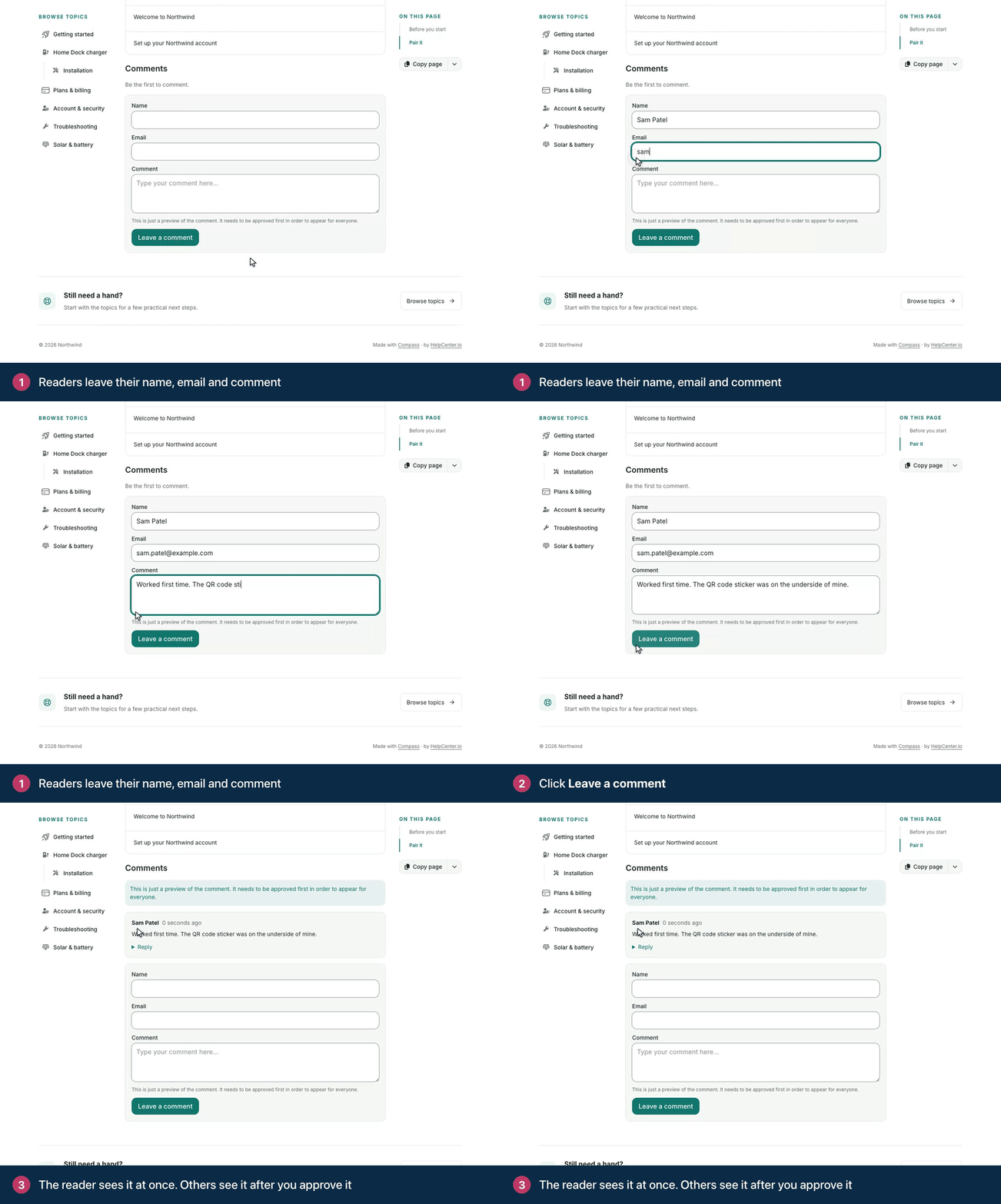
How readers comment
Readers can comment when your article page has the Comments component. See How do I turn on reader comments?
Readers fill in their Name, Email and Comment and click Leave a comment. Signed-in readers comment under their account. The reader sees their comment at once. When Require approval is on for the Comments component, the form notes that it needs to be approved before it appears for everyone. When it's off, the comment is published straight away.
Readers can also click Reply under any published comment. Replies show under the comment they answer and follow the same approval setting. A reply to a reply shows in the same thread, with an In reply to link to the comment it answers.
Approve and answer comments
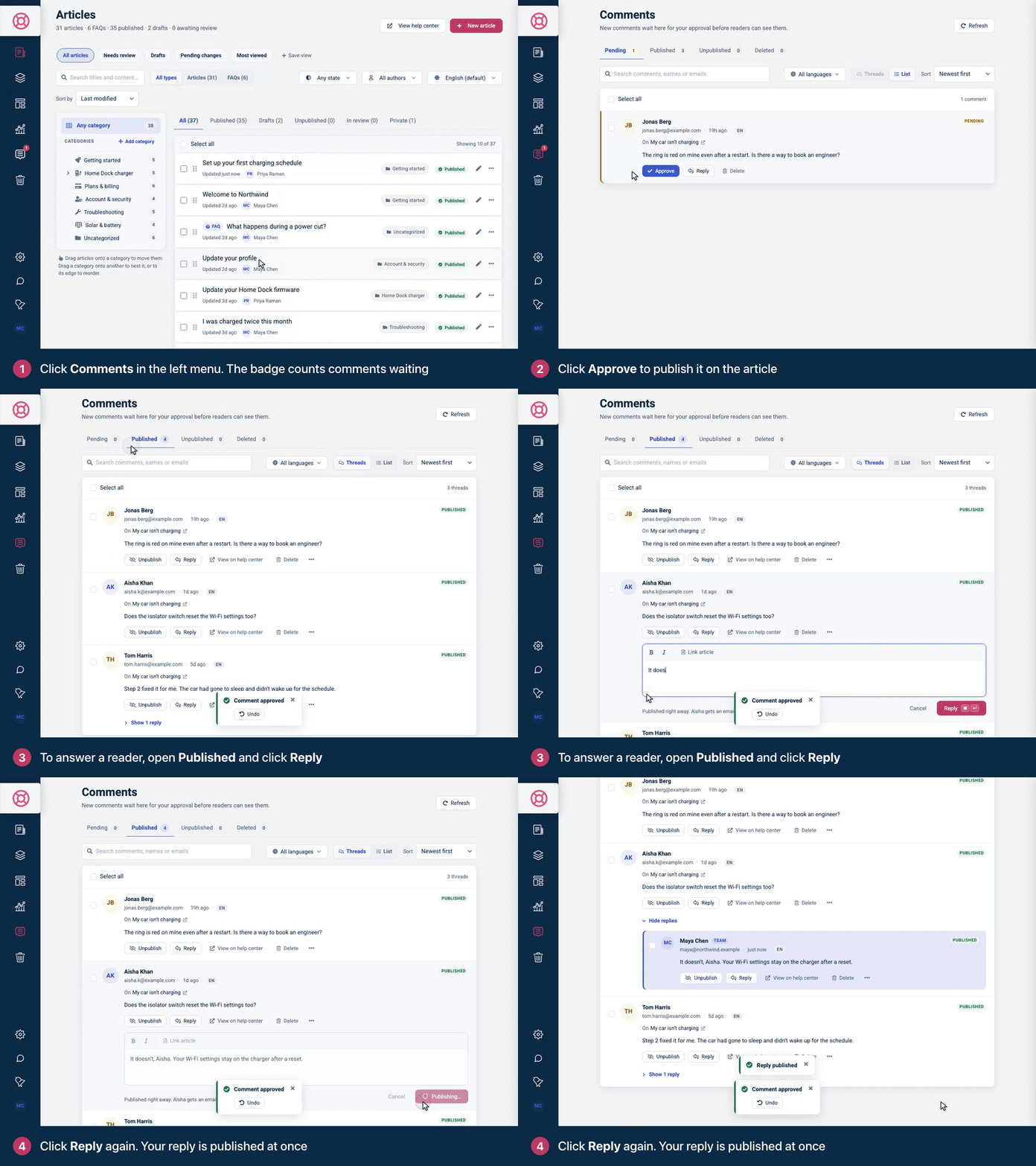
In the left menu, click Comments. The badge shows how many comments are waiting.
Comments waiting for approval are listed under Pending, each with the article it was left on.
Click Approve to publish a comment on the article.
To answer, click Reply, write your answer and click Reply again. Your reply is published at once, under the reader's comment.
Comments appears in the left menu once you publish a design that has the Comments component. If it isn't there, publish a design that has it. See Add ratings and comments to articles.
Find comments
Each tab shows how many comments it holds: Pending, Published, Unpublished and Deleted. Above the list you can:
search the text of comments and commenters' names and email addresses,
pick a language, or All languages, if your help center has more than one. The menu shows how many comments wait in each language,
sort by Newest first or Oldest first,
switch between Threads, which shows each comment with its replies, and List. Pending and deleted comments, and search results, are always listed one by one,
click Refresh to load new comments.
To see one article's comments, open the article in the editor and click All comments in its comments panel. The Comments page opens with only that article's comments. Clear the filter to see them all again.
Other actions
Action | What it does |
|---|---|
Unpublish | Takes a published comment off the article and moves it to Unpublished. Publish brings it back. |
Move back to pending | In the row's menu. Returns a published or unpublished comment to Pending. |
Delete | Moves the comment to Deleted. If it has replies, readers see "This comment was deleted." in its place. |
Restore | Brings a deleted comment back. |
Delete permanently | Removes a deleted comment for good. It appears only for comments that never had replies. |
View on help center | Opens a published comment on the article. |
After you approve, publish, unpublish or delete a comment, click Undo in the confirmation within ten seconds to reverse it.
To handle several comments at once, tick them, or tick Select all, then pick an action from the bar that appears: approve, publish, unpublish, delete or restore, depending on the tab.
When you reply, you can format your answer in bold or italic and link to one of your articles. Replying to a pending comment shows an Also approve tick, so the reader's comment and your answer go live together.
Editors can approve, unpublish and reply. Deleting, restoring and permanently deleting comments are for Owners and Admins.
Emails about comments
When a reader comments on an article, the article's author gets an email: "A new comment has been posted".
When a reply to a reader's comment is published, the reader gets "Your comment got a reply". Readers can unsubscribe from these emails.
You can also list, approve and answer comments from an AI assistant. See What AI agents can do in your help center.
Troubleshooting
Readers can't see a comment form. Add the Comments component to your article page in the template editor and publish your design. See Add ratings and comments to articles.
Approved comments don't appear under the article. Check that Show comments below the article is on for the Comments component. When it's off, readers can still comment, and you read the comments here.
Comments
Be the first to comment.