

Link words in an article to another article in your help center, or to any website. You can find and link your own articles without leaving the editor, and those links keep working when you rename an article.
Who can do this: Owners, Admins and Editors · Plans: All plans
Link to another article
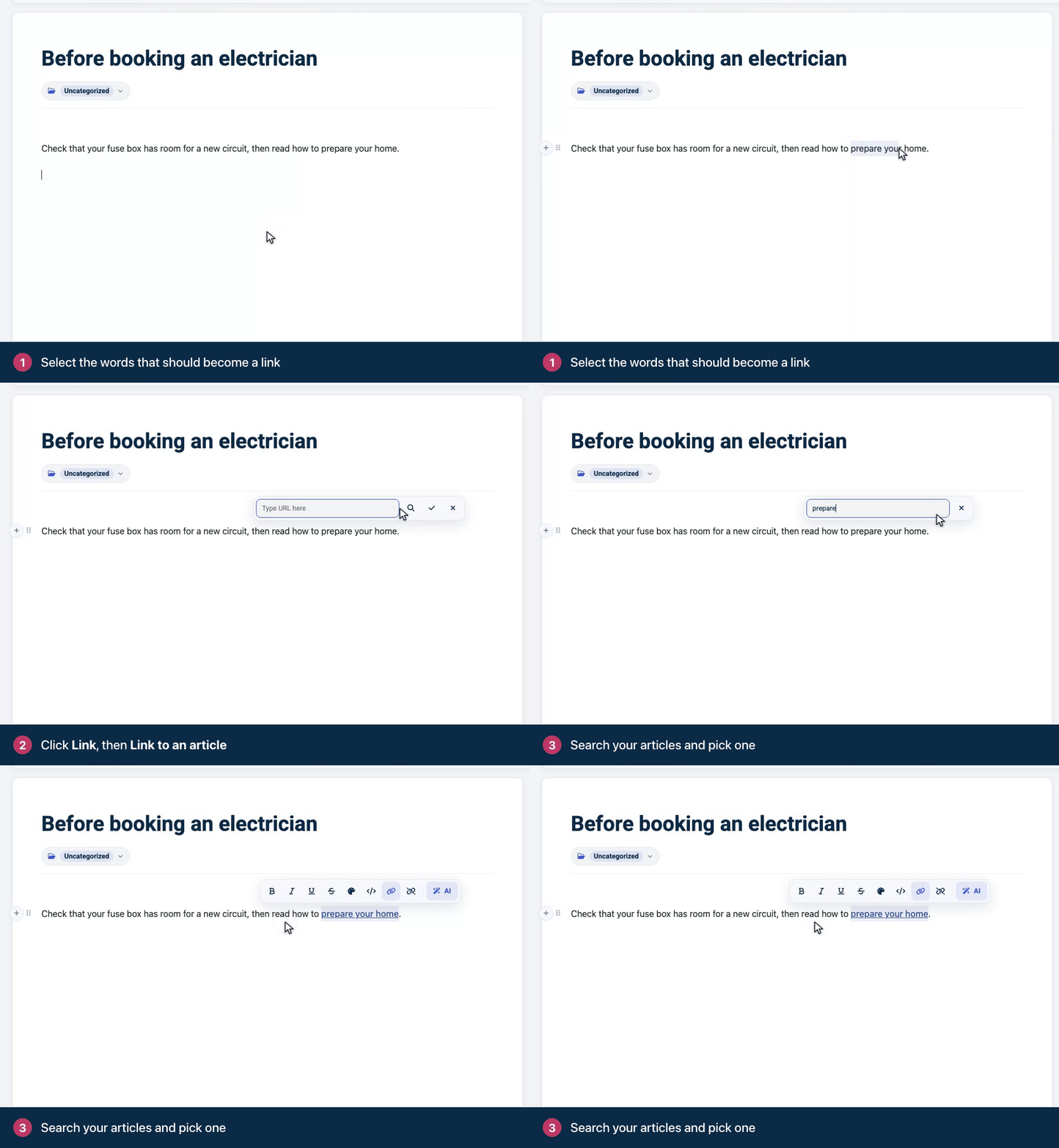
Select the words that should become the link.
Click Link in the toolbar that appears.
Click the magnifying glass (Link to an article).
Type part of the article's title, then click the article in the results.
Drafts appear in the results with a draft label. You can link to a draft, but readers can't open it until you publish it.
Link to a website
Select the words that should become the link.
Click Link.
Paste the full address, starting with
https://, and press Enter.
Faster: with the words selected, paste a web address and they become a link straight away. To link an email address, type mailto: in front of it, for example mailto:support@example.com.
Change or remove a link
Change it: select the linked text and click Link. Edit the address and press Enter.
Remove it: select the linked text and click Remove link. The words stay, without the link.
Links don't open when you click them in the editor. To test them, preview the article.
Show a link as a card
To point readers to another article more visibly, add an Article link block: type /article on an empty line, press Enter, then search for the article and pick it. Readers see a card with the article's title, a short summary, its category and the reading time.
How links behave for readers
Links to other websites open in a new tab, and so do links you add with Link to an article.
When an article's address changes, for example because you renamed it, the old address redirects to the new one. Links you added before the change keep working, and article cards always show the current title.
Your help center adds
nofollowto links to other websites, which tells search engines not to pass ranking credit to them. To change this, or to exempt your own sites, open the Template editor → Brand and use Nofollow external links and Whitelisted domains.
Troubleshooting
A link opens a "page not found" page on my help center. The address probably doesn't start with https://, so it's treated as a page on your help center. Edit the link and add https:// at the start.
A link points to an article I deleted. Readers get a "page not found" page. Restore the article from Trash, update the link, or send the old address somewhere useful with a redirect. See Redirect old links to the right page.
Comments
Be the first to comment.