

Select any text and a toolbar appears with everything you need to format it: bold, italic, color, inline code, links and more. Good formatting helps readers scan an article and find the step they need.
Who can do this: Owners, Admins and Editors · Plans: All plans (AI rewrites: Catalyst plan, or the AI add-on on Bootstrap and Growth)
Format text
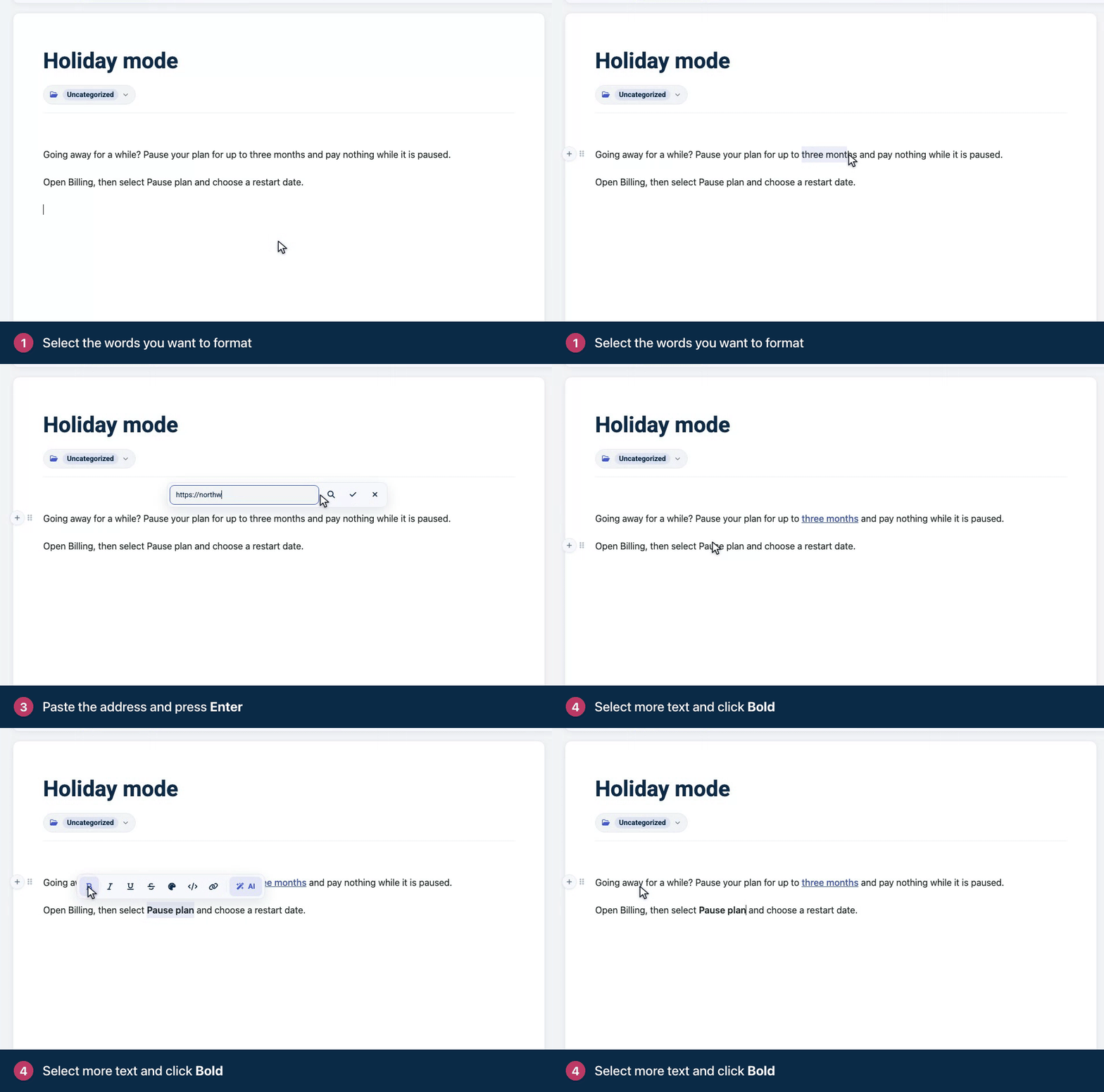
Select the words you want to format. A toolbar appears above them.
To add a link, click Link, paste the address and press Enter.
To make text bold, select it and click Bold. The other buttons work the same way.
What each button does
Point at a button to see its name.
Button | What it does | Shortcut (Mac / Windows) |
|---|---|---|
Bold | Makes text bold. | ⌘B / Ctrl+B |
Italic | Makes text italic. | ⌘I / Ctrl+I |
Underline | Underlines text. | ⌘U / Ctrl+U |
Strikethrough | Draws a line through text. | ⌘⇧S / Ctrl+Shift+S |
Text color | Colors text with one of six colors. Remove color takes it off again. In dark mode, colored text is lightened on your help center so it stays readable, keeping its hue. | None |
Inline code | Shows text in a code font, for commands, file names and values readers type. | ⌘E / Ctrl+E |
Link | Links text to a web address or another article. On linked text, Remove link appears too. | None |
AI | Rewrites the selection: Improve writing, Fix spelling and grammar, Make shorter, Make longer, Match our brand voice or Simplify. | None |
Comment on this selection (team only) | Starts a comment for your team on the selected words. Available once the article is saved. | None |
The toolbar doesn't appear inside a code block, because a code block holds plain code.
Rewrite with AI
Select the text and click AI.
Choose what you want, for example Make shorter.
Compare the suggestion with your text. Nothing changes until you click Replace. Discard keeps your text as it was.
Without AI writing help on your plan, the AI button explains how to get it. See Write faster with AI writing help.
Clear formatting
Select text and press ⌘\ (Ctrl+\ on Windows) to remove all its formatting at once: bold, italic, underline, strikethrough, inline code, color and links. Headings and list items in the selection turn back into plain paragraphs.
Keep formatting light
Save bold for button and menu names, and for the one warning a reader must not miss.
Avoid underlining. Readers expect underlined text to be a link.
Use headings, not bold lines, to split an article into sections. Headings build the table of contents.
Put tips and warnings in a callout instead of coloring the text. Color alone means nothing to someone using a screen reader.
Comments
Be the first to comment.