

Let AI draft a translation of an article in the language you pick, then review it, polish it and release it. Nothing reaches readers until you turn on Released.
Who can do this: Owners, Admins, Editors and Translators · Plans: Catalyst (the AI add-on for Bootstrap and Growth doesn't include translation)
Translate an article with AI
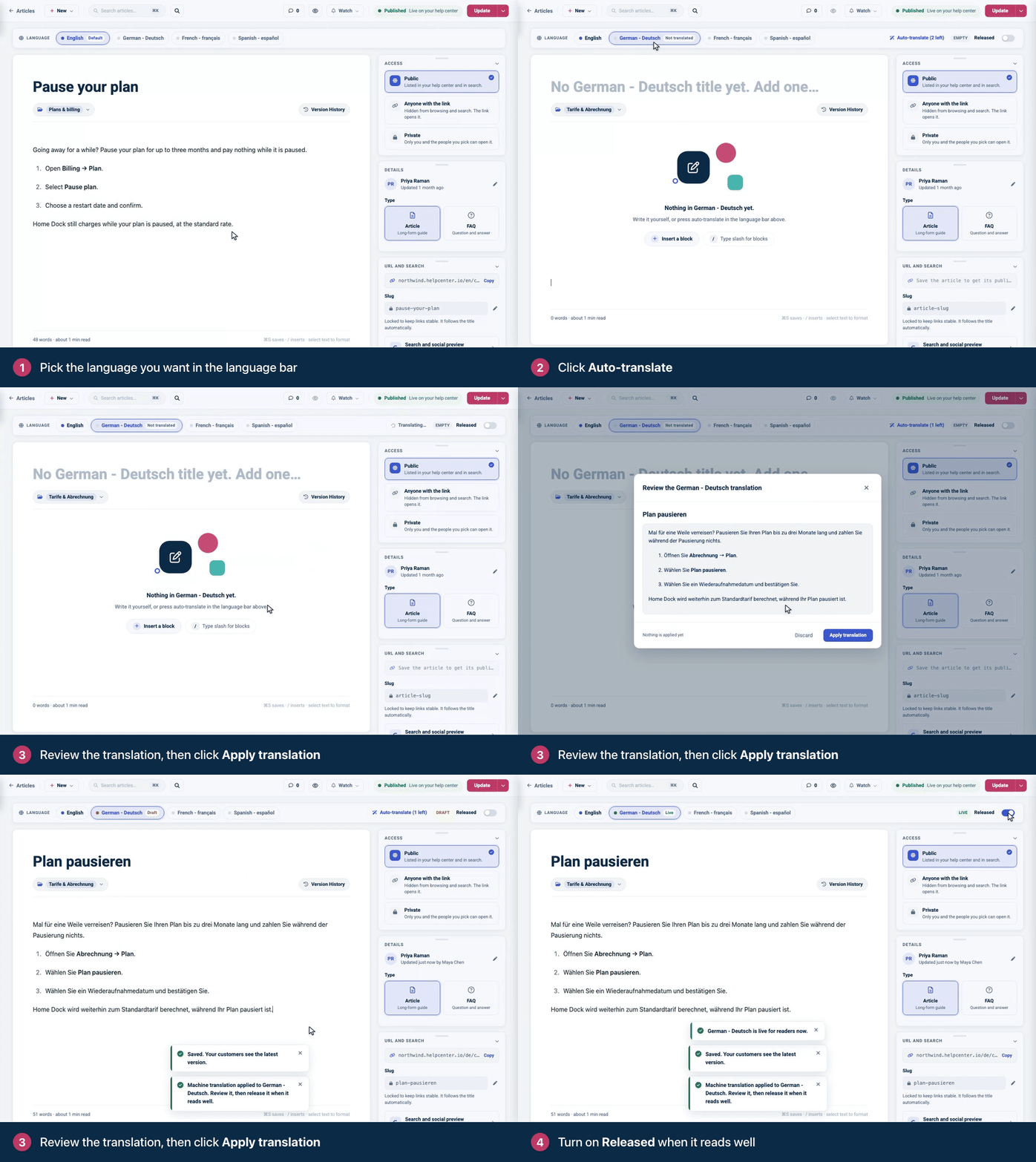
Open the article in the editor. If it's new, save it first.
In the Language bar above the title, click the language you want.
Click Auto-translate, then Start translation.
When the draft is ready, it opens in a review window. Read it through: nothing is applied yet.
Click Apply translation to put the draft into the article, or Discard to drop it.
Read the translation in the editor and fix anything that doesn't sound right.
Turn on Released when it reads well.
The translation got something wrong? In the review window, click Report a problem, describe what's wrong in a sentence or two (10 to 1000 characters), and click Send report. The report goes to the HelpCenter.io team, so we can make future translations better. You're taken back to the review, where you can still apply or discard the draft. Back to the translation returns without sending.
AI translates the title and the text from your default language, or from the language the article was written in if its tab is marked Source. After you apply it, open URL and search in the right-hand panel to check that language's slug and search snippet.
If your help center uses staged changes and the article is live, the applied translation and its release go live when you click Publish changes.
Keep translations up to date
When someone edits the default-language version after a translation was made, that language's tab shows Outdated and the button becomes Update translation.
Click the language, then Update translation.
Confirm with Update translation. AI re-translates only the sections that changed and leaves the rest, including wording you polished, as it is.
Review the draft and click Apply translation, the same as before.
If that language is already released and the article is published, the update goes live as soon as you apply it (on help centers with staged changes, when you click Publish changes).
A translation made before HelpCenter.io started tracking changes has no record of its source, so its first update re-translates the whole article. After that, updates touch only what changed.
Daily limits
Each article has a daily allowance of auto-translations and a separate, larger allowance of updates. The button shows how many you have left today. When you reach the limit, try again the next day, or translate by hand.
Troubleshooting
There's no Auto-translate button. AI translation is part of the Catalyst plan. The button also doesn't show on your default language, or on a language that is already released and up to date.
"Please save the article first before translating it." Save the article, then try again.
"Cannot translate the default language." Pick another language in the language bar. AI translates from your default language into the others.
"Source language does not have complete content to translate from." Give the default-language version a title and text first.
"Daily translation limit reached." You've used today's allowance for this article. Try again tomorrow.
Comments
Be the first to comment.