

Translate an article by hand, one language at a time. Each translation has its own title, text and web address, and readers see it only after you release it.
Who can do this: Owners, Admins, Editors and Translators · Plans: Growth and Catalyst
Translate an article
In Articles, open the article you want to translate.
In the Language bar above the title, click the language to translate into.
Type the translated title and text.
When it's ready for readers, turn on Released.
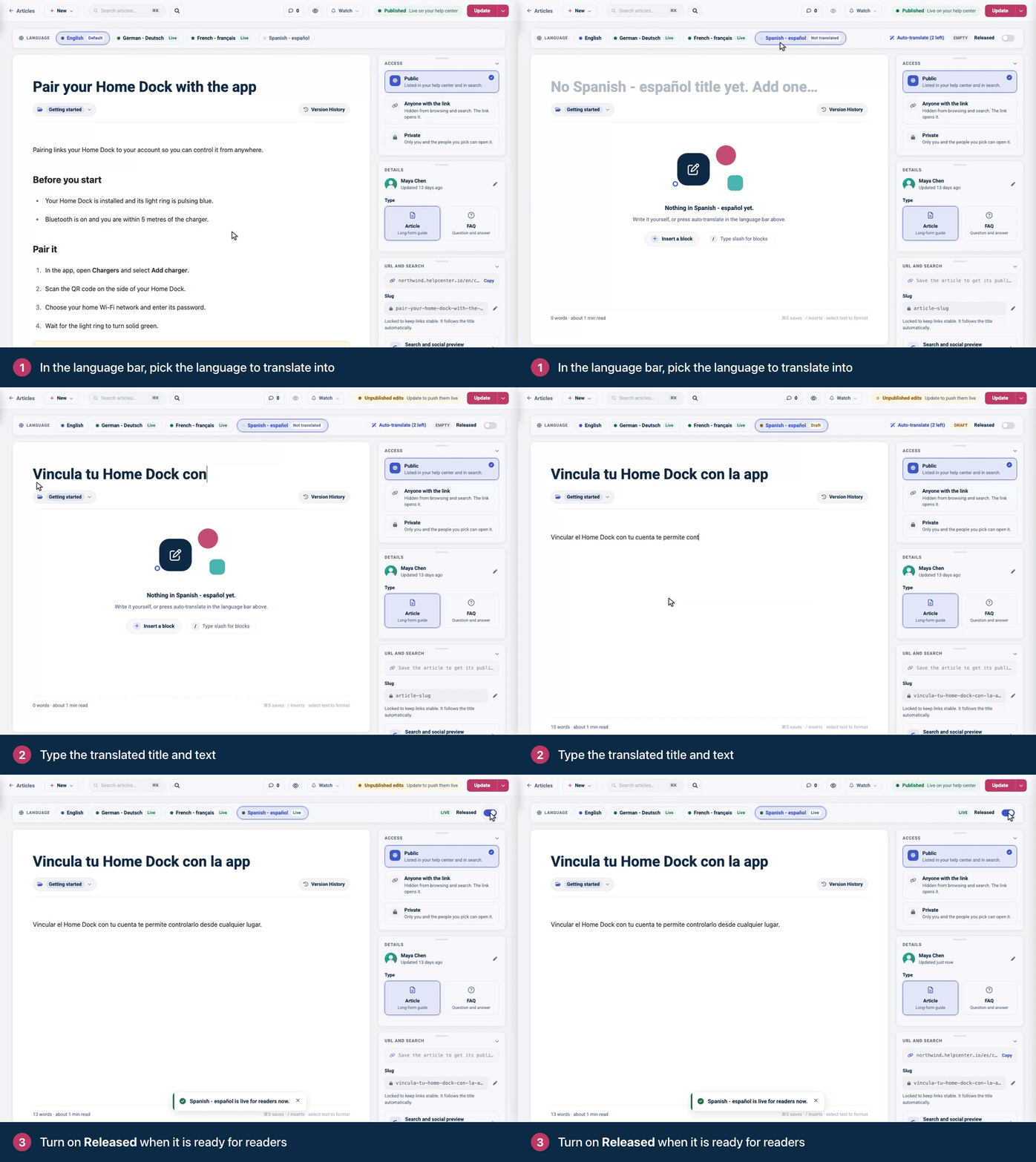
If the article is published and you have edits you haven't saved yet, turning Released on or off asks Publish your other edits too? Click Update and release (or Update and hide) to save everything and make those edits live too, or Cancel to change nothing. With nothing unsaved, the switch acts right away. If the article is published, readers can read the translation right away. If the article is still a draft, the translation goes live together with the article when you publish it.
To change a released translation later, edit it and click Update. If your help center uses staged changes, edits to a live article, including new translations and their release, go live when you click Publish changes.
What the language bar tells you
Label | Meaning |
|---|---|
Default | Your default language, the version other languages are translated from. |
Not translated | No title or text in this language yet. |
Draft | Translated but not released. Readers don't see it. |
Live | Released to readers. |
Outdated | The default-language version changed after this translation was saved. Check it and bring it up to date. |
Staged | This language has staged changes that aren't published yet. |
Source | The article was written in this language instead of your default one, so the other languages are translated from it. |
Set the web address and search snippet for each language
Each language has its own slug and search appearance. With the language selected in the bar, open URL and search in the right-hand panel. Change the Slug there, or open Search and social preview to set the title and description search engines show for that language.
Translate categories
Category names and descriptions are translated separately from articles.
In Articles, select the category in the sidebar, then click Edit category.
In the Editing bar at the top, click the language.
Type the translated name and description, then click Save followed by the language name, for example Save German.
A category you don't translate shows its default-language name and description.
Find articles that still need translating
In Articles, open the language menu (the globe button in the toolbar) and pick a language. The button shows how much of that language is released, for example German · 40%. In the list, articles without a released translation are marked Not translated, and translations whose default-language version has changed are marked Outdated.
Good to know
Translators can edit articles in your additional languages only. The default-language version stays read-only for them, and they can't change categories.
Unreleased translations stay hidden from readers, search and the widget.
Many translations waiting? Release them all at once from Localization. See Release translations and change your default language.
Want a first draft? On the Catalyst plan, AI can translate the article for you to review.
Troubleshooting
"Add a title and some content before releasing this translation." A translation needs both a title and text in that language before you can release it.
There's no language bar in the editor. The bar appears once your help center has more than one language. See Add a language to your help center.
The translation doesn't show on my help center. Check that the article is published and Released is on for that language. See A translation doesn't show.
Comments
Be the first to comment.