

Every article has its own access setting. Keep an article out of navigation and search and share it with a secret link, or limit it to a few teammates, while the rest of your help center stays as it is.
Who can do this: Owners, Admins and Editors
Change who can read an article
Open the article from Articles.
In the Access card on the right, choose Public, Anyone with the link or Private.
For Anyone with the link, click Copy link and share the link.
Click Update to apply the change to a live article.
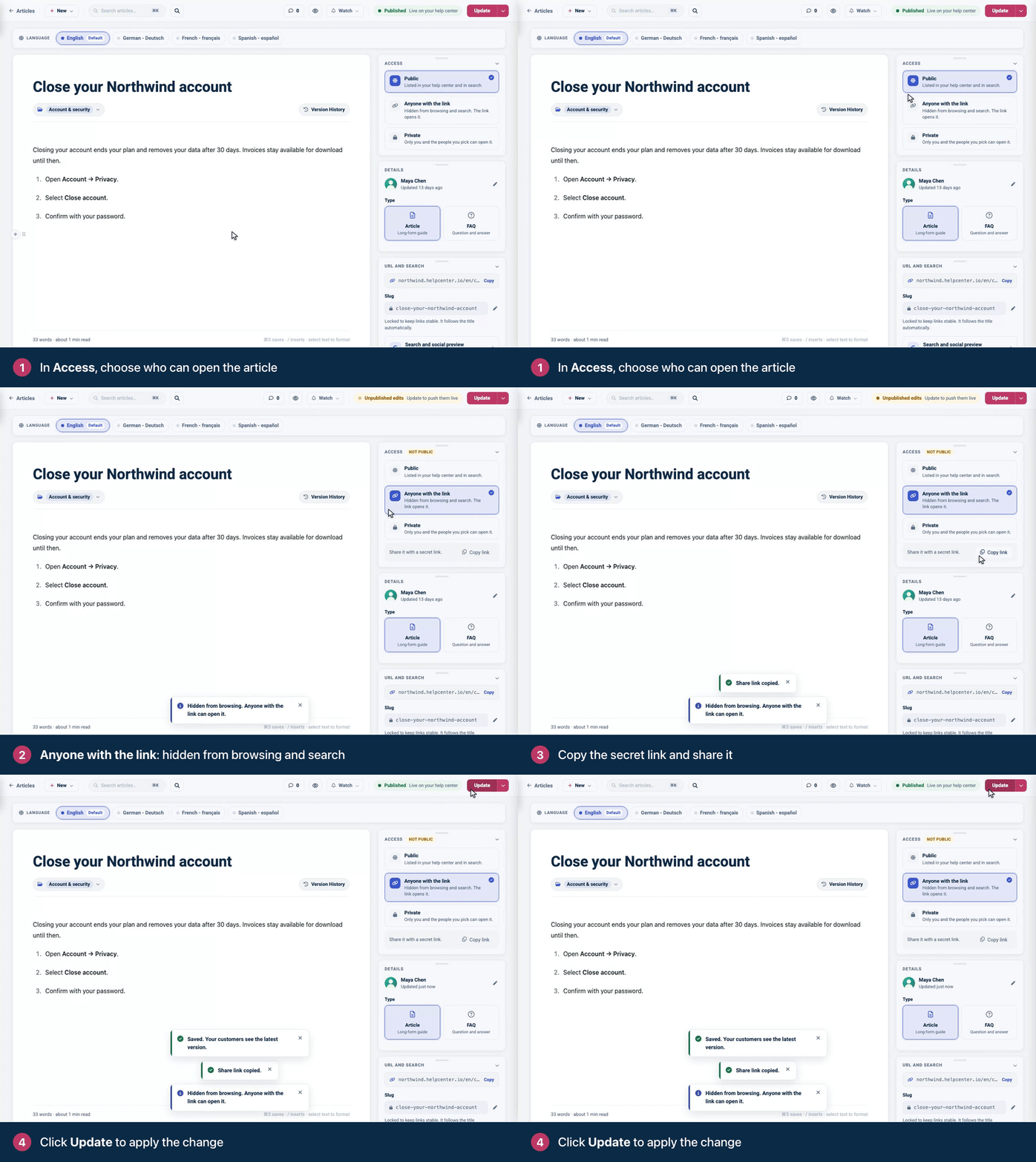
On a draft, the setting takes effect when you publish. On help centers that use staged changes, a change to a live article's access goes live when you click Publish changes.
The access options
Option | Who can open it | Listed and searchable |
|---|---|---|
Public | Anyone who can read your help center. This is the default. | Yes |
Anyone with the link | Anyone who has the secret link. It's the article's address with | No |
Private | The article's author and the teammates you pick, while they're signed in to HelpCenter.io. | No |
Share a private article with teammates
With Private selected, find Who has access in the Access card.
Pick a teammate and click Share. Repeat for each person.
Click Update, or save the draft.
To remove someone, click the × next to their name. The line under the list tells you how many people can open the article.
Good to know
A private article is hidden from everyone else on your team too, Owners and Admins included, in the dashboard as well as on your help center.
Switching an article from Anyone with the link to Private stops its secret link from working.
The article's category still applies. A public article in a category that isn't shared with everybody is only visible to the people who can see that category. See Make a category private.
On the Articles page, the Private tab lists both private and link-only articles.
Translators can see who has access but can't change it.
To make your whole help center private or password-protected, see Control who can see your help center.
Troubleshooting
Someone can't open the article. Check the article's access, its category and your help center's visibility. See Someone can't see an article or the help center.
Comments
Be the first to comment.